This article explains the confirmation email Refari automatically sends your candidates when they register with you, and how to open your Communications log to see every email that has gone out, exactly as the recipient received it. If a candidate ever asks "did my registration go through?", or you simply want to know what your candidates are being sent on your behalf, this is the place to look.
The confirmation email candidates receive when they register
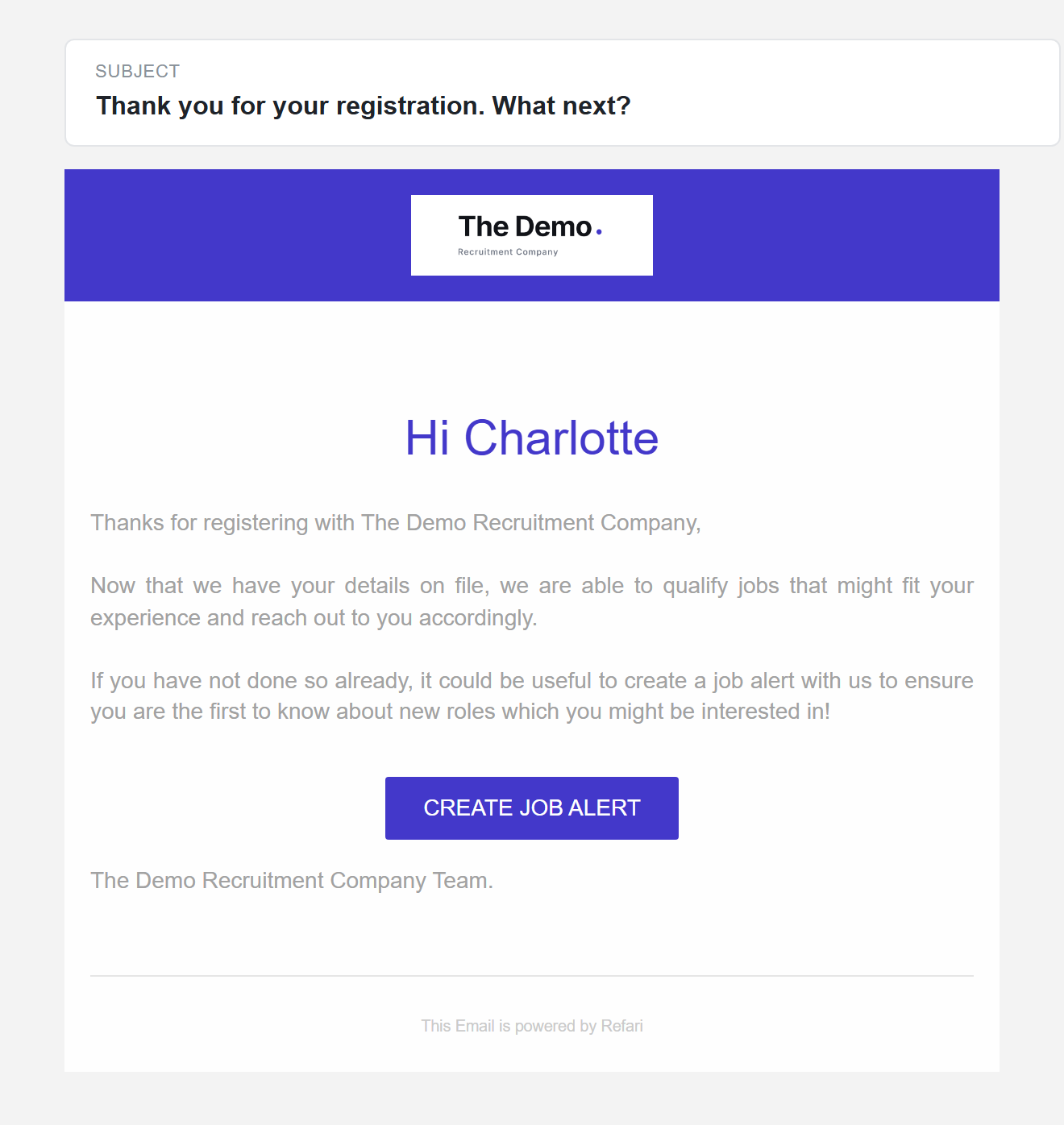
When a new candidate registers through your Register With Us widget (the registration form on your website), Refari automatically sends them a short, friendly thank-you email. They receive it whether they registered with a resume attached or just their details, and the subject line reflects which one it was: "Thank you for your resume. What next?" or "Thank you for your registration. What next?".
The email does three simple things:
- Thanks the candidate for registering with your company, by name.
- Confirms their details (and resume, where they attached one) are on file, so your team can match them to suitable roles.
- Invites them to create a job alert with you, so they are the first to hear about new roles that fit.
Note: This welcome email goes to new candidates. A candidate who goes on to set up a job alert as part of registering receives the job alert confirmation instead, so they are never sent both.Seeing exactly what was sent: your Communications log
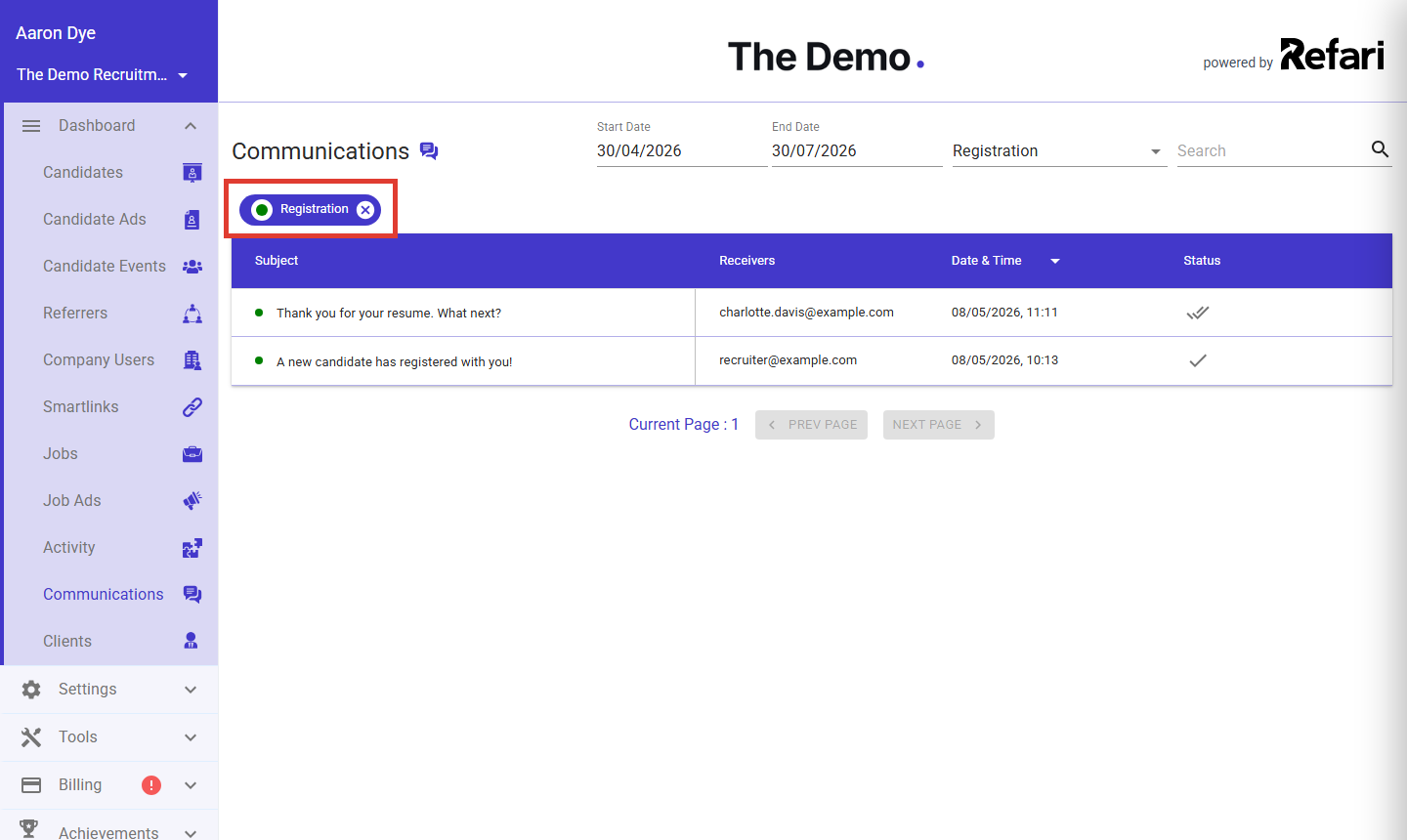
The Communications log is a full history of the emails Refari has sent on your company's behalf: candidate confirmations, referrer updates, job alerts, testimonial requests and your own team's internal notifications. You will find it in your dashboard's left menu under "Dashboard > Communications".
From there you can:
- Search and filter. Search by recipient, set a date range (the log opens showing the last three months), and tick the email types you want to see. Ticking just Registration shows the candidate confirmation emails covered above.
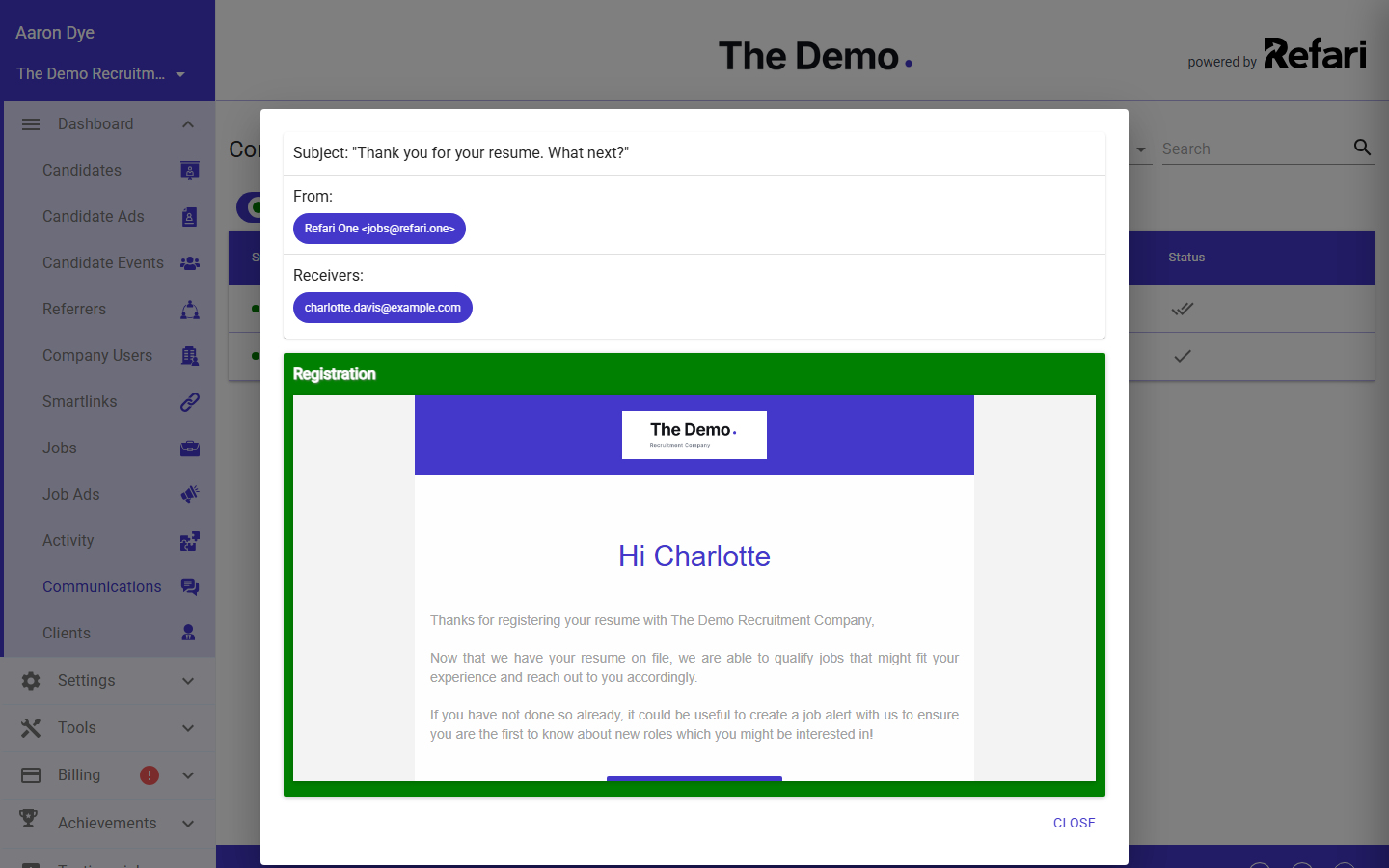
- Open the actual email. Click any entry to preview the email exactly as it was delivered, in your branding, with the real content the recipient saw.
- Check delivery. Each entry carries its delivery status, so you can confirm whether an email was delivered, opened or clicked.
Note: The Communications page is available to a Company Admin or Company Manager. Other team members do not see it in their dashboard.The log also shows the behind-the-scenes notifications your own team receives, such as the alert that a new candidate has registered. If you want to change which of those internal notifications are sent and who receives them, that is controlled separately on the Emails tab of your Company Settings, explained in Managing your email notifications ↗.
Can you change the wording?
The candidate confirmation email is a standard Refari template. It is deliberately short, sent in your company's branding, and its wording is not currently something you can edit yourself from your dashboard.
If the wording matters to your team, let us know what you would like it to say by reaching out to the support team. Knowing what our customers want these emails to do also helps us shape where we take them next.
Final Notes
When a candidate says they never heard back after registering, make the Communications log your first stop: filter to Registration, search their email address, and you can see in seconds whether the confirmation went out, and whether it was delivered and opened, before anyone starts digging further.
Other articles you might be interested in: Managing your email notifications | Email Send Time Optimisation and when does Refari use it?
Was this article helpful?
That’s Great!
Thank you for your feedback
Sorry! We couldn't be helpful
Thank you for your feedback
Feedback sent
We appreciate your effort and will try to fix the article