This article explains every email your Talent Board can send, what triggers each one, who receives it, and how to change where the notifications to your team are delivered. Your Talent Board is the public page where you showcase your candidates to potential employers, so most of these emails are triggered by a visitor doing something on that page. If you have received a notification you did not recognise, this guide will tell you exactly what it means.
Emails your team receives
These are the notifications that land in your team's inbox when someone interacts with your Talent Board. Each one is a signal that a person has taken an action worth following up.
| Email you receive | What triggers it | Where it is sent |
|---|---|---|
| New candidate enquiry | Someone selects "Register Interest" on one of your candidate adverts to enquire about that person. | The team member who created the advert, plus the addresses in your "Candidates Enquiries Email" field. |
| New custom talent request | Someone fills in the "Find the Right Talent" enquiry form on your Talent Board (headed "Struggling to find the right talent? Let us guide you."). | The addresses in your "Talent Alert Contact Email" field. |
| New Talent Alert subscriber | Someone subscribes to Talent Alerts from your board so they are notified when you add matching candidates. | The addresses in your "Talent Alert Contact Email" field. |
| New hiring manager registered | A hiring manager creates an account on your Talent Board. | The addresses in your "Talent Alert Contact Email" field. |
| Candidate advert due to expire | One of your candidate adverts is approaching its expiry date and will soon drop off the board. | The team member who created the advert, plus the addresses in your "Candidate Advert Expiry Email" field. |
Note: "Register Interest" enquiries and "Find the Right Talent" requests are delivered to two different address fields. Register Interest enquiries go to your Candidates Enquiries Email field, while custom talent requests, new subscribers and new hiring managers go to your Talent Alert Contact Email field. If one type of notification is not reaching you, check that the matching field has an address in it.Emails your candidates and visitors receive
The Talent Board also sends emails directly to the people who use it, your candidates and the visitors browsing your board. It is worth knowing these exist so you are not caught off guard when a candidate mentions one.
| Email they receive | What it is for | Who receives it |
|---|---|---|
| Enquiry received | Confirms that a "Register Interest" enquiry reached you, so the sender knows it went through. | The person who enquired. |
| Custom talent request received | Confirms that a "Find the Right Talent" request reached you and that your team will be in touch. | The person who enquired. |
| Complete your account | Gives a new Talent Alert subscriber a secure link to finish setting up and manage their alert. | The new subscriber. |
| Talent Alert | The regular round-up of new candidates matching what the subscriber asked to hear about. | The subscriber. |
| Confirm your candidate advert | Asks the candidate to check and confirm their advert when you create it or make changes to it. | The candidate featured in the advert. |
Where team notifications go, and how to change the address
The notifications to your team are sent to the contact addresses you nominate in "Settings > Company Settings > Emails". You can add up to three addresses to each field, so a notification can reach a whole team rather than a single inbox. If a Talent Board email is arriving at the wrong place, or you would like it to go somewhere else, this is where you change it. The full walkthrough is here: Managing your email notifications ↗
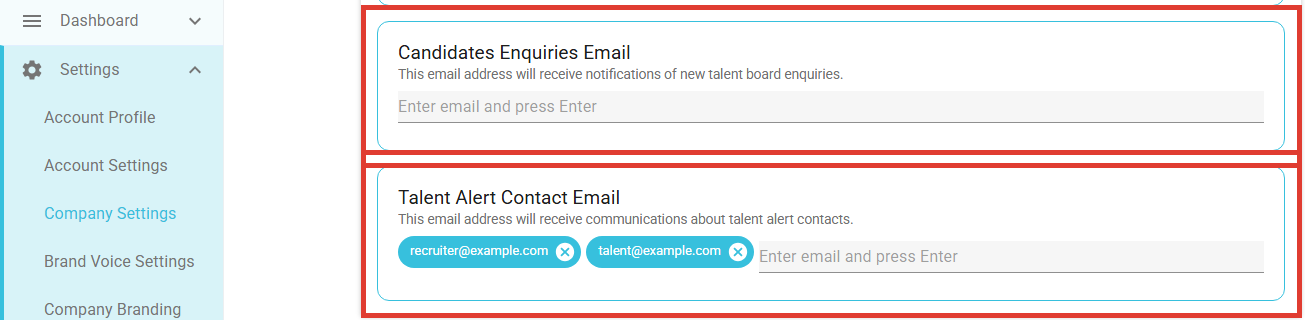
Idea: Because each notification type has its own field, you can route them to different people. For example, enquiries about specific candidates could go to the team member who owns them, while general "Find the Right Talent" requests go to a shared inbox your whole team watches.Common questions
I received a custom talent request, but the person did not say what they are looking for
The message box on the "Find the Right Talent" form is optional. If the sender leaves it blank, the name and email address in the notification are everything that was submitted, there is nothing further to look up in your dashboard. The best next step is simply to reply to them directly and ask what they need. It is worth doing promptly, as they will already have received an automatic confirmation saying your team will be in touch.
A subscriber says their Talent Alert changed how often it arrives
If a subscriber stops opening their Talent Alert emails for a while, Refari automatically eases off how often they are sent (for example from daily to weekly) so they are not over-emailed. It is not a fault, and the subscriber can set their preferred frequency again at any time from their alert.
A new subscriber did not get the "Complete your account" email
That email is only sent to people who do not already have a Refari account. If the subscriber has signed up before, or already has a login, they will not receive a new set-up link, which is expected rather than a problem.
Final Notes
In short, every Talent Board email is triggered by someone taking an action, a visitor enquiring, a subscriber signing up, or a candidate advert nearing expiry, and each is delivered to the person best placed to act on it. If you ever see one you are unsure about, the tables above will tell you what prompted it. If a notification is not reaching the right inbox, the fix is almost always in the Emails tab of your Company Settings.
Other articles you might be interested in: How to set up a Talent Board to market your candidates | How to suggest a Talent Alert to a hiring manager
Was this article helpful?
That’s Great!
Thank you for your feedback
Sorry! We couldn't be helpful
Thank you for your feedback
Feedback sent
We appreciate your effort and will try to fix the article