This article explains how to get a campaign landing page: a page on your website built for one campaign, which your Google Ads, LinkedIn or Facebook adverts send people to. On a website built with the Refari Site Builder, you ask Ask AI for it in your own words and it builds the page for you.
Note: Ask AI builds pages where Refari has switched AI pages on for your website. If it offers to send your request to the Refari team instead, they aren't on yet, and the team builds the page for you. Anyone with access to Your website except a Viewer can ask; an Owner or Editor publishes it. If Refari does not host your website, see the last section.What a campaign landing page has
Someone who clicks an advert should do one thing: get in touch. So the page is simpler than the rest of your website:
- Your logo at the top and no menu, so visitors stay on the page.
- A headline, a short introduction and three or four key points, written from what you tell Ask AI.
- Your website's own enquiry form, and a WhatsApp chat button if you give your WhatsApp number. You choose which comes first.
- A photo if you want one, and your website's testimonials.
It is hidden from Google and left out of your menu and sitemap, because an advert's page is not meant to be found by searching. Every enquiry from its form records the page, and a WhatsApp chat started from it includes the advert's campaign in its first message.
Step 1: Ask for the page
- Open Ask AI from the left-hand menu.
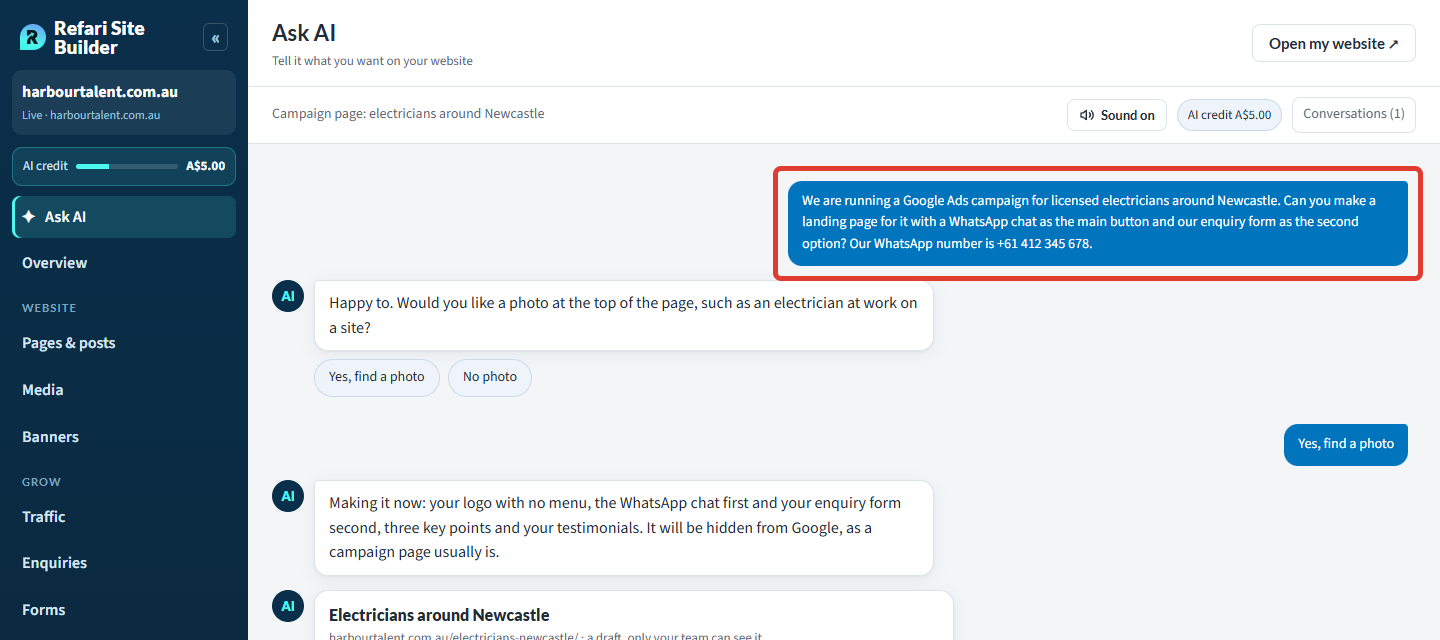
- Describe the campaign: who it is for, where, and what you want people to do. For example: "We are running a Google Ads campaign for licensed electricians around Newcastle. Can you make a landing page with a WhatsApp chat as the main button and our enquiry form second? Our WhatsApp number is +61 412 345 678."
- Answer Ask AI's questions, one at a time: whether you want a photo and, for a chat, the number with its country code and which button comes first.
Idea: Give Ask AI the facts only you know, such as the pay rate or the sites. It never makes up pay, dates or contact details, and never writes a testimonial for you.Step 2: Check it and publish
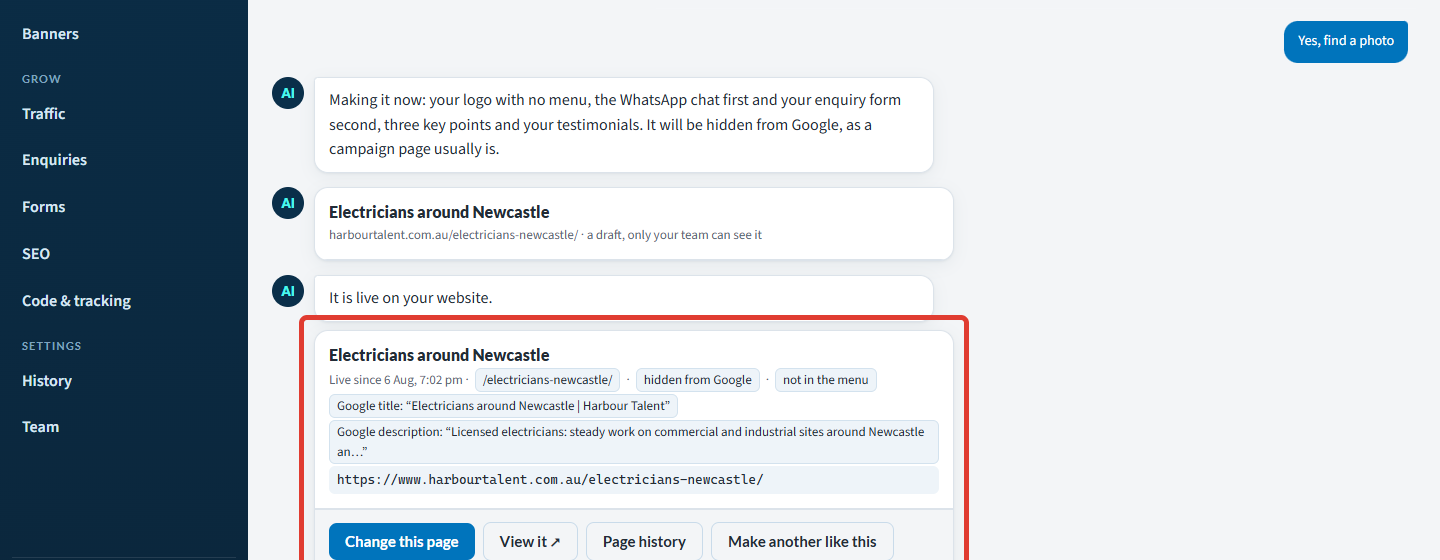
Ask AI builds a draft only your team can see. Check it on computer and phone in the preview beside the chat, ask for any changes ("put the form first"), then press Publish. The live page's card shows its address and that it is hidden from Google and not in the menu: press any of these to change it.
Step 3: Point your ads at the page
In Google Ads (or LinkedIn or Meta), set the advert's final URL to the page's address from its card. Then open the page in a private browser window and check the form and WhatsApp button work.
To measure which clicks become enquiries, add Google Tag Manager or other tracking: Analytics, tracking and cookies on your Refari website ↗ explains how.
More you can ask for
Another page like this one
For the next campaign, press Make another like this on the card, or ask "Make another one like the Newcastle electricians page for plumbers in Sydney". The copy keeps the layout, form, buttons and WhatsApp number, with new words. You can keep the photo or choose a new one, and give a new WhatsApp number if the campaign has one.Only landing pages Ask AI made can be copied.
A page for each location or sector
Ask "Make a page for each city we recruit in: Brisbane, Townsville, Cairns and Mackay". Each page gets its own words and can show your live jobs (or team) for that place, up to ten pages at a time.
The campaign's jobs on the page
Ask "Add our electrical jobs in Newcastle to the campaign page". Ask AI matches your words to a category, location, work type or consultant in your Refari dashboard and adds a jobs section showing only those roles, updating by itself as roles open and close. If the roles share none of these in your ATS (applicant tracking system), give them one there first.
Showing it on Google
Press hidden from Google on the card, or ask "Let Google see the Newcastle page now", and once published the page is added to your sitemap. Ask "Hide it from Google" to reverse it.
If Refari does not host your website
Your web developer builds the page and Refari powers its jobs, using a second job board that shows only the campaign roles. A Company Admin sets it up:
- In your Refari dashboard, go to "Settings > Job Board Settings", turn on Job board details, open the Job board dropdown and choose Add job board.
- Under Filter mode, choose Include only, click Apply changes, then Include each category or location the campaign covers and click Apply changes again.
- Check the counter, for example "6 of 60 job ads will be visible on this job board".
- Send your developer the board's API key to embed the job board, and once the page is live enter its address as the Job board base URL.
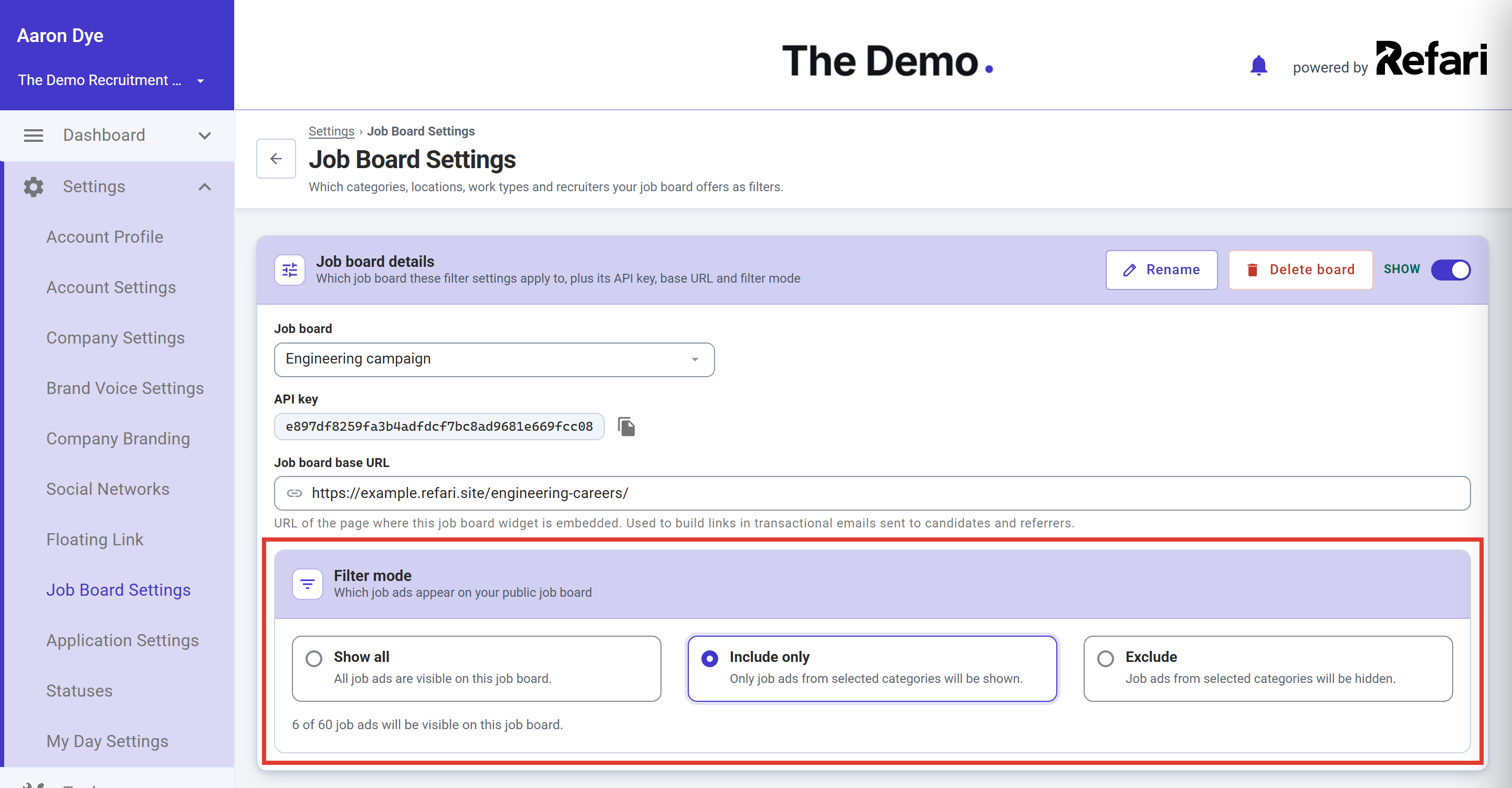
Every option is explained in Job Board Settings: choosing which jobs appear on each job board ↗.
Final Notes
When a campaign ends, ask Ask AI to take the page down and send its visitors to another page, so anyone clicking an old advert still lands somewhere useful.
Other articles you might be interested in: How to edit your website with Ask AI | Analytics, tracking and cookies on your Refari website
Was this article helpful?
That’s Great!
Thank you for your feedback
Sorry! We couldn't be helpful
Thank you for your feedback
Feedback sent
We appreciate your effort and will try to fix the article