This article explains how to put a banner, a bottom bar or a pop-up on a website built on the Refari Site Builder: what each one is for, how Ask AI can write the words for you, how to choose when it starts and ends, when a pop-up appears, and how to take one down early.
Note: Owners and Editors can schedule, change and stop them. A Contributor can write one and save it as a draft, and an Editor or Owner then schedules it. A Viewer can see them but not change them. If your website still runs on WordPress, this article does not apply yet: see the WordPress pop-up article instead.The three kinds
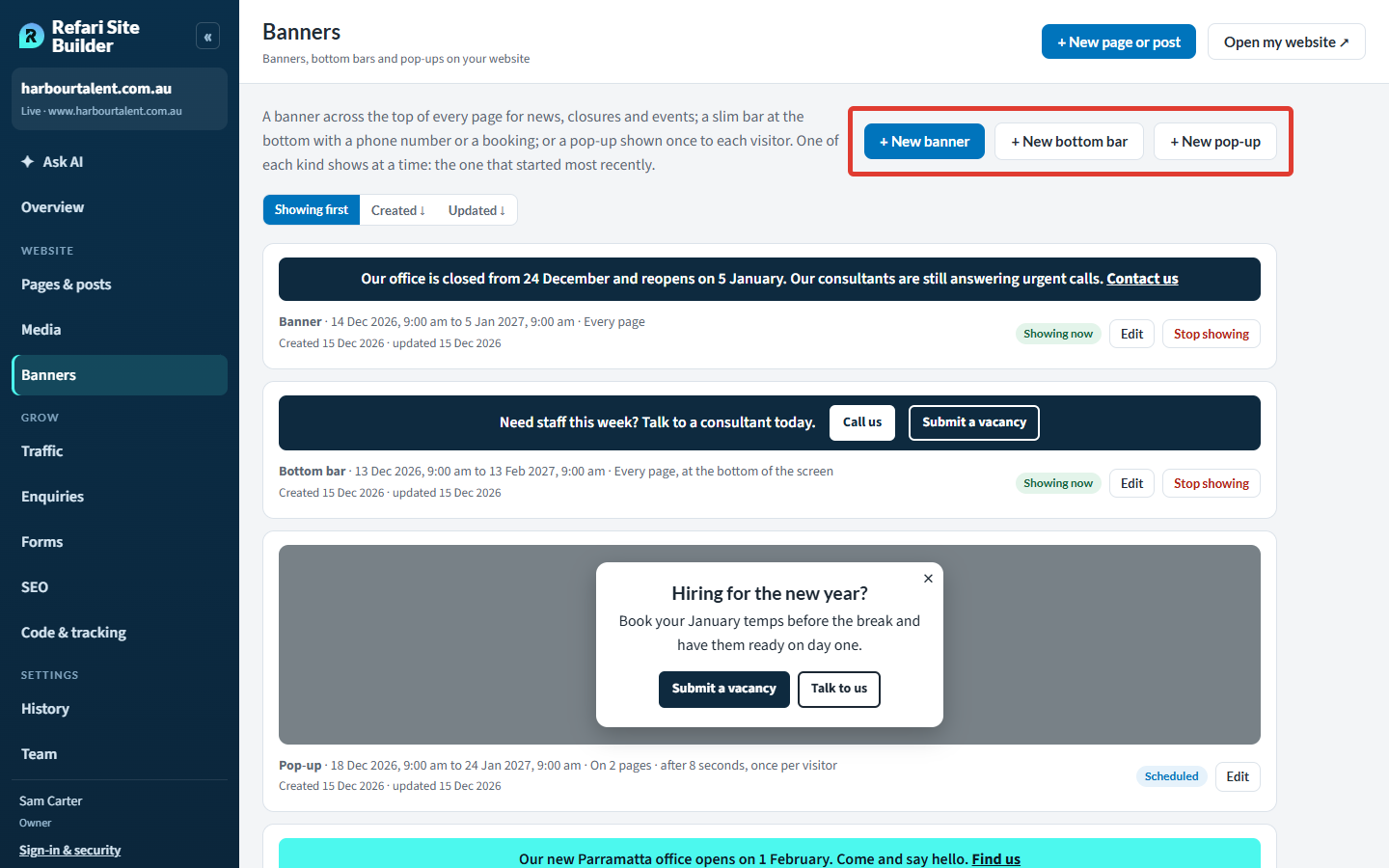
All three live under Website > Banners in the left-hand menu, and each one shows only between the times you choose.
| Kind | What visitors see | Good for |
|---|---|---|
| Banner | A strip across the top of every page with a line of words (up to 200 characters) and an optional link. | News, office closures, events |
| Bottom bar | A slim bar fixed to the bottom of the screen on every page, with one short line and up to two buttons. | A phone number to call, a booking, a vacancy form |
| Pop-up | A box with a heading, a line of words, up to two buttons and an optional photo, shown once to each visitor. | A campaign or offer you want people to notice |
A button can go to a page of your website (such as /contact/), a web address starting https://, or your website's own phone number. Each kind has a style, its colour: Information, Promotion or Urgent.
Only one of each kind shows at a time. If two banners overlap, the one that started most recently is the one visitors see, so a banner, a bar and a pop-up can all show at once, but never two pop-ups.
Option A: ask Ask AI
The quickest way is to tell Ask AI what you want. If you are new to it, How to edit your website with Ask AI ↗ explains how to start a conversation.
- Open Ask AI from the left-hand menu.
- Say what you want and when, for example "Show a pop-up about our Christmas closure from 20 December to 5 January" or "Add a bottom bar with a Call us button".
- If you give the exact words, Ask AI uses them as written. If not, it writes them for you. For a pop-up it also asks when it should appear and on which pages.
- Ask AI shows a card with the words, buttons and times. Check it, then press Schedule it or Save as draft. Nothing changes on your website until you press the button.
To add a photo to a pop-up, choose it on the Banners screen afterwards.
Option B: use the Banners screen
- Open Website > Banners and press + New banner, + New bottom bar or + New pop-up.
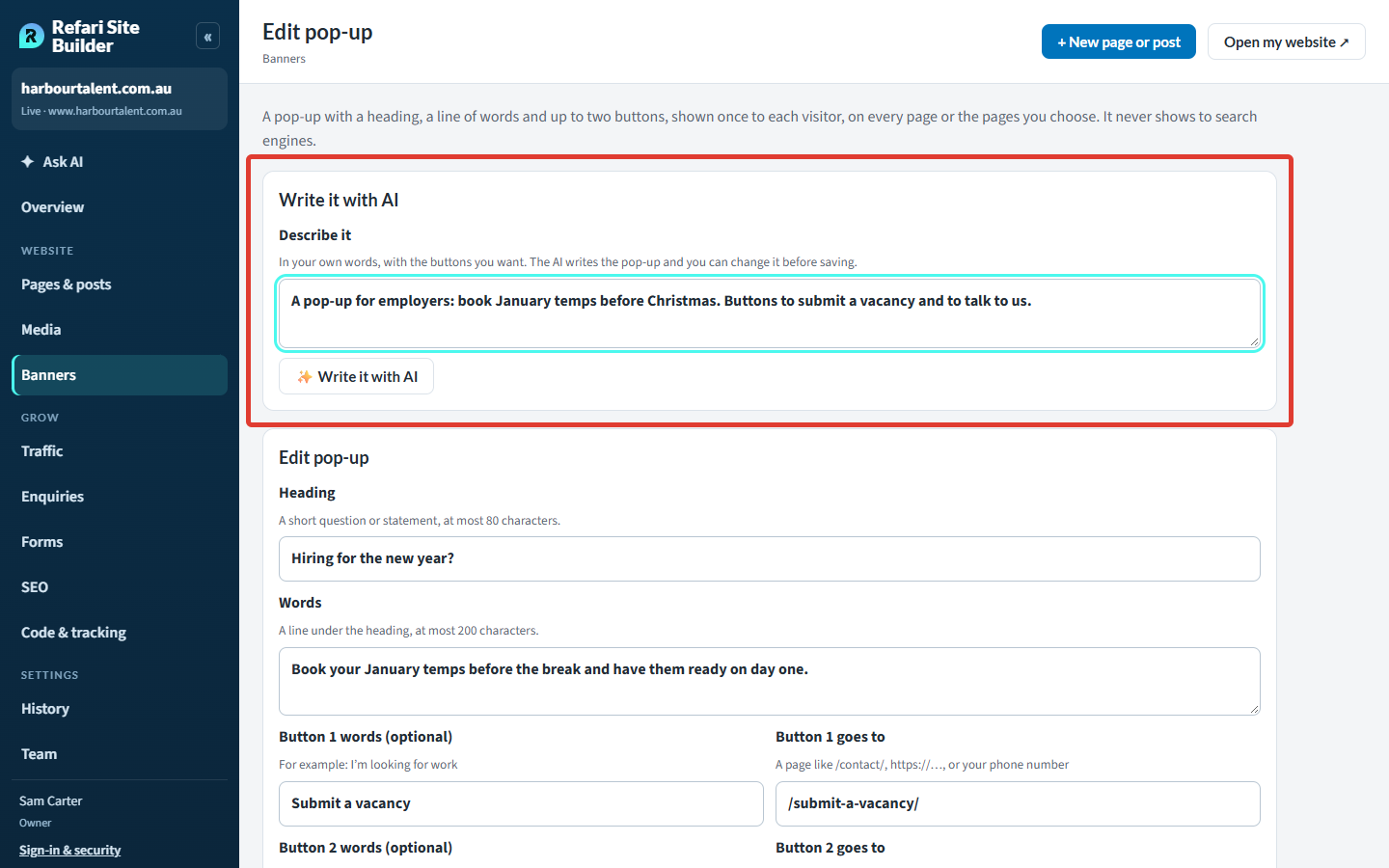
- Write the words yourself, or describe what you want under Write it with AI and press Write it with AI. The AI fills in the words (and, for a bar or pop-up, the heading and button words), and you can change anything before saving. This uses a little of your website's AI credit, the monthly allowance that pays for AI writing.
- Fill in where each button goes, and choose a style.
- Set Show from and Until. Times are Sydney time, and one can show for a year at most.
- Press Schedule it, or Save as a draft to finish it later. A Contributor sees Save and send to an editor instead.
Done: Your website changes within a couple of minutes of each start and end time. The How it looks panel under the form shows it the way visitors will see it.When and where a pop-up shows
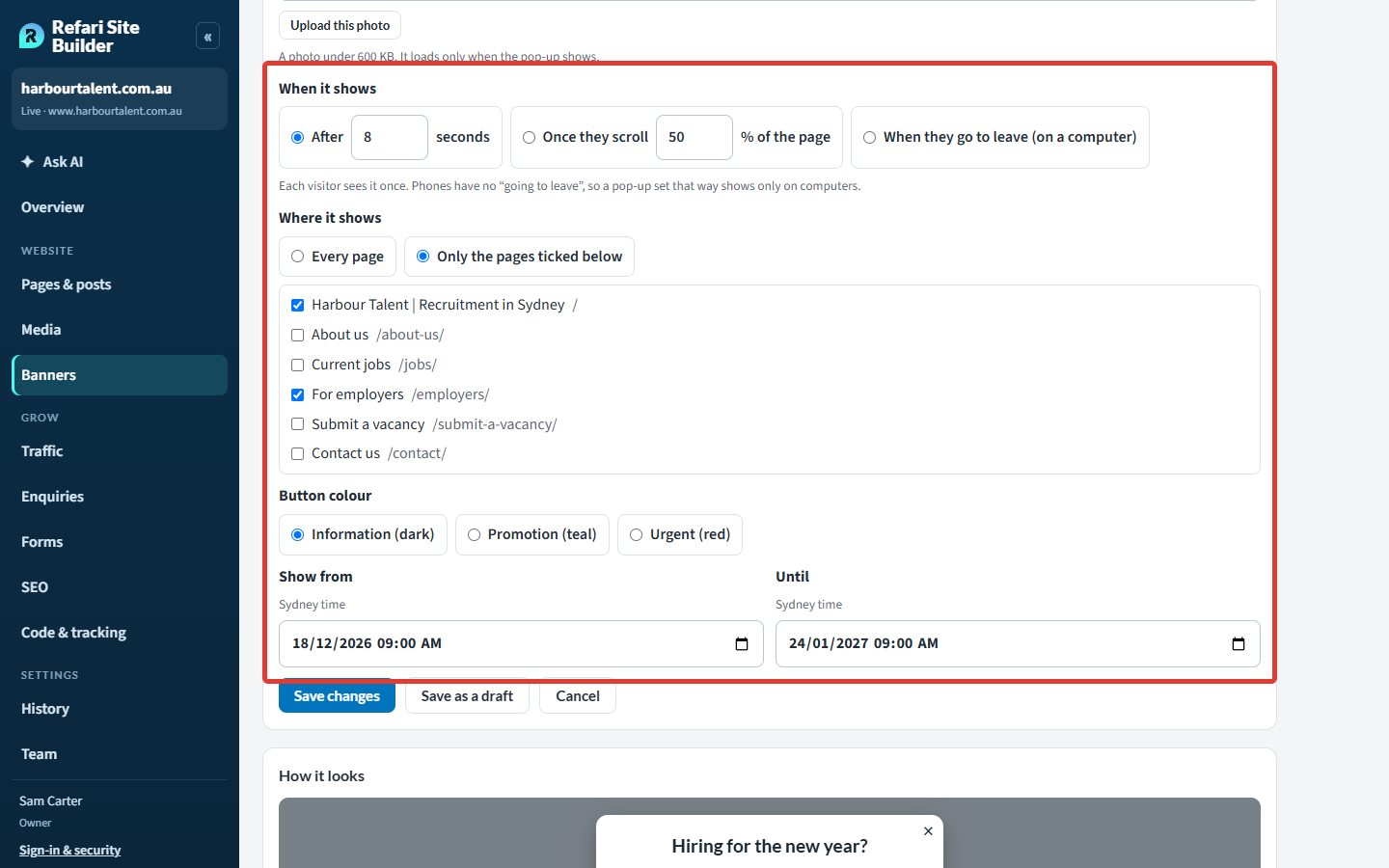
A pop-up has two extra settings. Under When it shows, choose one:
- After a number of seconds on the page (0 to 120).
- Once they scroll a share of the page (10% to 90%).
- When they go to leave (on a computer): as the pointer heads for the top of the window. Phones have no "going to leave", so a pop-up set this way shows only on computers.
Under Where it shows, choose Every page or Only the pages ticked below, then tick the pages. Each visitor sees a pop-up once, it waits until they have answered your cookie bar, and it never shows to search engines. A photo must be under 600 KB, and it only loads when the pop-up appears, so it doesn't slow your pages down.
Changing or stopping one early
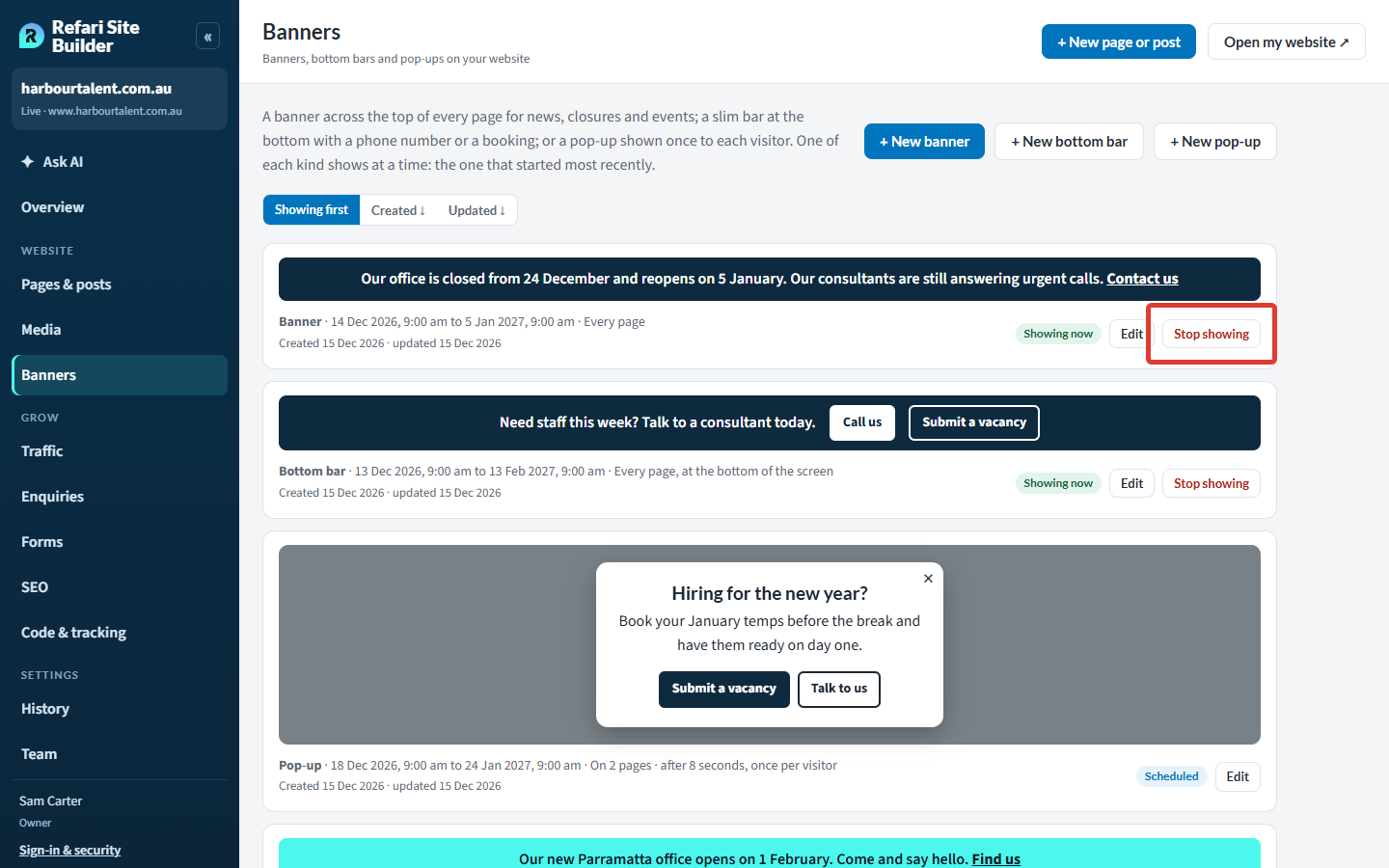
Each banner on the list shows where it stands: Showing now, Scheduled, Draft or Ended. Press Edit to change one, or Stop showing to take it off your website now. It comes off within a couple of minutes, and you can also tell Ask AI "Turn off the pop-up".
An ended banner stays on the list with a Reuse button, which starts a new one with the same words and buttons, ready for new dates. To remove one for good, open it and press Delete at the bottom of the form.
Final Notes
Keep the words short: a banner or bar is read in a glance. Use a pop-up sparingly, since it interrupts the visitor, and point it at the pages where it matters (the employer pages for a hiring campaign, say) rather than every page.
Other articles you might be interested in: How to edit your website with Ask AI
Was this article helpful?
That’s Great!
Thank you for your feedback
Sorry! We couldn't be helpful
Thank you for your feedback
Feedback sent
We appreciate your effort and will try to fix the article