This guide walks you through building your own Talent Board filters. Instead of a fixed set of filters decided for you, you create the filter groups your candidates actually sort by, decide what each option matches on, and watch a live preview tell you how many profiles each one finds before anybody else sees it.
How the filters are put together
There are two layers, and getting them straight makes the rest of this article obvious.
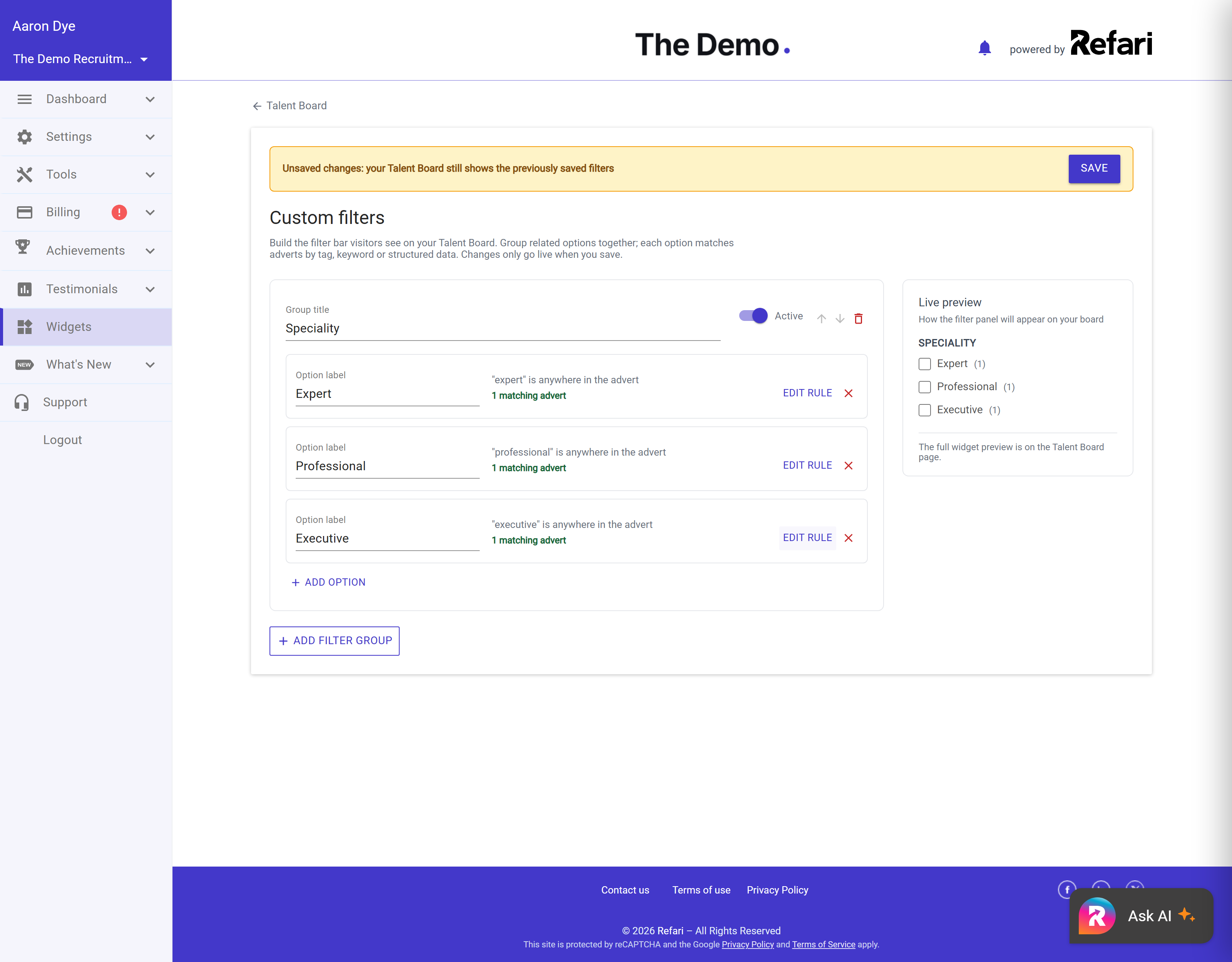
- A group is a heading on the filter rail, for example "Work Style" or "Seniority". It is what a visitor sees in bold.
- An option is a tickbox inside that group, for example "Remote" or "Hybrid". Each option is backed by one rule that decides which profiles it matches.
The way those combine matters, because it is what makes a filter rail feel sensible rather than baffling. Within one group, ticking two options widens the results: tick Remote and Hybrid and you see both. Across two groups, the results narrow: pick Remote in one group and Senior in another, and you only see profiles that are both.
Idea: That rule is the practical reason to keep alternatives in the same group. Put Remote, Hybrid and On-site together and a visitor can pick two of them happily. Split them into three groups of one and picking two returns nothing, because no profile can be all three at once.Building your filters
- Go to Widgets > Talent Board in the left-hand menu.
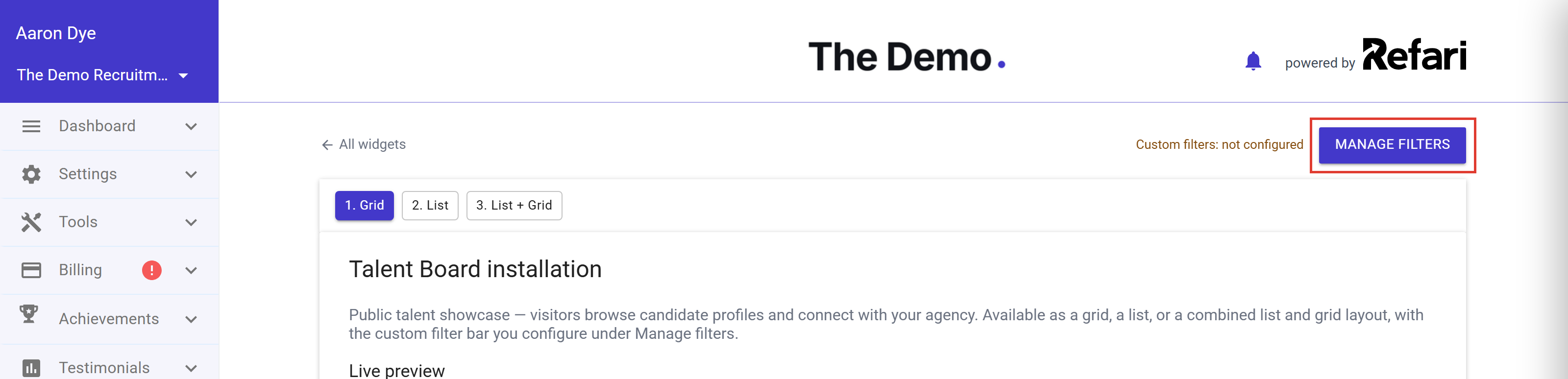
- Click Manage filters in the toolbar at the top of the page. It sits at page level rather than inside one design, because your filters apply however you have chosen to display the board.
- Add a group and give it the heading you want visitors to read.
- Add an option to that group, label it, and choose what it should match on. The three choices are described in the next section.
- Watch the preview as you go, then save when the counts look right.
The three ways to back an option
Every option matches on exactly one of these.
| Backed by | What it matches, and when to use it |
|---|---|
| Matches a tag | Profiles whose advert text contains a hashtag such as #remote. The most precise option, because you decide which profiles carry the tag. Best where the quality you are filtering on is a judgement rather than a field. |
| Contains a keyword | Profiles containing a word or phrase, and you choose where to look for it. Useful for language already in your adverts that you never tagged. |
| Matches structured data | Profiles carrying the structured values you already record against candidates. The most reliable of the three, because it reads real fields rather than text, so nothing depends on how an advert was written. |
Writing tags that work
A tag is a hash followed by a letter or number, then letters, numbers, hyphens or underscores. So #Remote, #part-time and #B2B all work. A tag cannot contain a space, which is the one that catches people out: #part time would only ever match "#part".
Capitals do not matter. A profile tagged #Remote is found by an option looking for #remote. Refari reads the tags out of your candidate advert text, so the way to make a profile appear under an option is simply to include that tag when you write the advert. As you type a tag into the designer, it suggests tags already in use across your profiles, which saves inventing a second spelling of one you already have.
Choosing where a keyword looks
A keyword option carries a scope, which decides how much of the profile is searched.
| Scope | Where it searches |
|---|---|
| Ad title | The advert title only. The tightest scope, and the least likely to catch something you did not mean. |
| Ad body | The summary and the description. |
| Title & body | Both of the above together. A sensible default for most keywords. |
| Anywhere | Everything: title, summary, description, tags, and the names of the skills, locations and work types on the profile. The widest net, so check the count before trusting it. |
The live preview
As you build, the designer shows you the filter rail exactly as a visitor will see it, and puts a number next to each option: how many adverts it currently matches. That number is the most useful thing on the screen, because it turns a guess into a fact before anybody else sees the board.
A count of zero is not a bug, it is the preview doing its job. It usually means one of three things: the tag is spelled differently on your profiles than in the option, the keyword is scoped too tightly, or you genuinely have nobody matching yet. An option that matches nothing is worth fixing or removing before you save, since an empty filter makes a board look neglected.
Saving, and who can do it
Managing filters is limited to Company Admins. Everyone else uses the board as visitors do, and candidates and visitors never see the designer at all.
Warning: Saving replaces your whole filter set with what is on screen, rather than merging it with what was there. Two people editing the filters in separate tabs at the same time will therefore overwrite each other, and whoever saves last wins. Agree who is making the change before anyone starts.If the designer ever shows you an error instead of your filters, do not build a fresh set on top of it. Use the retry it offers, because saving over a set that failed to load is how a working configuration gets lost.
Final Notes
Start smaller than you think you need. Two or three groups with a handful of well-chosen options is far easier for a visitor than a long rail covering every possibility, and the preview counts will tell you quickly which options are earning their place. You can always add more once you can see what people actually filter by.
Other articles you might be interested in: How to add Candidate Adverts and view your Talent Board | How to Feature a Candidate Advert on your Talent Board
Was this article helpful?
That’s Great!
Thank you for your feedback
Sorry! We couldn't be helpful
Thank you for your feedback
Feedback sent
We appreciate your effort and will try to fix the article