This guide explains tags on candidate adverts: short labels you put on an advert to say what it is, which then drive the filters visitors use on your Talent Board. It covers how to add them, how Refari decides whether two tags are the same, how Refari AI suggests them, and what has changed if you used to write hashtags into your advert copy.
What a tag is
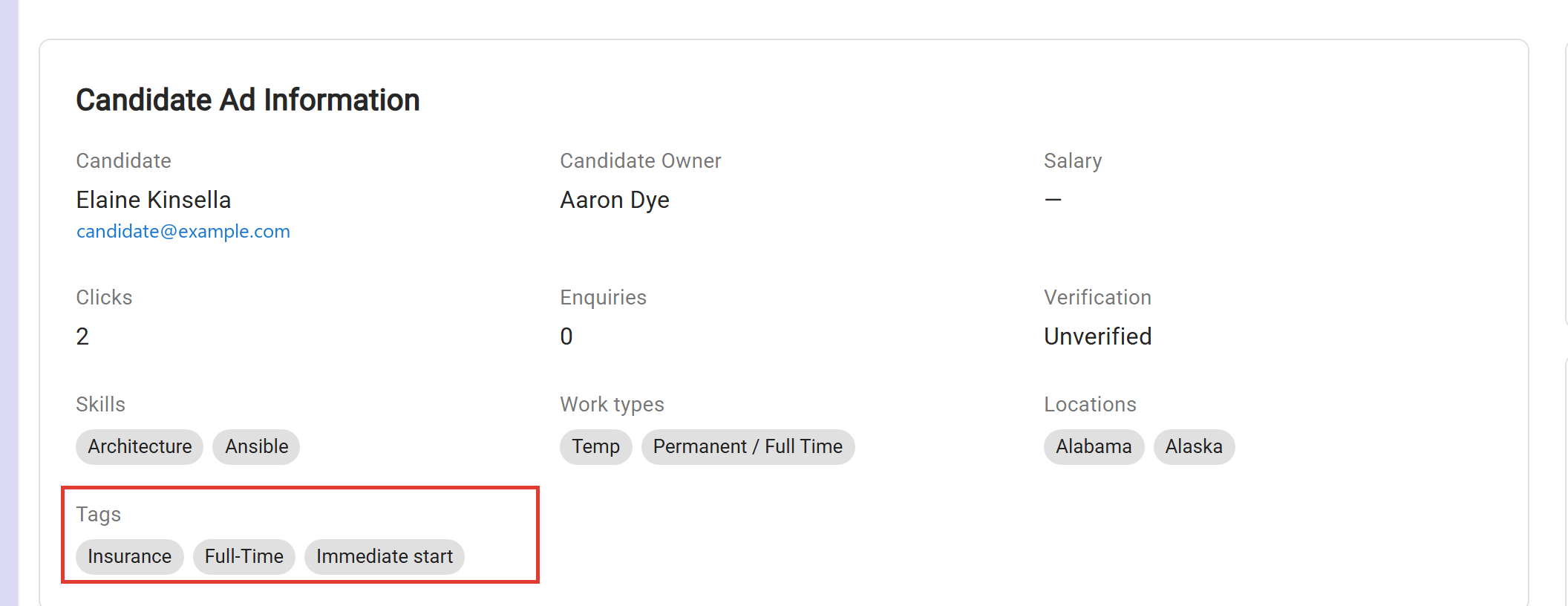
A tag is a short label attached to one candidate advert, such as Insurance, Full-Time or Immediate start. Job adverts have worked this way for a long time; candidate adverts now do too, and the field behaves the same on both.
Two things are worth saying up front, because they surprise people who remember the old way of doing this.
- Tags are not hashtags. You do not type a hash, and none is shown. They appear as plain, readable chips wherever they are displayed, on your dashboard and on your public Talent Board alike.
- They live on the advert, not in the words. A tag is its own field, so your advert copy stays as prose, written for the person reading it rather than for the filter.
Adding tags to an advert
Tags are part of the advert, so you add them while writing or editing it.
- Create a candidate advert as you normally would, or open an existing one and click Edit Candidate Advert.
- Scroll down to just below the Candidate Summary, above Expiry Date. That is where the tag field sits, alongside any tags the advert already carries, and it reads Add tags.
- Type a tag and press Enter. It becomes a chip next to the others, and you can add as many as you need.
- Remove one by clicking the small cross on its chip.
- Save the advert. The tags are stored with it, and they stay with it when you repost it later, including in a bulk repost.
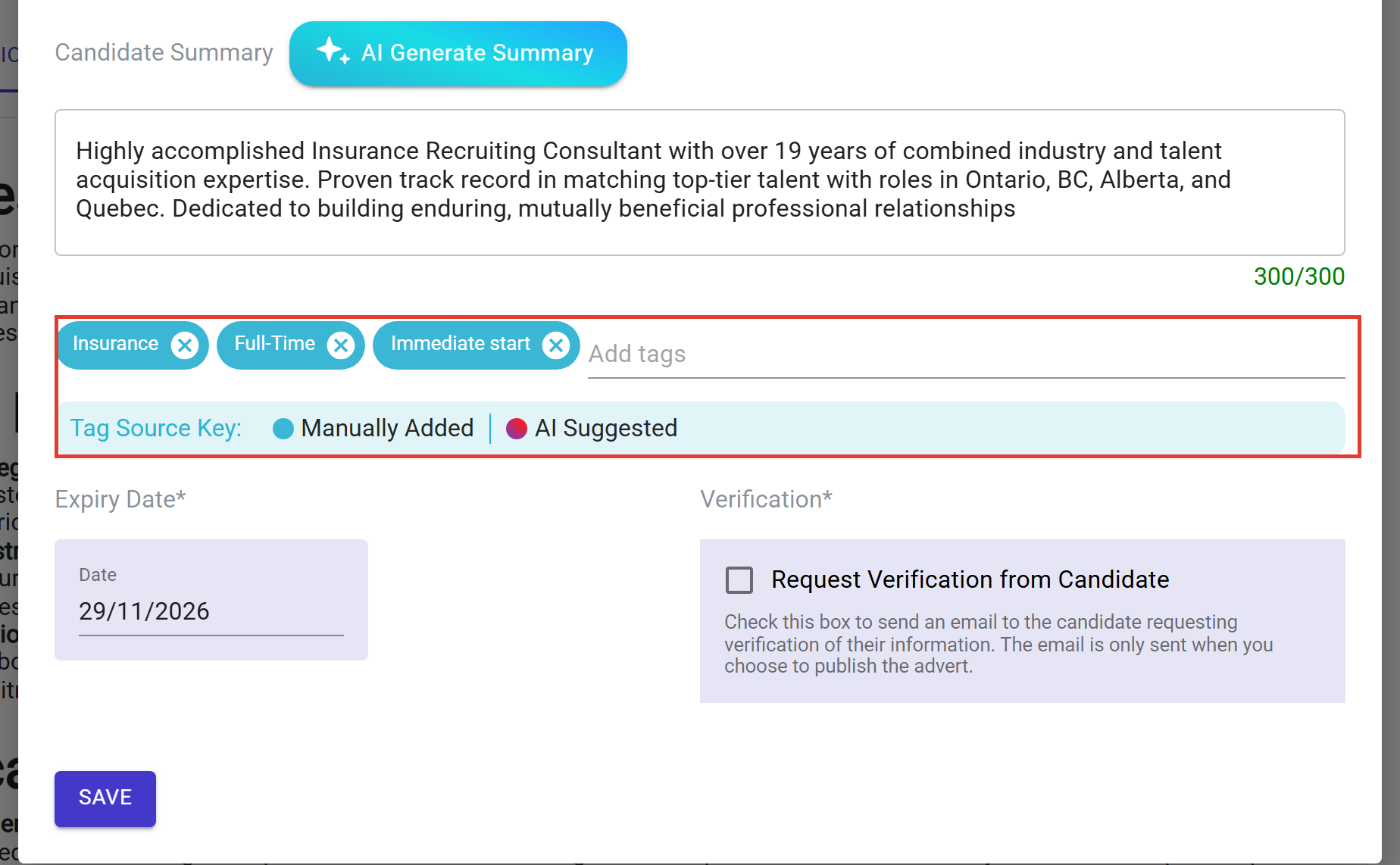
Underneath the field is a Tag Source Key. Each chip is coloured to show where its tag came from, so you can tell at a glance which tags somebody on your team typed and which ones Refari AI suggested and were accepted.
How to write them
Write tags the way you want them read. Refari keeps your wording for display and is forgiving about the rest, so you do not have to remember an exact form to make two adverts match.
| The rule | What it means in practice |
|---|---|
| Your capitals are kept | Type Full-Time and it displays as Full-Time, not full-time. What you write is what every reader sees. |
| Matching ignores case | Remote, remote and REMOTE are one tag, not three. A filter looking for one finds all of them. |
| A leading hash is ignored | Old habits are safe. Typing #Remote stores and displays it as Remote, and it matches a tag written without the hash. |
| Spaces and hyphens are allowed | Immediate start keeps its space and Full-Time keeps its hyphen. Tags are labels, so they are allowed to read like labels. |
| Repeats are tidied | Double spaces and double hyphens collapse to one, so a slip of the finger cannot create a near-identical second tag. |
| Duplicates are dropped | Add the same tag twice on one advert and it is stored once, in the form you wrote first. |
Idea: Agree a short list of tags with your team before you start, and keep it small. Tags earn their keep when the same handful appears across many adverts, because that is what makes a filter worth ticking. Twenty tags used once each help nobody.Tags Refari AI suggests
When Refari AI writes a candidate advert for you, it suggests tags alongside the title, summary and description. They are suggestions only: you see them before anything is saved, and you accept the ones you want and drop the rest.
Nothing the AI proposes reaches an advert on its own. A suggested tag becomes a real tag at the moment you accept it and save, exactly as if you had typed it, and from then on it behaves identically to one you wrote yourself.
Turning tags into board filters
Tagging is worth doing because of what it lets you build. In Widgets > Talent Board > Manage filters, a Company Admin can create filter options backed by a tag, so a visitor ticking Insurance sees exactly the profiles you labelled that way. Because you control the tags, you control the filter, which is the whole point of doing it deliberately rather than hoping the right word appears in the copy. The filter designer is covered in Building your own Talent Board filters ↗.
When you build a tag-backed filter option, the designer offers the tags already in use across your adverts, so you can pick one rather than retyping it and risking a near-miss.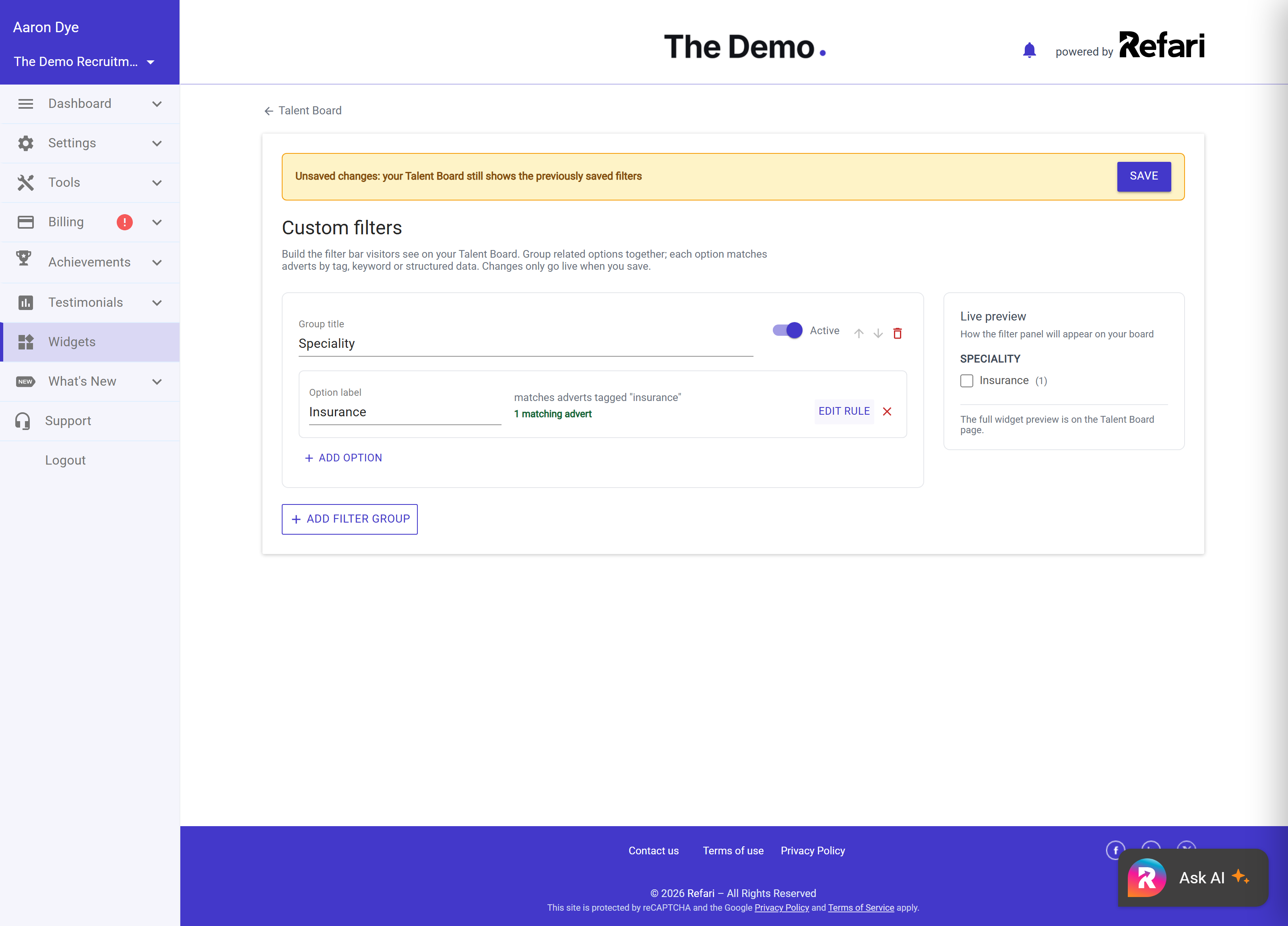
If you used hashtags in your advert copy
Before candidate adverts had tags of their own, the only way to influence a tag filter was to work a hashtag into the advert description and hope it was picked up. That is no longer how it works.
Note: Hashtags written inside advert copy are no longer read as tags. If you have adverts that relied on that, add the tag properly in the Tags field, and the filter will pick it up. There is nothing to undo in the copy itself, though you may now want to tidy those hashtags out, since they were only ever there for the machine.The change is an improvement rather than a loss. Scraping the copy caught things nobody meant as tags, such as a numbered list, and missed the labels people did mean. A field you fill in deliberately does neither.
Final Notes
If you are starting from nothing, the quickest way to something useful is to tag the adverts you already have live before writing new ones. A filter is only as good as the profiles behind it, and the designer shows you how many adverts each option currently matches, so you can see your tagging paying off as you go.
Other articles you might be interested in: Building your own Talent Board filters | How to add Candidate Adverts and view your Talent Board
Was this article helpful?
That’s Great!
Thank you for your feedback
Sorry! We couldn't be helpful
Thank you for your feedback
Feedback sent
We appreciate your effort and will try to fix the article