This article explains how to socialise, repost, expire or delete job adverts in bulk, so you can act on many adverts at once instead of opening them one at a time.
A job advert is the advert for a role that appears on your job board. Every job advert sits in one of four states:
- Active, a live advert currently showing on your job board.
- Scheduled, an advert set to go live on a future date.
- Expired, an advert that has passed its expiry date and is no longer showing.
- Draft, an advert you have started but not yet published.
What you can do in bulk
There are four bulk actions, and each one works on job adverts in a particular state:
| Bulk action | Works on | What it does |
|---|---|---|
| Socialise | Active job adverts | Creates a single social media post that points at your job board, with the adverts you picked given top billing. |
| Repost | Expired job adverts | Posts them again as new, live adverts with a fresh 30 day expiry. |
| Expire | Active and scheduled job adverts | Takes them off your job board straight away. You can repost them later if you need them again. |
| Delete Drafts | Draft job adverts | Permanently removes drafts you no longer need. |
How to use bulk actions
- In your Refari dashboard, go to Job Ads.
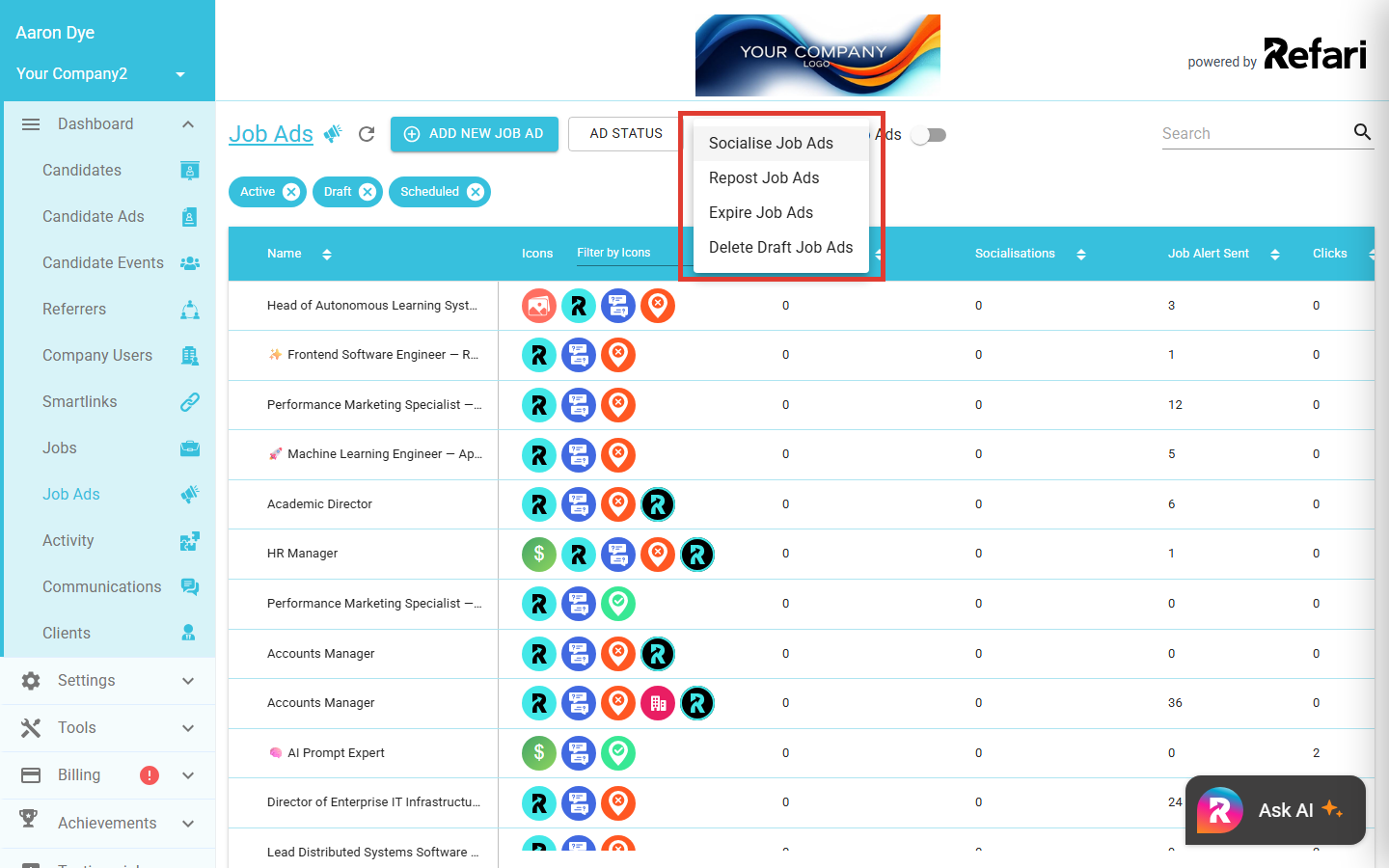
- Open the Bulk Actions dropdown and choose Socialise Job Ads, Repost Job Ads, Expire Job Ads, or Delete Draft Job Ads. The list then narrows to show only the job adverts that action can apply to.
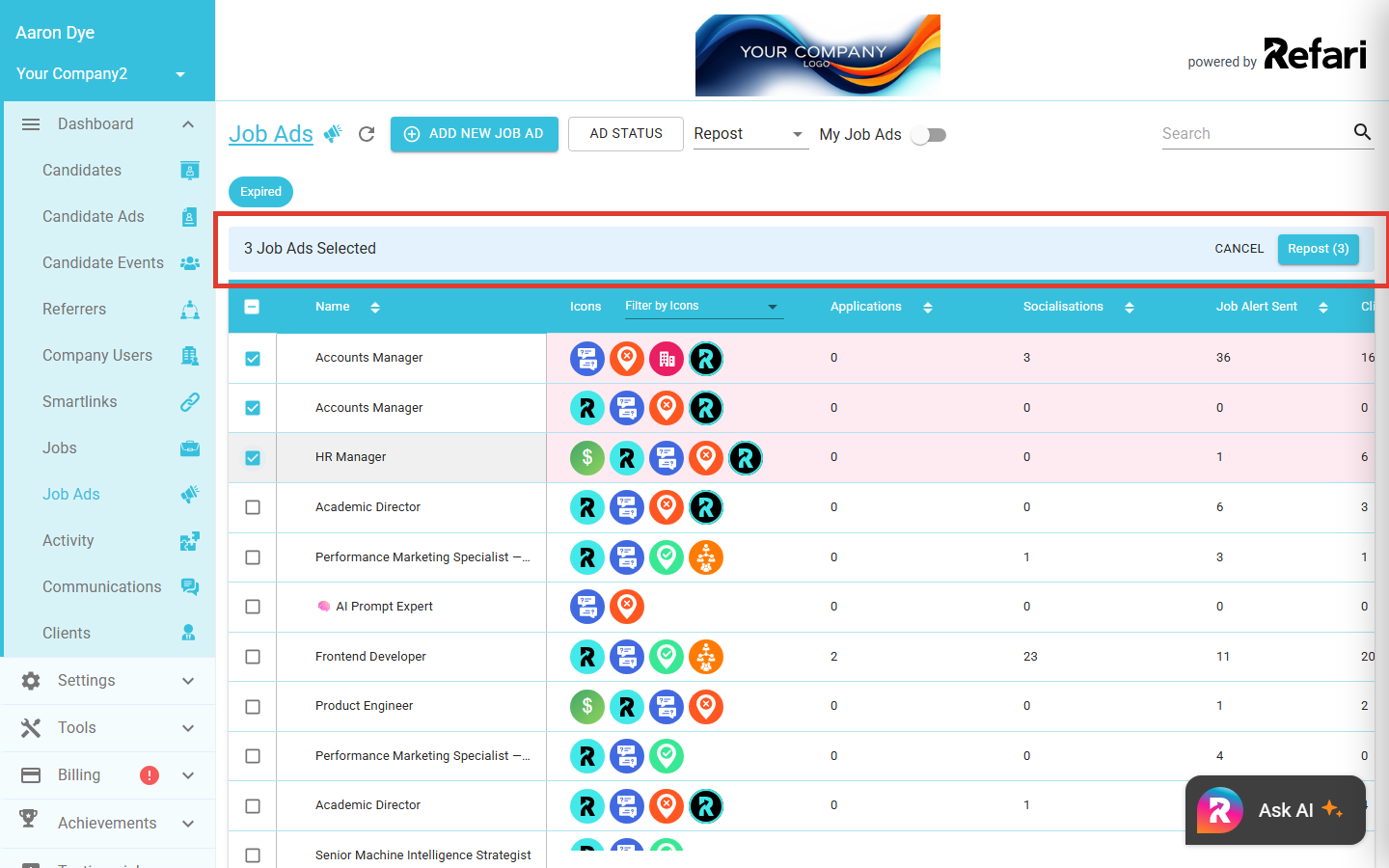
- Tick the job adverts you want to act on. Use the checkbox in the table header to select every advert on the page at once, and click anywhere on a row to tick or untick it. A blue bar above the table keeps a running count, for example 3 Job Ads Selected.
- Click the action button on the right of that bar to carry it out. The button shows the action and the number selected, for example Repost (3). To back out without doing anything, click Cancel.
Once you have chosen an action and ticked some adverts, the blue selection bar and its action button appear above the list:
Note: There is no separate confirmation step. The action runs as soon as you click the button, so check your selection first. The one exception is a bulk repost where Refari spots duplicate adverts, which is explained below.Tip: Your selection carries across pages. You can tick a few adverts, move to the next page of the list, tick a few more, and the count in the blue bar keeps climbing. Everything you have ticked is acted on when you press the button, not just what is on screen.Reposting in bulk
Bulk repost is deliberately quicker than reposting an advert on its own, and the trade-off is that you do not get to amend the advert on the way through:
| What differs | One advert at a time | In bulk |
|---|---|---|
| Amend before it goes out | Yes, the advert opens so you can edit it first | No, it goes back out exactly as it was |
| Expiry date | You choose it | A fresh 30 days from the repost |
| Best for | An advert that needs a tweak | Clearing a backlog of expired adverts quickly |
Either way the reposted advert gets a new web address, and its view, application and referral counts start again from zero. Your original expired advert stays in the list as a separate record. If you need to change the wording, salary or closing date, repost that advert on its own instead, using How to repost Job Adverts in Refari ↗.
Duplicate adverts are grouped for you
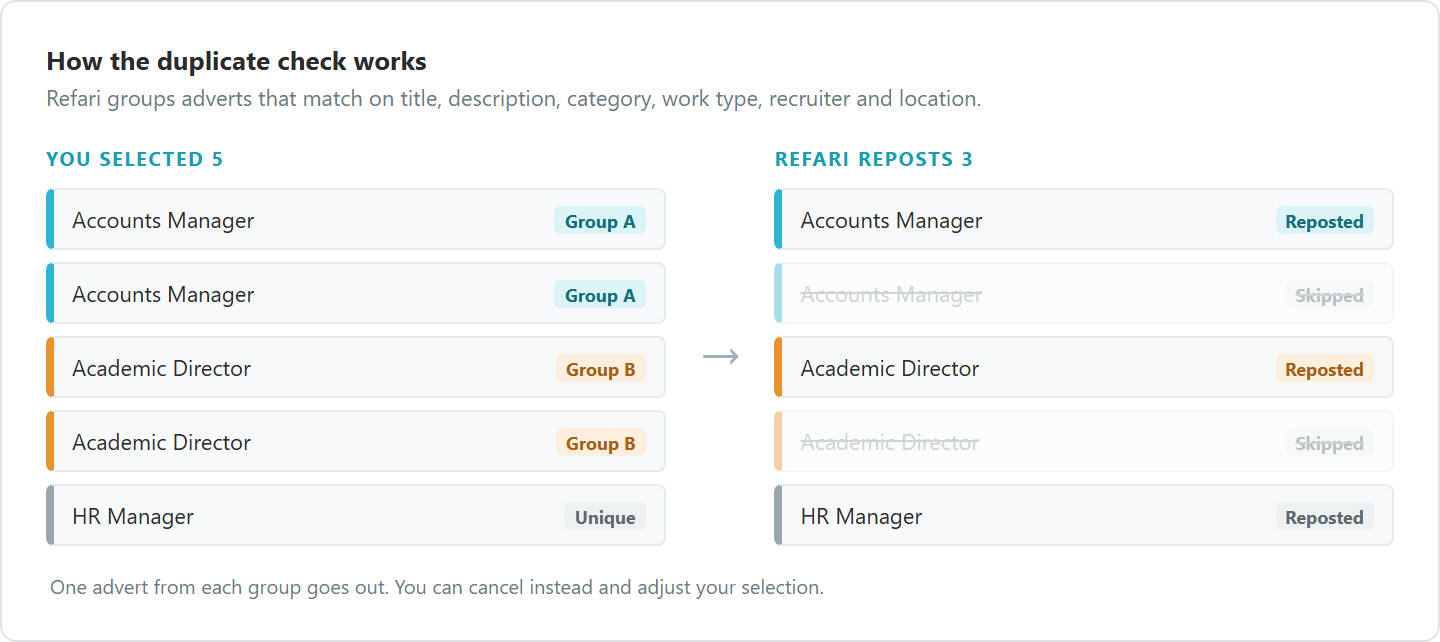
If two or more of the adverts you selected look like copies of each other, Refari pauses and shows a Duplicates detected message. Choose Repost without duplicates to post one advert from each group and skip the rest, or Cancel to adjust your selection.
What Socialise posts
Bulk socialise does not create one post per advert. It creates a single post that links to your job board, with the adverts you selected pushed to the top. Your other live adverts still appear underneath, so treat it as a "here is what we are hiring for" post rather than an advert for those roles alone.
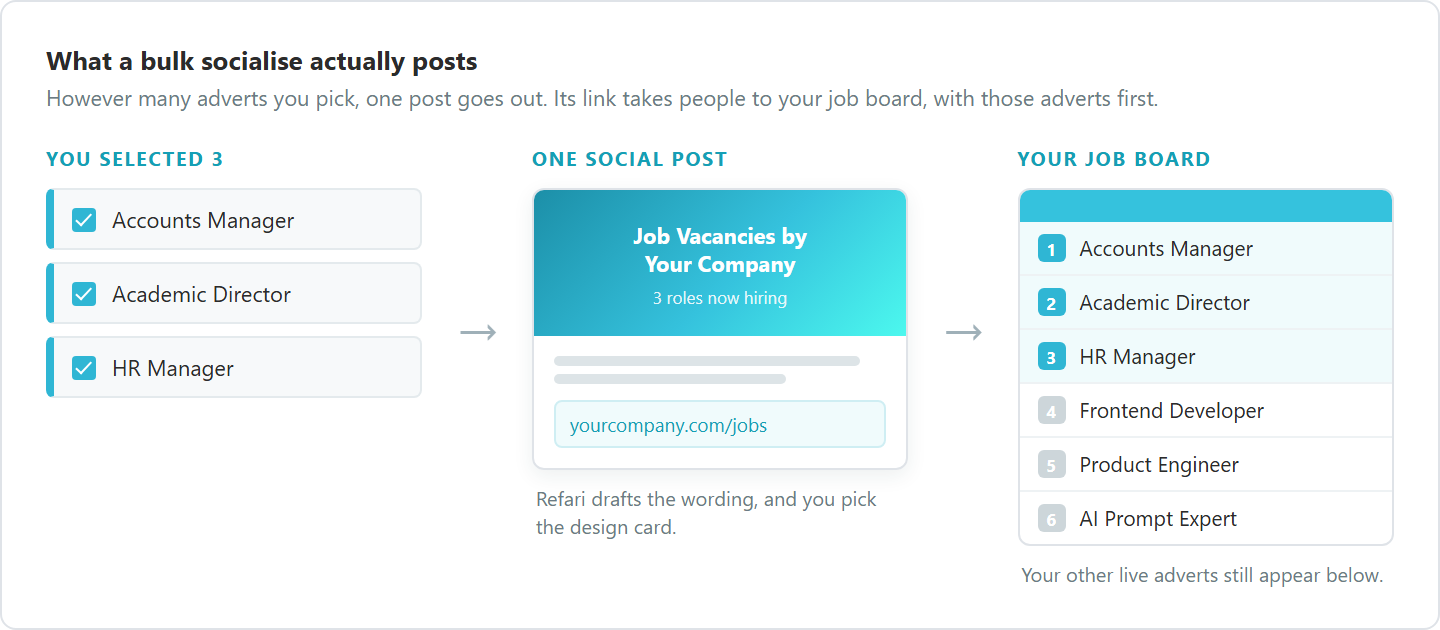
From there it is the normal socialisation flow, so the last step is choosing which of your connected networks the post goes out to.
If something fails
Not every action behaves the same way when part of your selection cannot be processed:
| Action | How it behaves | What you see |
|---|---|---|
| Repost | All or nothing | Refari names the adverts that cannot be reposted, and nothing changes until you adjust the selection |
| Expire | Advert by advert, so a batch can partly succeed | A message such as Expired 8 of 10 job ads. 2 failed. |
| Delete Drafts | Advert by advert, so a batch can partly succeed | A message such as Deleted 8 of 10 drafts. 2 failed. |
After a partial result, refresh the list to see where things stand and try the remaining adverts again.
Things to be careful with
If your job adverts come from an ATS
Expiring an advert in Refari sticks. Refari marks it as changed by hand, and from that point the sync with your ATS will not bring it back or overwrite it.
Warning: The same applies after a bulk repost. Once an advert has been reposted in Refari, it stops receiving updates from your ATS, so later edits made there will not flow through to the reposted advert. If an advert is still being managed in your ATS, it is usually better to repost it there.Deleting drafts cannot be undone
The Delete Drafts action removes draft job adverts you have not published. It applies to adverts created directly in Refari.
Warning: Deleting a draft is permanent and cannot be undone. Expiring an advert is different: it simply takes the advert off your job board, and you can repost it later. If in doubt, expire rather than delete.Who can use bulk actions
Company Admins, Managers and recruiters all see the Bulk Actions dropdown on the Job Ads page. Recruiters act on the adverts they can already see in their list.
You are done: after the action runs, the blue bar clears and the list refreshes. Reposted adverts show as live again, expired adverts drop off your job board, and deleted drafts disappear from the list. The dashboard icons can take a minute or two to catch up after a repost, which is normal.Final Notes
Bulk actions are the quickest way to keep your job board tidy, whether that is clearing out old drafts, expiring a batch of filled roles, bringing a set of expired adverts back to life, or putting your current vacancies in front of your network in one post. If you only need to act on a single advert, or want to amend it on the way through, you can still do that one advert at a time.
Other articles you might be interested in: How to repost, expire, or delete candidate ads in bulk | How to repost Job Adverts in Refari | How to socialise your Job advert
Was this article helpful?
That’s Great!
Thank you for your feedback
Sorry! We couldn't be helpful
Thank you for your feedback
Feedback sent
We appreciate your effort and will try to fix the article