This article explains how to repost, expire, or delete candidate ads in bulk, so you can act on many adverts at once instead of opening them one at a time.
A quick definition first. A candidate advert (or candidate ad) is an advert that markets an available candidate, rather than a role. Candidate ads appear on your Talent Board, the part of your website that showcases the people you have available. Each candidate ad can be in one of three states:
- Active, a live advert currently showing on your Talent Board.
- Expired, an advert that has passed its expiry date and is no longer showing.
- Draft, an advert you have started but not yet published.
What you can do in bulk
There are three bulk actions, and each one works on candidate ads in a particular state:
| Bulk action | Works on | What it does |
|---|---|---|
| Repost | Expired candidate ads | Posts them again as new, live adverts with a fresh expiry date. |
| Expire | Active candidate ads | Takes them off your Talent Board straight away. You can repost them later if you need them again. |
| Delete Drafts | Draft candidate ads | Permanently removes drafts you no longer need. |
How to use bulk actions
- In your Refari dashboard, go to Candidate Ads.
- Open the Bulk Actions dropdown and choose Repost Candidate Ads, Expire Candidate Ads, or Delete Draft Candidate Ads. The list then narrows to show only the candidate ads that action can apply to.
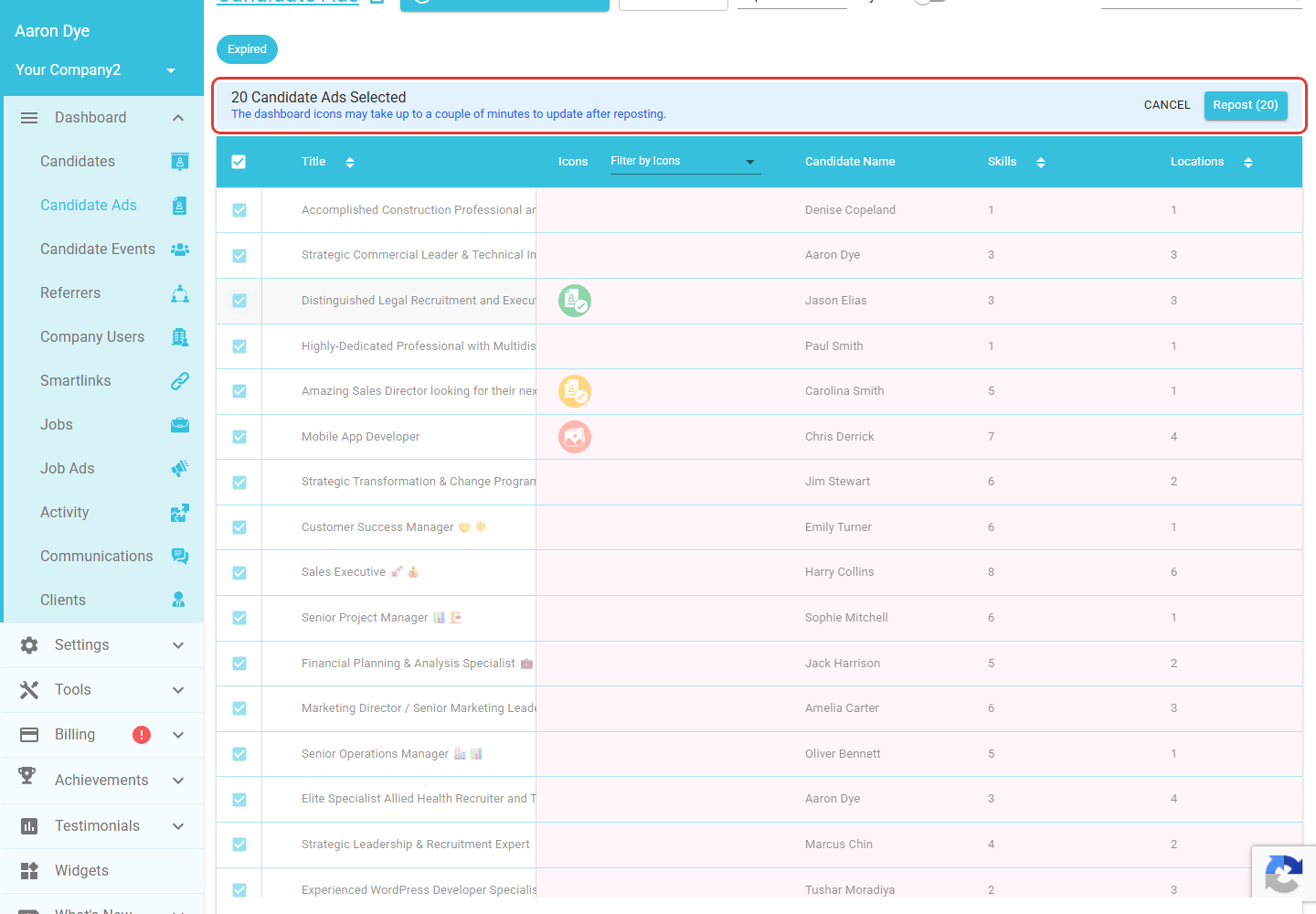
- Tick the candidate ads you want to act on. Use the checkbox in the table header to select every ad on the page at once. A blue bar above the table keeps a running count, for example 3 Candidate Ads Selected.
- Click the action button on the right of that bar to carry it out. The button shows the action and the number selected, for example Repost (3). To back out without doing anything, click Cancel.
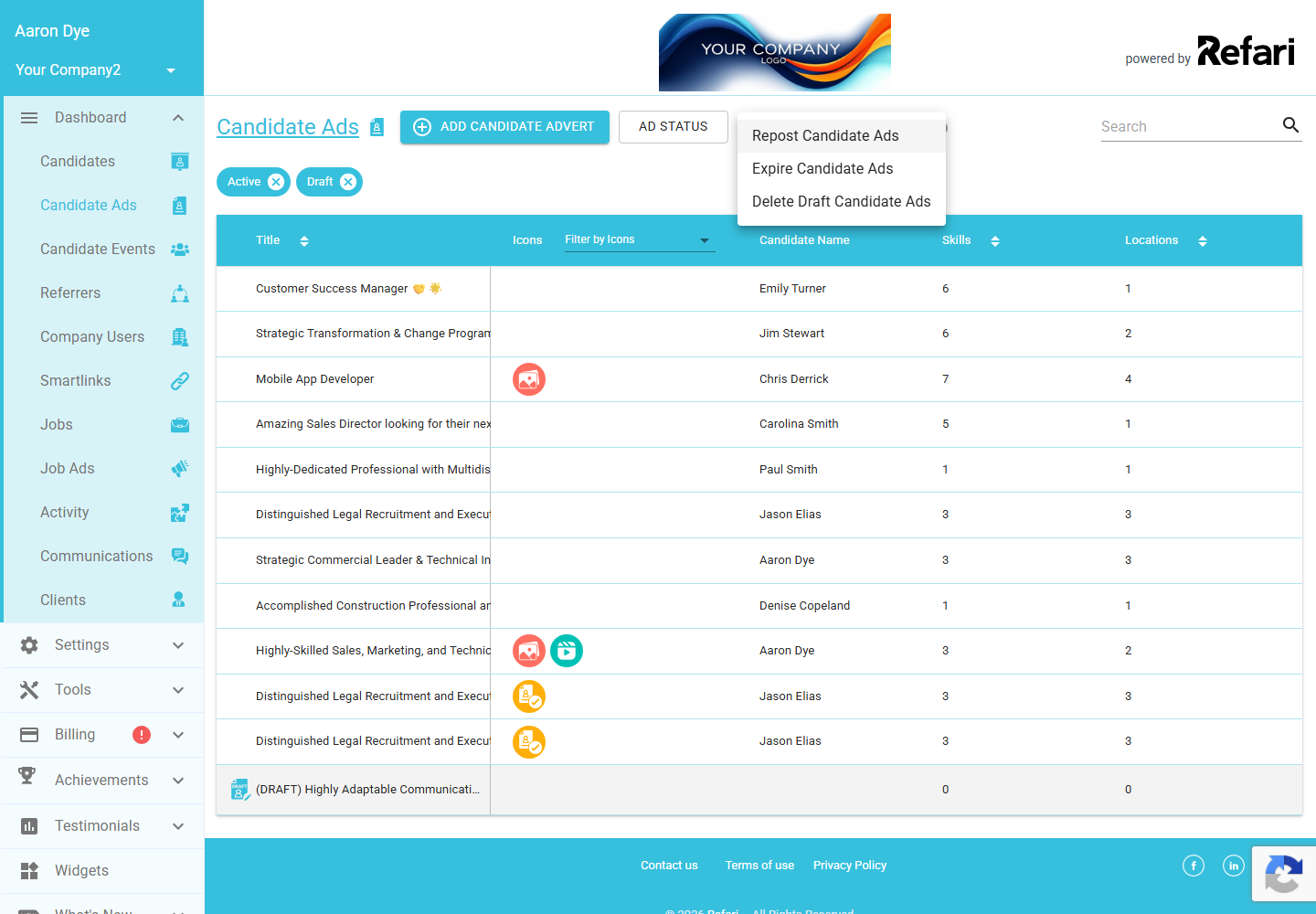
Once you have chosen an action and ticked some ads, the blue selection bar and its action button appear above the list:
Note: There is no separate confirmation step. The action runs as soon as you click the button, so check your selection first. If you change the Ad Status filter while you are part-way through, bulk mode is cancelled and your selection is cleared.A few things worth knowing
Reposting is all or nothing. If one of the candidate ads you have selected cannot be reposted, none of them are, so nothing changes until your whole selection is valid. Adjust the selection and try again. Your original expired ads are left as they are; reposting creates fresh, live adverts from them.
Note: Straight after a bulk repost you may briefly see the message "The dashboard icons may take up to a couple of minutes to update after reposting." That is normal. The reposted ads are already live; the icons and statuses in the list just take a short while to catch up.Delete only applies to drafts. The Delete Drafts action removes draft candidate ads you have not published. A draft that has already received an enquiry cannot be deleted this way. To learn more about drafts, see Draft Candidate Adverts ↗.
Warning: Deleting a draft is permanent and cannot be undone. Expiring an advert is different: it simply takes the ad off your Talent Board, and you can repost it later. If in doubt, expire rather than delete.Final Notes
Bulk actions are the quickest way to tidy up your Talent Board, whether that is clearing out old drafts, expiring a batch of filled roles, or bringing a set of expired adverts back to life in one go. If you only need to act on a single advert, or want to change its expiry date rather than repost it wholesale, you can still do that one ad at a time.
Other articles you might be interested in: How to update Expiry Date to a Candidate Ad and repost an Expired Candidate Ad | Draft Candidate Adverts
Was this article helpful?
That’s Great!
Thank you for your feedback
Sorry! We couldn't be helpful
Thank you for your feedback
Feedback sent
We appreciate your effort and will try to fix the article