This article is a guide to your Company Settings: the central place where you control how your public job board looks, how your referral scheme rewards people, who receives which notifications, and which AI features are switched on. It gives you a quick overview of each area and links to a detailed guide for every tab.
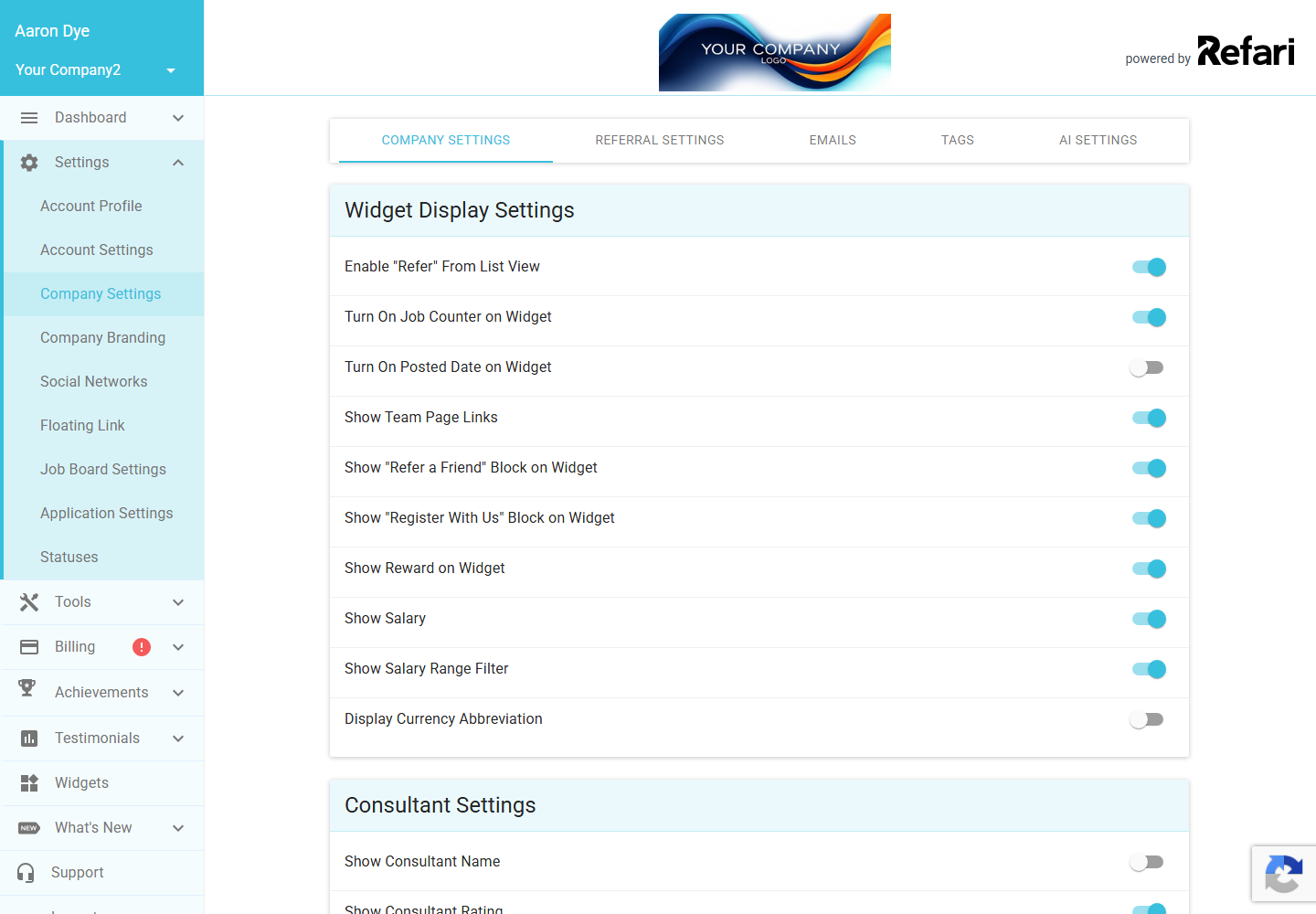
You will find everything under Settings > Company Settings. The page is organised into five tabs along the top.
Note: These settings are edited by a Company Admin. A Company Manager can open the tabs and see every value but cannot change anything, and other team members do not see this area. Across every tab, your changes are only saved once you click Apply Changes.The five tabs at a glance
| Tab | What it controls |
|---|---|
| Company Settings | What visitors see on your public job board: the Refer button, job counters, posted dates, salary, rewards, the recruiter shown on a job, application options, and how new people sync to your ATS. |
| Referral Settings | The reward amounts for candidate, internal and client referrals, and the statuses that decide when each referral is paid. |
| Emails | Which email addresses receive which notifications, which internal emails are switched on, and whether job alerts are paused for people you have placed. |
| Tags | The tags you use to organise team members, service locations and jobs. |
| AI Settings | The AI features that enrich your job ads, such as automatic skill tagging and LinkedIn job wrapping tags. |
Company Settings tab
This is the tab that shapes your public job board. It is where you decide whether the Refer button shows on the job list, whether job counters and posted dates appear, whether salary and rewards are visible, which recruiter is shown on a job, and whether new candidates, referrals and applicants are pushed to your ATS automatically. Each toggle is explained with a before and after example in the full guide: Every setting on the Company Settings tab explained ↗.
Referral Settings tab
A referral is when someone recommends a person they know for one of your roles, and a referrer is the person who makes that recommendation. This tab sets the rewards your referrers earn and the rules behind them. The detailed guide walks through every field: Setting up your referral rewards ↗.
Emails tab
This tab is where you decide who hears about what. You can route different events (referrals, applications, registrations, billing and more) to different inboxes, switch individual internal notifications on or off, and pause job alerts for people you have recently placed. The full guide covers each option: Managing your email notifications ↗.
Tags tab
The Tags tab is where you manage the labels you use to organise your team members, service locations and jobs. It has no on or off switches, so it is not covered in this set of guides, but you can read more about recruiter and service location tags in Recruiter tags and service location tags ↗.
AI Settings tab
This tab switches on AI features that enrich your job ads, such as tagging them with the skills they call for and adding the structured tags LinkedIn job wrapping expects. The detailed guide explains each one and the small cost involved: Your AI Settings explained ↗.
Final Notes
A good habit is to review these settings whenever you launch a new board, change your referral scheme, or add team members, so that what visitors see always matches how you want to present your roles. Remember that nothing is saved until you click Apply Changes.
Other articles you might be interested in: Every setting on the Company Settings tab explained | Refari roles and what each one can do
Was this article helpful?
That’s Great!
Thank you for your feedback
Sorry! We couldn't be helpful
Thank you for your feedback
Feedback sent
We appreciate your effort and will try to fix the article