This guide walks you through setting up your candidate referral scheme in Refari, from end to end: your reward fees, your candidate ownership period, your scheme terms, what referrers see on your board, and the transparency updates your referrers receive. You only need to do this once, and you can fine-tune it any time.
Note: These settings are changed by Admins. Managers can view them, and everything below lives under "Settings > Company Settings".Step 1: Set your referral rewards
Open the Referral settings tab. Here you set how much a referral is worth:
- Default Reward Fee, your standard reward.
- Percentage, an optional percentage of the job's expected fee.
- Advanced Settings, optional reward amounts per work type.
- Max Reward, a cap so a percentage reward never goes higher than you intend.
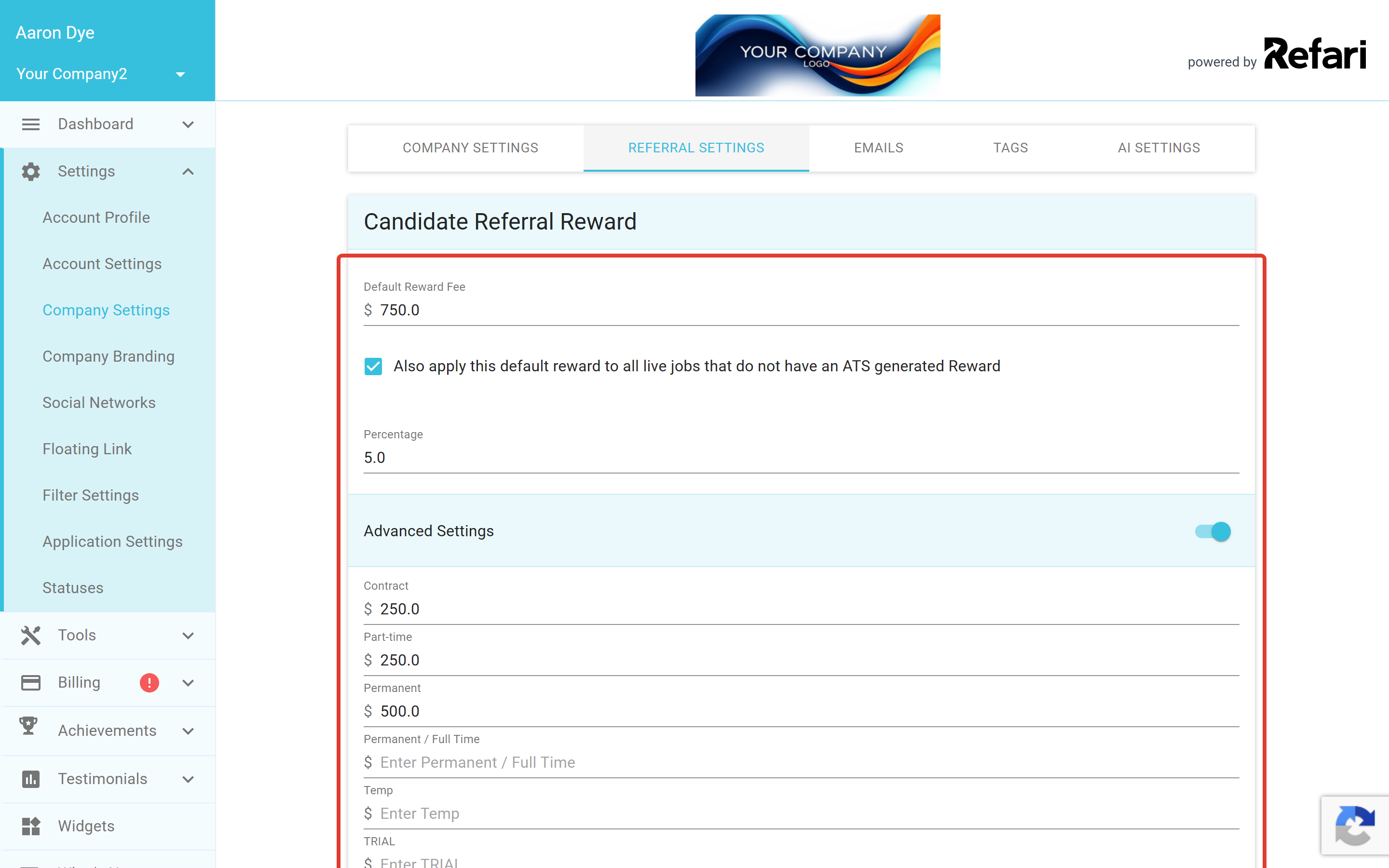
Refari uses the first of these that applies, in the order manual reward, then percentage, then work type, then default. To understand how Refari decides which reward to apply in any given case, see What are dynamic referral rewards and how do they work for recruitment agencies ↗. If you need to change a reward later, the step-by-step is in How to edit Referral Rewards ↗.
Step 2: Choose your candidate ownership period
On the Company settings tab, set your Referral Candidate Ownership Period. This is how long a referrer "owns" a candidate they referred: it governs how long they keep receiving updates, and when someone else could refer the same candidate. You can choose 3, 6, 12, 18 or 24 months.
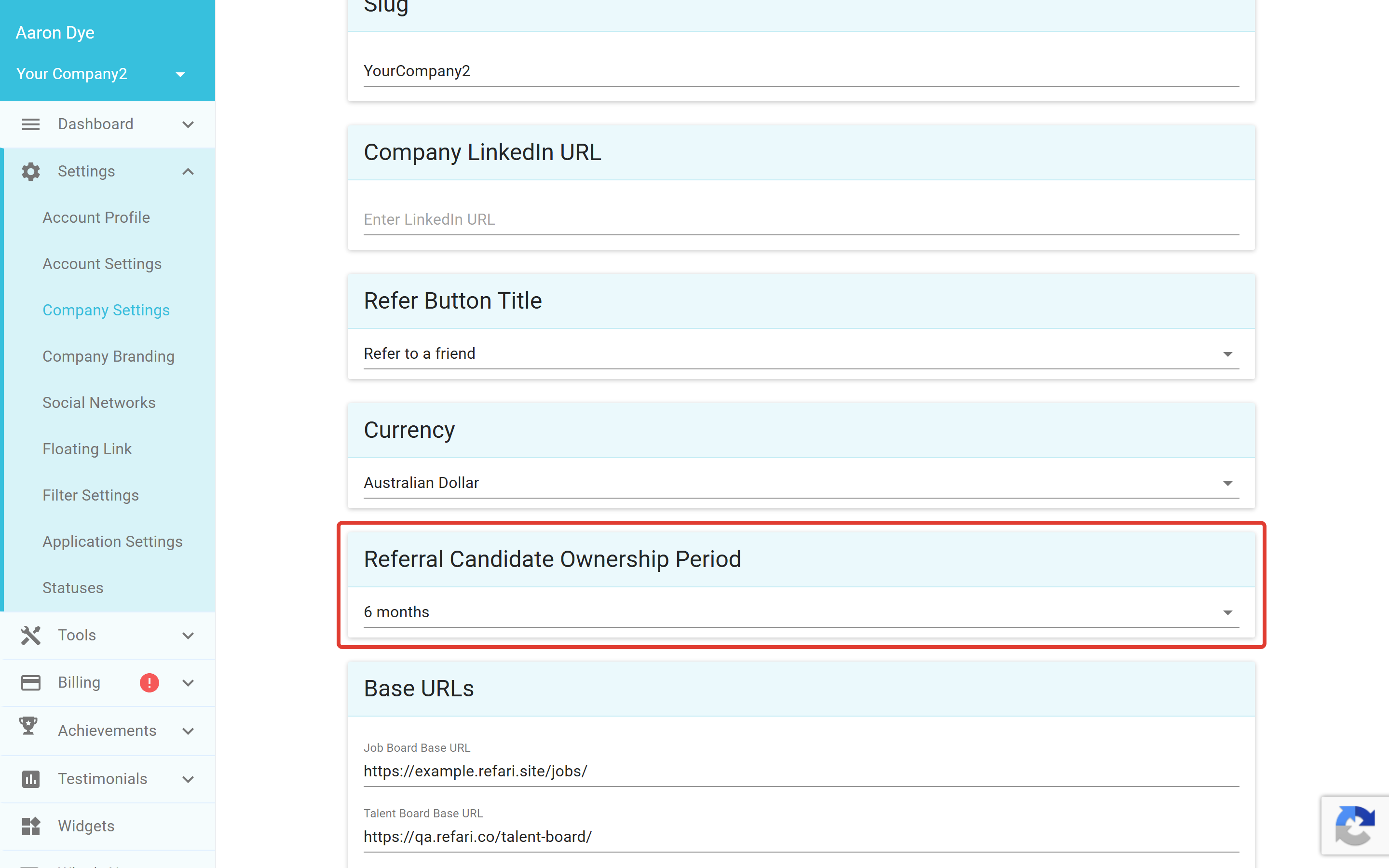
For more on how this works, see What is candidate ownership period for referrals and how does it work ↗.
Step 3: Add your referral scheme terms and conditions
Still on the Company settings tab, paste the web address of your referral scheme's terms and conditions into the Referral Scheme Terms and Conditions URL field. Referrers can then read your terms straight from your board.
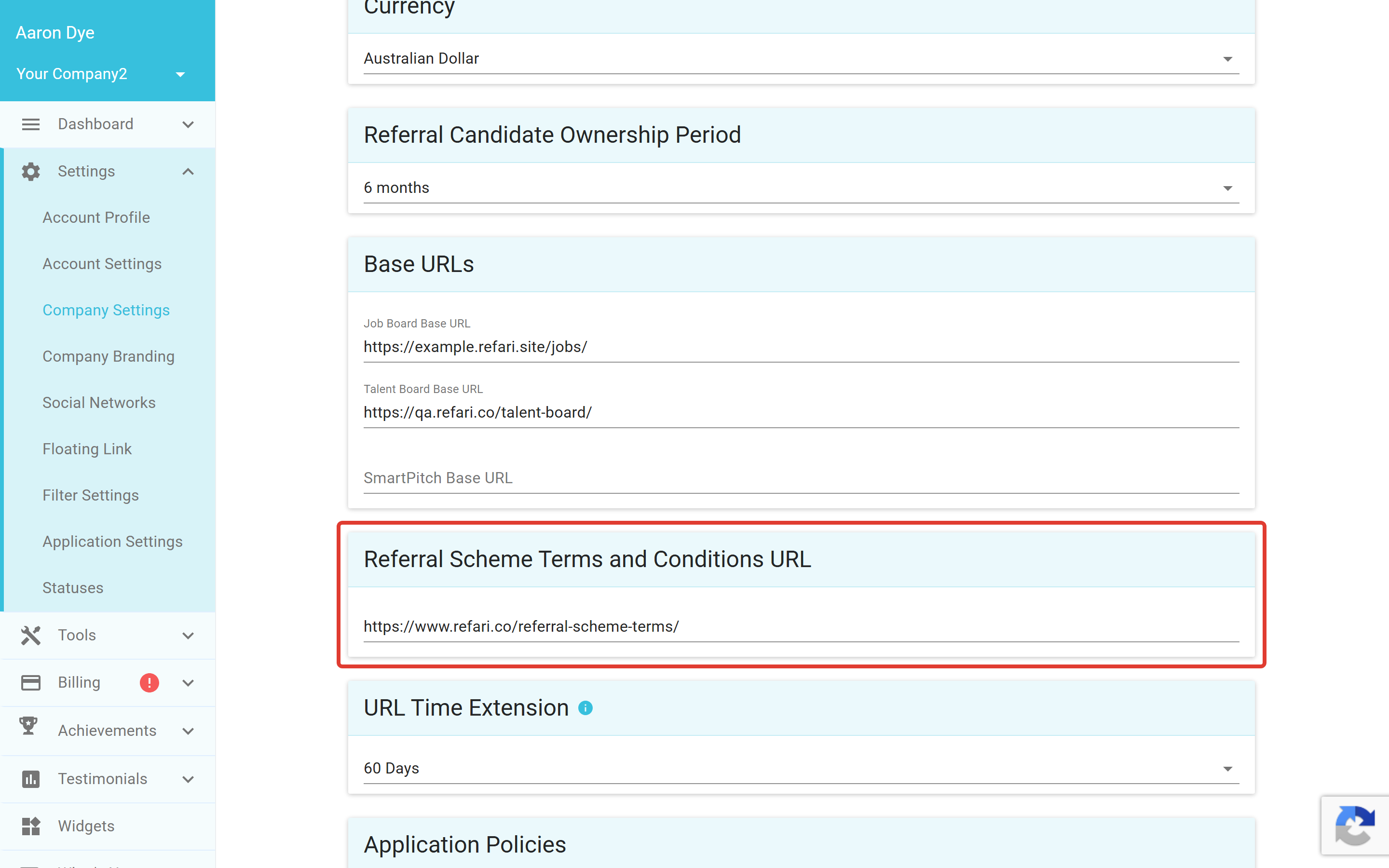
If you do not have terms yet, see How to add Referral scheme terms and conditions to your Refari Job board ↗ for where to add them. To save you starting from a blank page, we also provide a set of example terms and conditions ↗ you can adapt.
Step 4: Choose what referrers see on your board
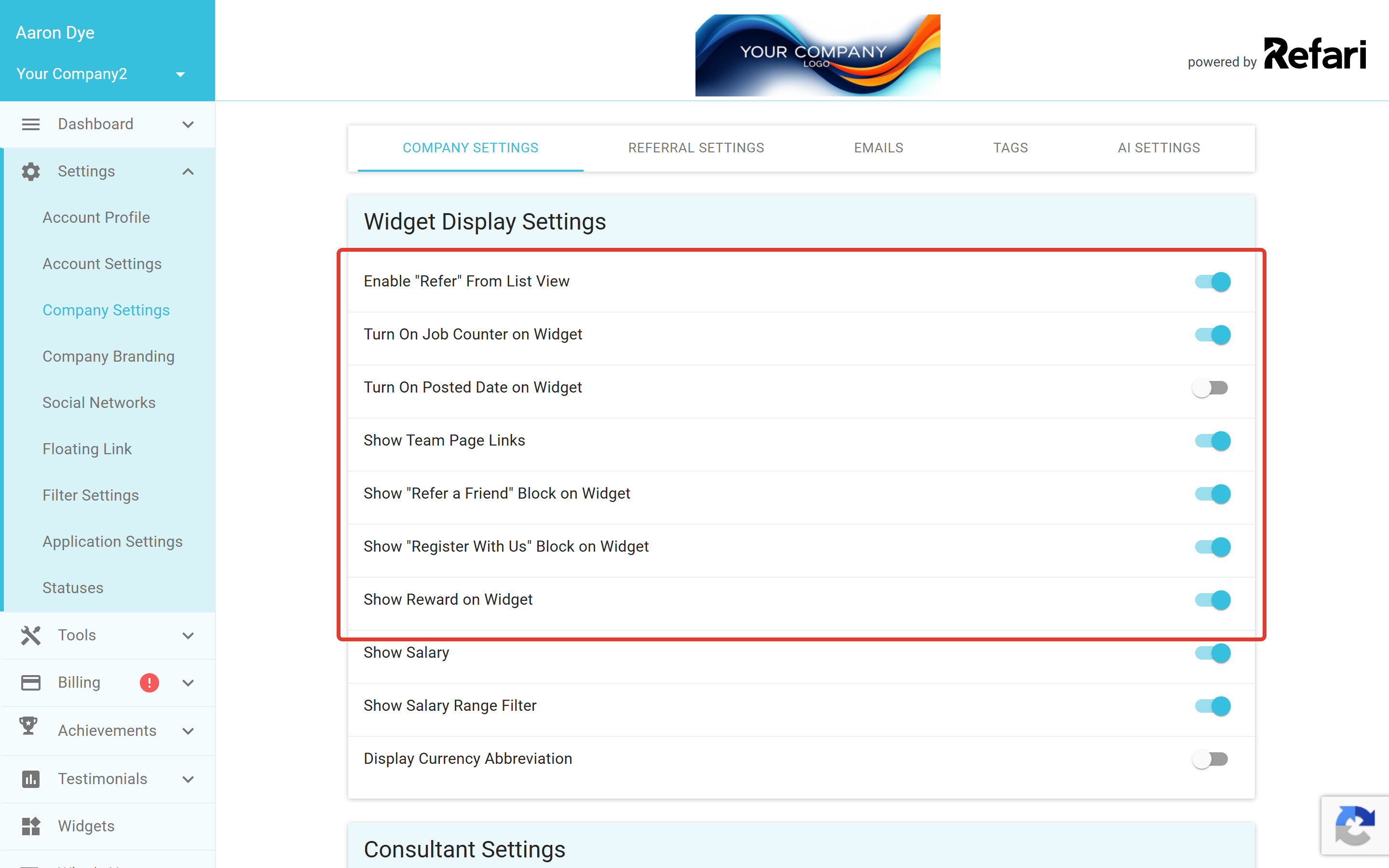
On the Company settings tab you can also control how referrals appear on your job board:
- Show "Refer a Friend" Block on Widget, which displays the prompt inviting people to refer someone.
- Enable "Refer" From List View, which adds a refer option to each job in the list.
- Show Reward on Widget, which displays the reward amount on your jobs to encourage referrals.
Step 5: Set your transparency triggers
Finally, on the Referral settings tab, click Referral Transparency Triggers and map your statuses to the updates your referrers receive as their candidate progresses. This is what keeps referrers in the loop. For the full detail on which updates are sent and how to set your triggers, see Referral transparency: the updates your referrers receive (and how to control them) ↗.
You're set up. With your reward, ownership period, terms, board options and triggers in place, your referral scheme is live. Referrals will now flow into your dashboard and your referrers will be kept informed automatically.Other articles you might be interested in: Candidate referrals on Refari: a complete guide for recruitment agencies | What are dynamic referral rewards and how do they work for recruitment agencies
Was this article helpful?
That’s Great!
Thank you for your feedback
Sorry! We couldn't be helpful
Thank you for your feedback
Feedback sent
We appreciate your effort and will try to fix the article