This guide walks you through adding a company testimonial in Refari. Company testimonials sit alongside your recruiter testimonials in any Refari testimonial widget, so you can showcase praise for the company as a whole, not just for individual recruiters.
Note: Adding company testimonials requires access to the Company Branding settings page, which is available to Company Admin and Manager users. If you do not see Company Branding in your Settings menu, your membership level does not currently have access; ask an admin on your account to add the testimonial for you, or to update your membership level.Company testimonials vs recruiter testimonials
Refari supports two flavours of testimonial, and both appear in the same testimonial widget:
- Recruiter testimonials are about a specific recruiter or team member. Clicking one in the widget takes the visitor to that recruiter's profile, where they can see the jobs and candidates that recruiter is working on.
- Company testimonials are about the company as a whole. Clicking one takes the visitor to your job board instead of a specific recruiter profile, which makes them a great fit for testimonials from clients (for external recruitment teams) or hiring managers (for in-house teams) about your overall service.
The steps below add a company testimonial. Recruiter testimonials are managed from each user's profile and are covered in a separate guide (linked at the bottom of this article).
Step 1: Open Company Branding and scroll to Company Testimonials
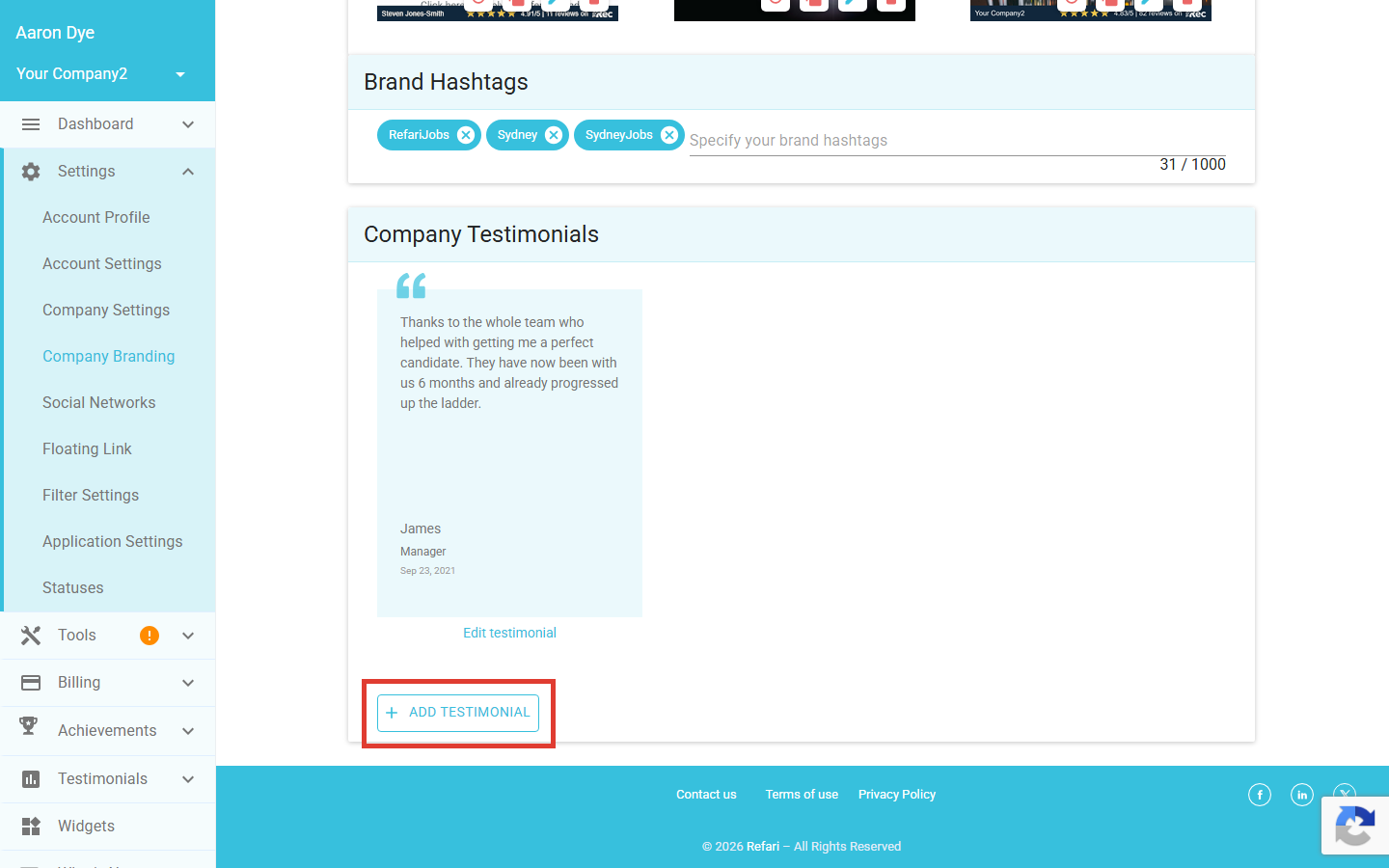
In your Refari dashboard, go to Settings > Company Branding (or open https://app.refari.co/settings/company-branding/ directly). Scroll all the way to the bottom of the page. The Company Testimonials section sits there, showing any existing company testimonials and a + ADD TESTIMONIAL button.
Step 2: Open the Add Testimonial form
Click + ADD TESTIMONIAL. The Add Testimonial modal opens with fields for the testimonial text, author name and occupation, the date, and a few options.
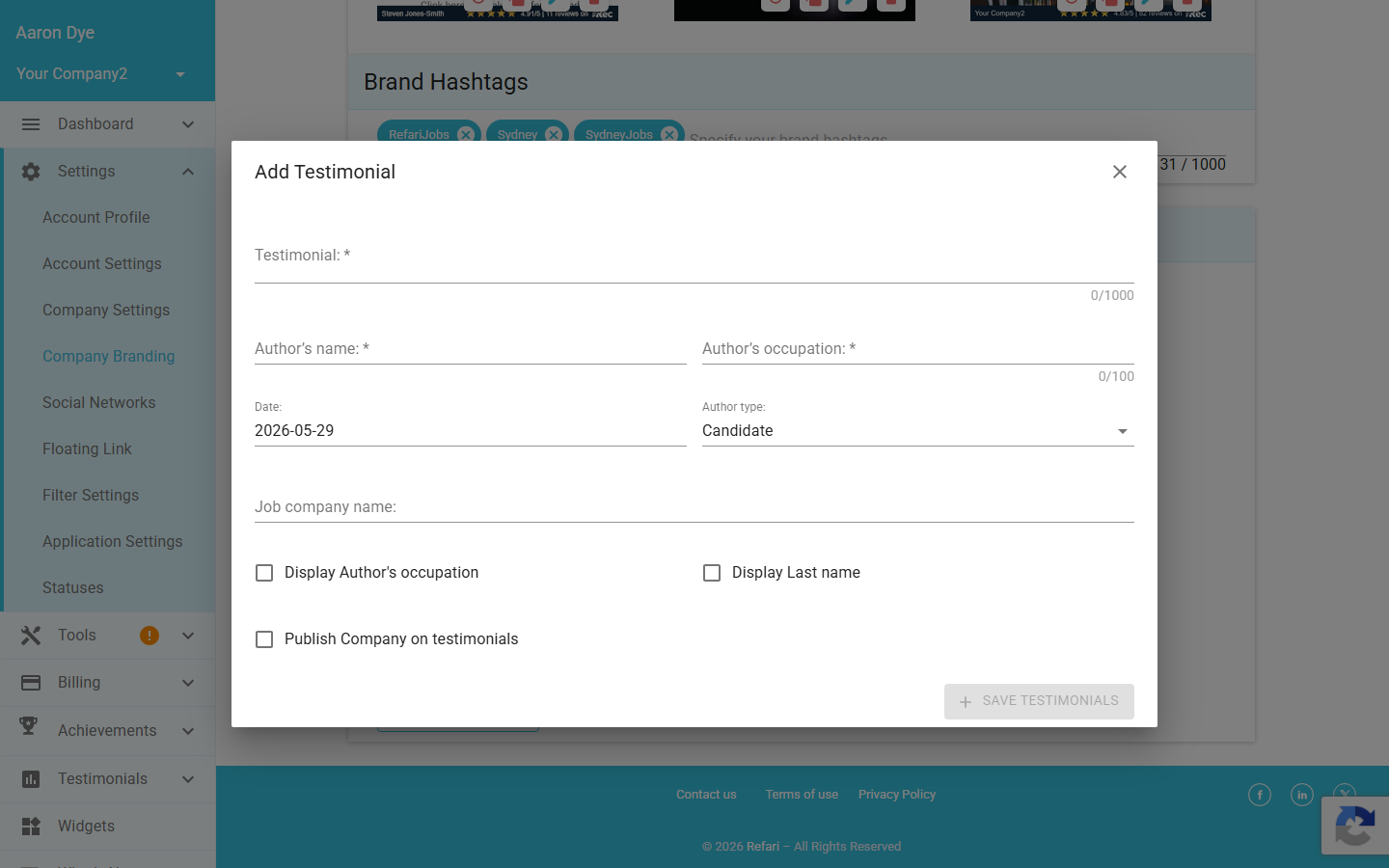
Fill the form out as if you were entering any other testimonial:
- Testimonial: the quote itself (up to 1,000 characters).
- Author's name and Author's occupation: who said it, and their role.
- Date: when the testimonial was given. Defaults to today.
- Author type: pick Candidate or Client, depending on who gave the testimonial. Client is the natural choice for most company testimonials, including hiring-manager testimonials for in-house recruitment teams.
- Job company name: optional, useful when the author is a client or hiring manager and you want to credit their company.
- Display Author's occupation and Display Last name: tick these if you want either to appear publicly in the widget.
Step 3: Choose whether to show the job company name
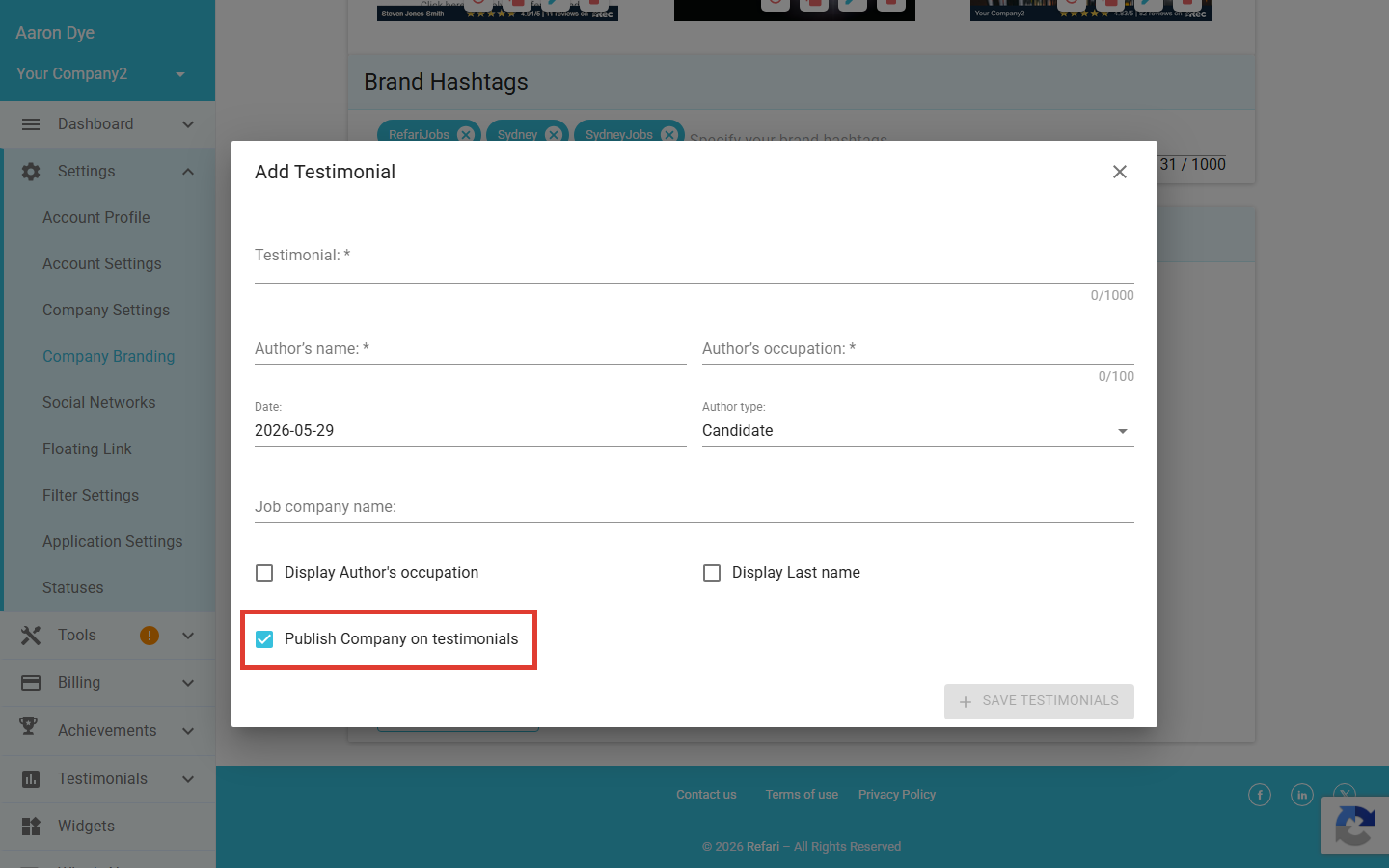
At the bottom of the modal there is a checkbox labelled Publish Company on testimonials. Tick this if you want the value you entered in the Job company name field above to appear publicly alongside the testimonial in any widget that shows it. Leave it unticked if you would rather show only the author's name and occupation.
Idea: What makes this a company testimonial is where you opened the form from, not a tick-box. Because you opened + ADD TESTIMONIAL from Settings > Company Branding > Company Testimonials, the testimonial is automatically saved against the company and will appear in any testimonial widget configured to show company testimonials. If you ever add a testimonial from an individual recruiter's profile instead, that one is saved as a recruiter testimonial. If a testimonial does not show up where you expect, check which section you opened the form from.Step 4: Save the testimonial
Click + SAVE TESTIMONIALS at the bottom right of the modal. The modal closes and the new testimonial appears in the Company Testimonials section, with an Edit testimonial link below it so you can adjust it later.
Success! Your company testimonial is live. It will show up alongside your recruiter testimonials in any Refari testimonial widget you have embedded on your website, and clicking it will send visitors to your job board.Final Notes
You can add as many company testimonials as you like. Use the Edit testimonial link under each entry to refresh wording, change the author details, or remove a testimonial that is no longer relevant. If you have not yet added a testimonial widget to your website, the related guides below cover where they go and how to install them.
Other articles you might be interested in: How to populate testimonials in a testimonial widget | How to set up testimonials on your Refari profile | Testimonials Widget: how to install it and the customisation available
Was this article helpful?
That’s Great!
Thank you for your feedback
Sorry! We couldn't be helpful
Thank you for your feedback
Feedback sent
We appreciate your effort and will try to fix the article