This guide walks you through how to add a team member to your Meet The Team and Testimonials widgets, and how to hide someone from those widgets without deleting their Refari account. Hiding a team member is controlled by a single toggle on their profile, so you can show or hide them at any time while keeping their account, login and history intact.
Adding a team member
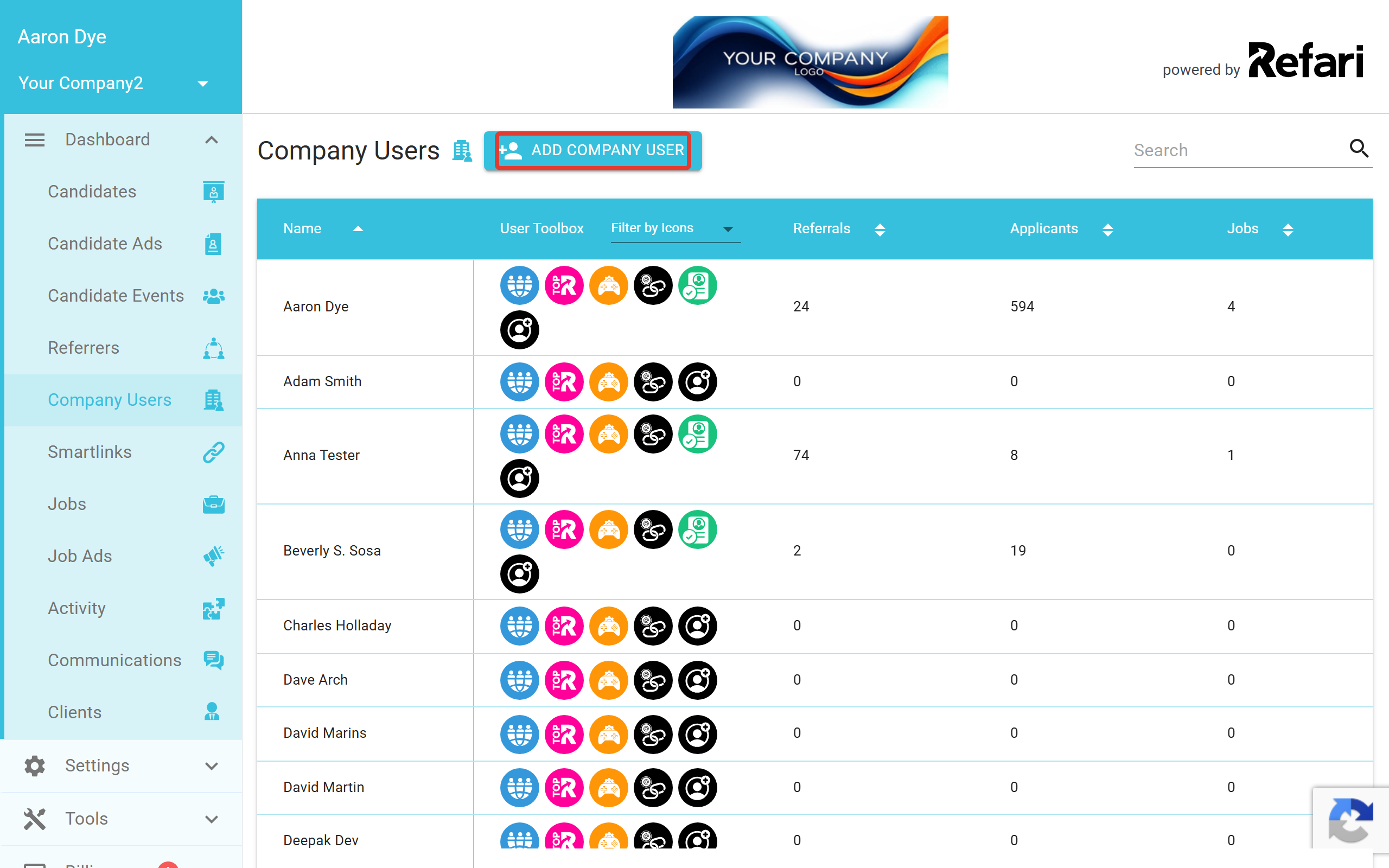
To add a new team member to your account, go to "Dashboard > Company Users" and select the ADD COMPANY USER button.
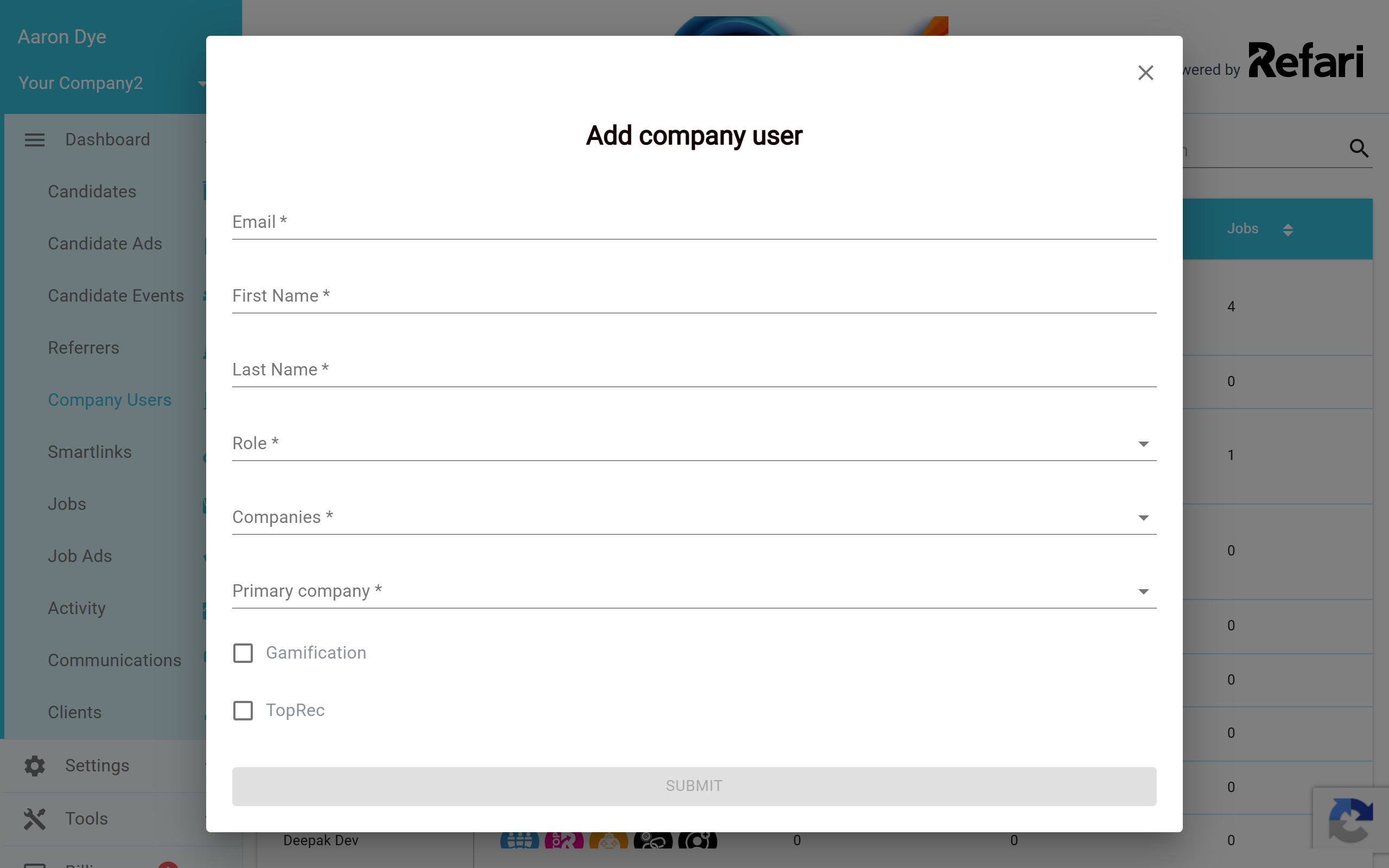
Complete the "Add company user" form with their details, including their first name, last name and email address.
Once the team member has been created and their profile has the basics filled in (a profile photo, a position and an "about" description), they will automatically appear in your Meet The Team widget. Add a testimonial to their profile and they will appear in your Testimonials widget too.
Idea: A complete profile is what makes the widgets look their best. Adding a clear profile photo, a position and a short "about" description gives visitors a proper introduction to your team.
Removing a team member from the widgets without deleting them
If you want to take someone out of the Meet The Team and Testimonials widgets but keep their Refari account, you do not need to delete anything. There is a toggle on their profile that controls whether they are shown.
- Open the profile under "Settings > Account Profile". To change another team member's profile, a Company Admin first goes to "Dashboard > Company Users", clicks the team member, clicks Sign in as at the bottom of the side panel, and then opens "Settings > Account Profile".
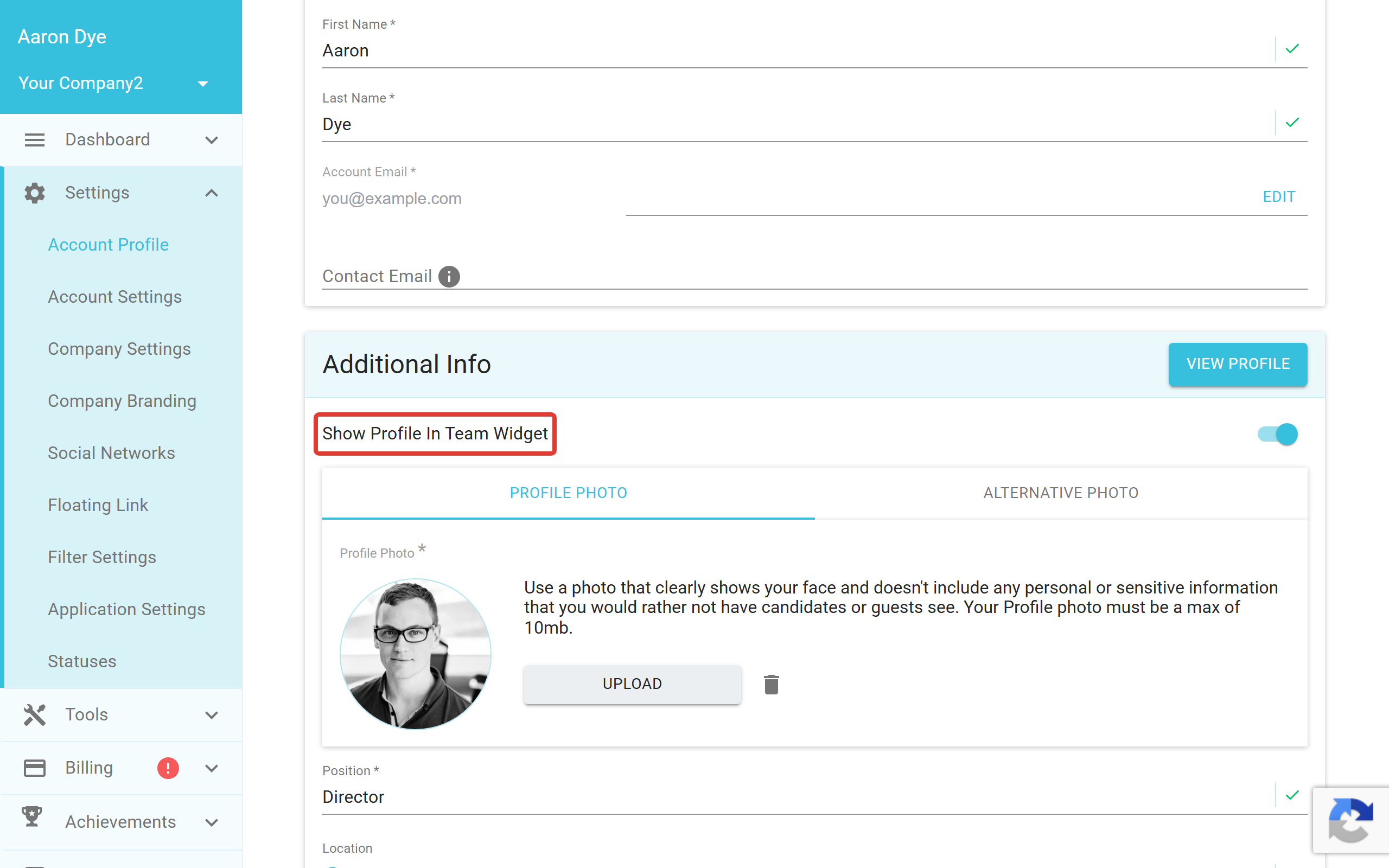
- Scroll to the Additional Info section.
- Switch the Show Profile In Team Widget toggle off to hide them, or on to show them.
- Click Apply Changes in the bar at the bottom of the page to save the change.
- If you signed in as another team member, click Logout to return to your own account.
Note: Switching the toggle does not save it on its own. The change is only saved when you click Apply Changes, and a "Your profile was successfully updated!" message then appears in the bottom-right corner. Clicking Revert discards your edits and takes the profile back to its last saved state. If you leave the page before applying, you will be asked to confirm and your unsaved changes will be discarded.
Note: Switching Show Profile In Team Widget off only hides the team member from the widgets. It does not delete their Refari account, and they keep their login, profile and history. You can switch it back on at any time and they will reappear. If you want to permanently delete a team member instead, see the related article below.
How the two widgets are linked
The Meet The Team and Testimonials widgets share the same profile setting. Showing or hiding a team member with the Show Profile In Team Widget toggle affects both widgets at once, so you do not need to update each one separately.
Final Notes
Hiding someone from your widgets is fully reversible, so you can confidently show or hide team members as your team changes without losing any of their data. If you are not sure how to complete a profile, the "How to set up your profile" article below walks through each field in detail.
Other articles you might be interested in: How to delete or remove a team member from the Refari platform | How to set up your profile | The Meet The Team Widget: Recruiter Tags
Was this article helpful?
That’s Great!
Thank you for your feedback
Sorry! We couldn't be helpful
Thank you for your feedback
Feedback sent
We appreciate your effort and will try to fix the article