This article explains what the Custom Profile URL setting is, what it changes about your Refari widgets, where to find it on a profile, and how to add, change, or remove it. It is worth knowing about because a single entry in this field quietly changes where visitors land when they click a team member, which can be surprising if you did not set it yourself.
A quick definition first. A widget is one of the Refari elements embedded on your website, such as your job board, your Meet the Team page, or a testimonials display. By default, every recruiter or team member has a Refari-hosted profile page, the page a visitor reaches when they click that person's name or photo in a widget.
What the Custom Profile URL does
By default, when a visitor clicks a team member's name or photo anywhere in your widgets, they open that person's Refari-hosted profile page. When a Custom Profile URL is set for that person, those clicks open the web address you have entered instead, in a new browser tab. Nothing else about the widget changes. It is purely a redirect for that one person's profile link.
The redirect applies everywhere that person's profile is clickable, including:
- the team member shown on a job advert, both on the job board and on a job's detail page
- the Meet the Team widget
- testimonial and ratings widgets, wherever a reviewer's recruiter is linked
Note: The Custom Profile URL is set per person, and per company. If a team member works across more than one of your companies on Refari, the Custom Profile URL is set separately for each one.The two settings that control it
Two settings work together to make the Custom Profile URL available:
- A company-wide option that allows custom profile URLs at all. This is switched on by Refari, not from within your dashboard. If your company does not have it enabled, the Custom Profile URL field will not appear on anyone's profile. To turn it on, or off, for your whole company, contact Refari support.
- The Custom Profile URL field itself, which appears on each team member's own profile once the company-wide option is on. This is where the actual web address is entered.
Where to find the Custom Profile URL field
The field lives on a team member's own profile, in the same place you manage the rest of your profile details (see How to set up your profile ↗ for the full walkthrough of that page).
- Sign in to your Refari dashboard.
- Go to Settings > Account Profile.
- Scroll down to the External URLs section.
- The Custom Profile URL field sits there, below the LinkedIn Profile and Video fields.
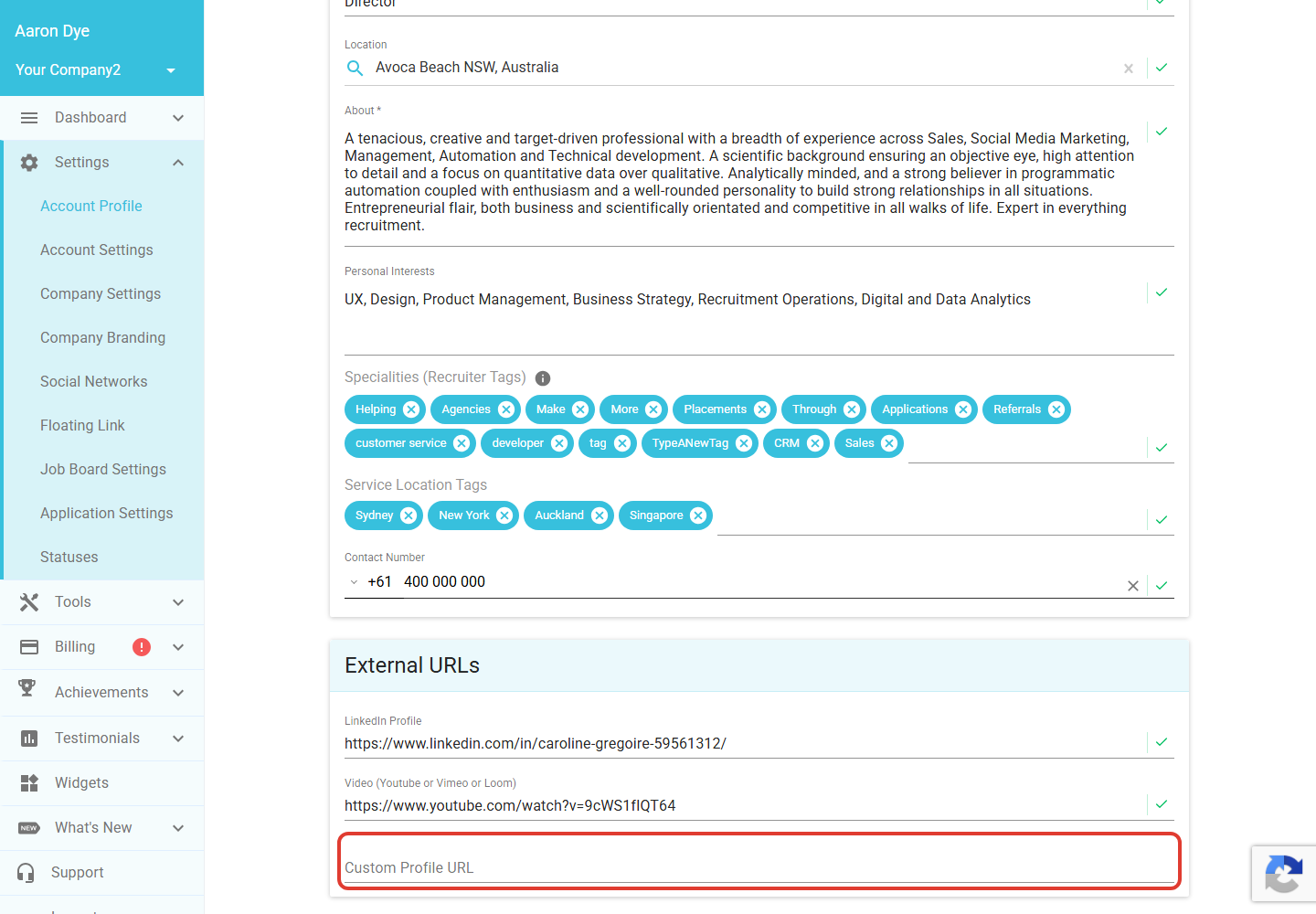
Note: If you cannot see the Custom Profile URL field, the company-wide option has not been enabled for your company. Contact Refari support and we can switch it on for you.Adding or changing a Custom Profile URL
- Open the Custom Profile URL field as described above.
- Enter the full web address you want clicks to lead to. It must be a complete, valid URL and should start with https:// (for example, https://www.example.com/our-team/jane-smith).
- Save your profile changes.
You're done. From now on, clicking that person's name or photo in your widgets will open the address you entered, in a new browser tab, instead of their Refari profile page.Removing a Custom Profile URL
To go back to the default Refari profile page, clear the field:
- Open the Custom Profile URL field on that person's profile.
- Delete the web address so the field is empty.
- Save your profile changes.
With the field empty, clicking that person's name or photo once again opens their Refari-hosted profile page.
Why a profile link might lead somewhere unexpected
If clicking a team member's name or photo takes visitors to a page you did not expect, rather than their Refari profile, a Custom Profile URL is almost certainly set on that person's profile. This is the single cause: the widget simply follows whatever address is in that field.
To put it back to normal, open that person's profile, clear the Custom Profile URL field as described above, and save. If you would prefer to remove the option entirely so it cannot be set again, ask Refari support to switch off the company-wide option for your account.
Idea: The Custom Profile URL is most useful when you have a richer page for a team member elsewhere, such as a detailed bio on your own website or a booking page. Point the field at that page so visitors who click through get the experience you have designed for them.Final Notes
Keep in mind that the Custom Profile URL always opens in a new browser tab, and that it only changes where the profile link points, not anything else on the widget. Because it is set per person and per company, do check the right profile if a team member appears across more than one of your companies. If you are unsure whether the option is enabled, or you would like it turned on or off, our support team is happy to help.
Other articles you might be interested in: How to set up your profile | How to Add an About Page URL to Your Job Board
Was this article helpful?
That’s Great!
Thank you for your feedback
Sorry! We couldn't be helpful
Thank you for your feedback
Feedback sent
We appreciate your effort and will try to fix the article