This article explains what the Referral widget is, how to install it on your website, and the customisation options available. The Referral widget puts a "refer a friend" form wherever you want it, for example on a careers or landing page, so visitors can recommend a candidate to your company directly, without being tied to a specific job.
What the Referral widget does
The widget shows a short form where someone can refer a candidate to you (the candidate's name, email, and a few optional details). It comes in three ready-made designs so it fits neatly into your site. You will find it under Widgets > Referral in your Refari dashboard, where you can preview each design and copy the code to install it.
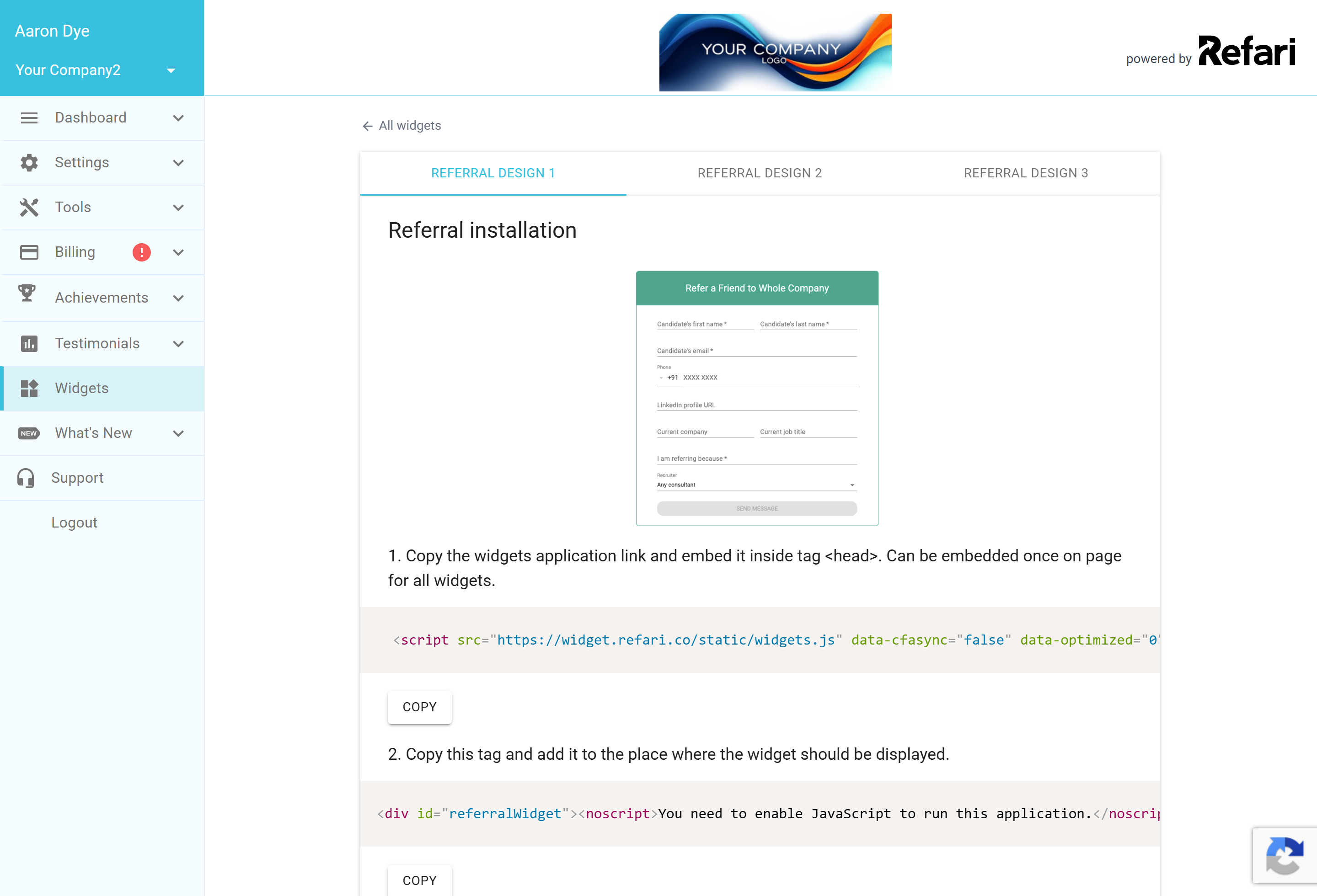
Note: The install code lives in the Admin area of your dashboard, so you need Admin access to copy it. If you do not manage your own website, send the three snippets below to whoever does.How to install it
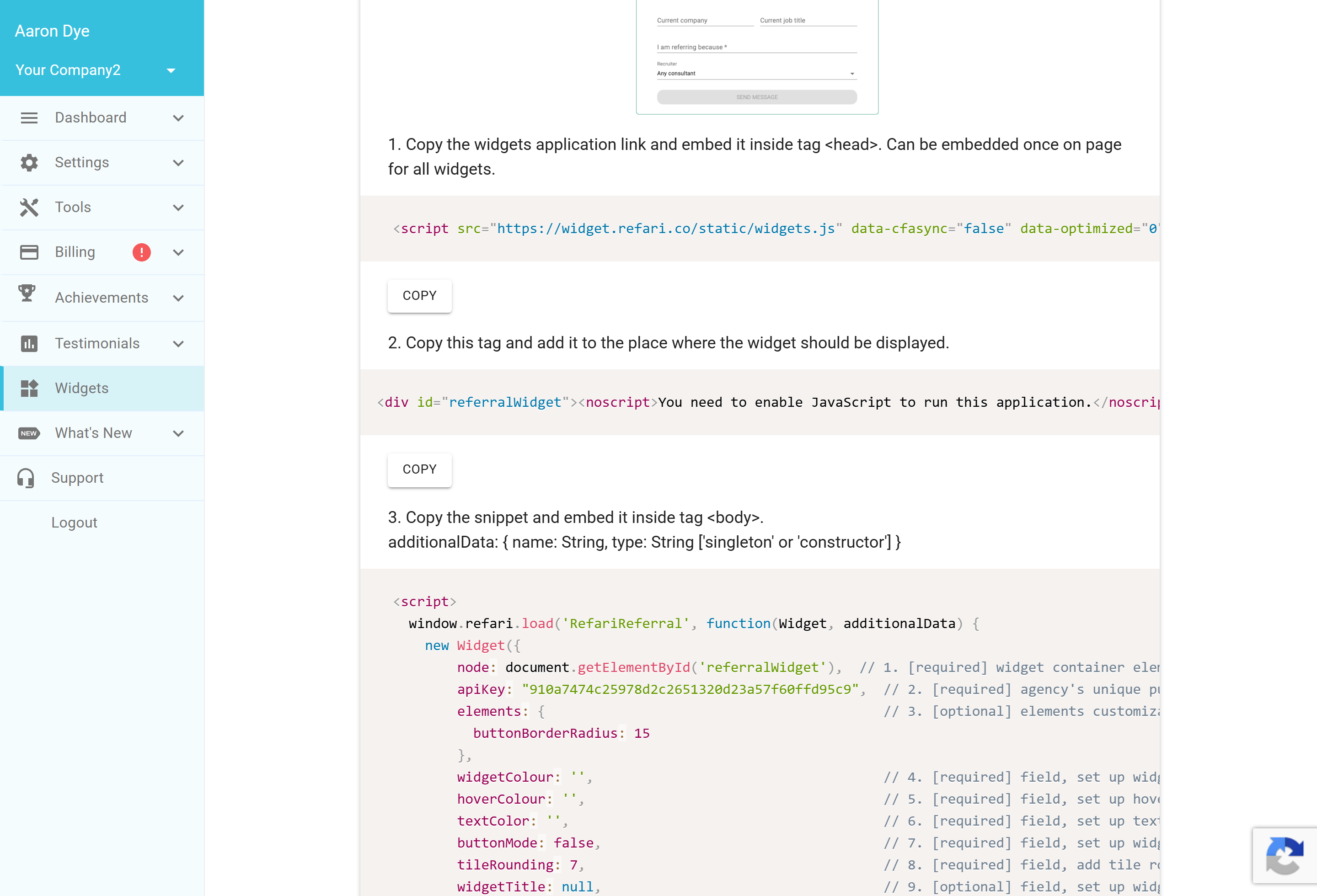
Go to Widgets > Referral, choose the design you want at the top, then copy the three snippets in order:
- The widgets application link. Add this inside your page's <head>. You only need it once per page, and the same link powers every Refari widget on that page.
- The container tag. Add this <div> exactly where you want the widget to appear on the page.
- The widget snippet. Add this inside your <body>. It already includes your public API key, so it is tied to your account.
Each snippet has a Copy button, and Copy All grabs all three at once.
That's it. Once the three snippets are in place and the page is published, the Referral widget appears where you added the container, ready to take referrals.Customisation options
The widget snippet exposes a few settings you can adjust to match your site:
- widgetColour, hoverColour, textColor: set the widget's primary colour, its hover colour and its text colour to match your brand.
- buttonMode: set to true to show a single "Refer a friend" button that opens the form in a pop-up, or false to show the form inline on the page.
- tileRounding and buttonBorderRadius: control how rounded the corners are.
- widgetTitle: change the heading above the form (or leave it as the default).
- widgetWidth and fullWidth: control how wide the widget is.
- optionalReferFormFields: make fields such as the CV or LinkedIn URL optional rather than required.
Idea: Use buttonMode: true in a tight space like a sidebar or footer, and the inline form on a dedicated "refer a friend" page where you have room for it.Final Notes
The Referral widget is a great companion to the "Refer a Friend" option already on your job board: the board captures referrals from people browsing your jobs, while this widget captures them anywhere else you promote your referral scheme. Any referral that comes through it is tracked in Refari just like the rest.
Other articles you might be interested in: Candidate referrals on Refari: a complete guide for recruitment agencies | Candidate Registration Widget - How to install it and the customisation available
Was this article helpful?
That’s Great!
Thank you for your feedback
Sorry! We couldn't be helpful
Thank you for your feedback
Feedback sent
We appreciate your effort and will try to fix the article