This article explains why some actions on your careers page or job board, such as Refer a Friend, Apply and Register, appear greyed out or go missing when you or a colleague are signed in to Refari, what you can do instead, and how to see the board the way a candidate does. It all comes down to one thing: you are signed in as a company user.
A company user is anyone on your team with a Refari login for your company: an admin, a manager or a recruiter. A candidate or referrer is someone using your board from the outside, to apply for a role, refer a friend or follow your jobs. The board looks and behaves differently for each.
Why some actions are switched off
Your job board serves two very different audiences from the same pages: candidates and referrers on the outside, and your own team on the inside. When you are signed in as a company user, Refari switches off the candidate-facing actions, because journeys like applying, referring and registering are built for the person on the outside, not for your staff. This is by design, not a fault. In their place you get a set of recruiter tools, covered further down. So if a button is greyed out for some of your colleagues but not others, it is simply because those colleagues are signed in with a company login.
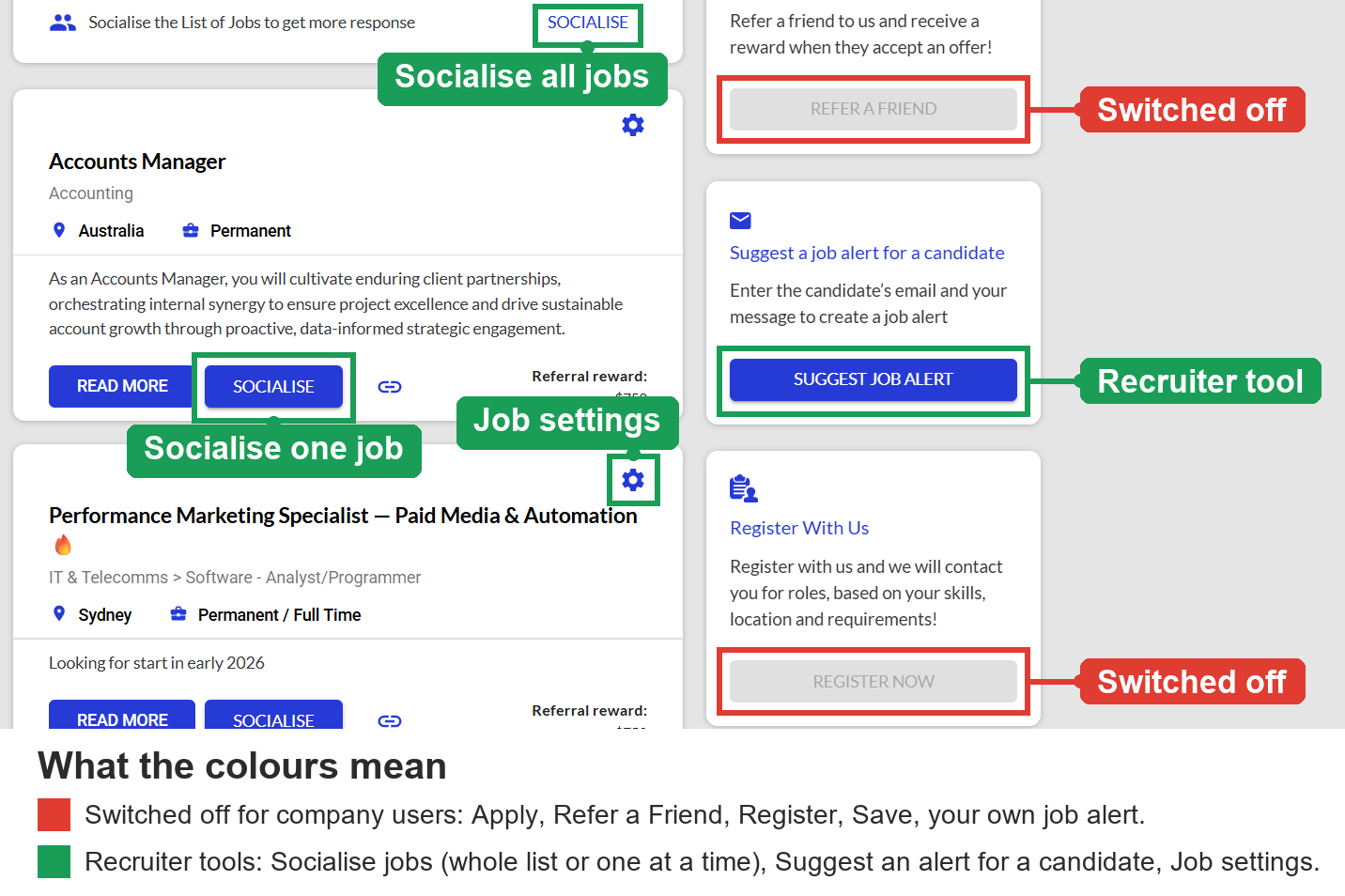
Here is the quick comparison of what is available to a candidate or referrer versus what is available to you when you are signed in as a company user.
✓ available ✗ not available
| On your job board | Candidate or referrer | You, as a company user |
|---|---|---|
| Browse, search and read job ads | ✓ | ✓ |
| Apply for a job | ✓ | ✗ |
| Refer a friend to a job | ✓ | ✗ |
| Register or create a candidate account | ✓ | ✗ |
| Save a job | ✓ | ✗ |
| Create a job alert for yourself | ✓ | ✗ |
| Share a job with a trackable link | ✗ | ✓ |
| Create a job alert on behalf of a candidate | ✗ | ✓ |
| Open job ad settings and manage your board | ✗ | ✓ |
Note: The recruiter tools in the lower rows depend on your role, with admins and managers seeing the most and a recruiter seeing a focused set. One exception to the table: a recruiter from a different Refari company who lands on your board is treated as an outside referrer, so they can still refer a friend.Only Apply tells you why
One thing worth knowing: most of these actions are simply greyed out or hidden, with no message explaining why, so it can look as though something is broken when it is not. The exception is Apply. If you try to apply while signed in as a company user, Refari shows a prompt that reads "To apply for this job you would need to sign out from your Refari Recruiter profile", with a Sign out button. For Refer a Friend, Register and Save, there is no message; the button is just inactive or absent. That is expected behaviour, not a bug.
What you can do as a company user
Being signed in as a company user is not a lesser experience, just a different one. Depending on your role, you can:
- Browse, search and read every job ad on your board, exactly as a candidate would.
- Share or socialise a job, including copying a trackable link you can send out, so referrals and applications are credited correctly.
- Create a job alert on behalf of a candidate. You enter the candidate's email and a short message, preview it, and Refari sends them matching jobs as they come up. This is the recruiter version of the alert that candidates set up for themselves.
- Open a job's settings and manage your board (admins and managers), which opens the relevant area of your Refari dashboard.
Seeing the board the way a candidate does
To test or preview the full candidate experience, including Apply and Refer a Friend, view the page as someone who is not signed in as a company user:
- Sign out of your Refari company profile, or open your careers page in a private or incognito browser window where you are not logged in.
- The candidate-facing buttons, including Refer a Friend and Apply, will now be active.
- Use them as a candidate or referrer would. When you submit a referral or an application, you will be prompted to sign in or create a quick account, which is the step that captures the referrer's or candidate's own details.
Idea: A private or incognito window is the quickest way to see your board as the public does, without having to sign out of your everyday Refari session.Final Notes
If a candidate action is still greyed out after signing out, double-check that you are genuinely logged out (a private window is the surest way). And if you expected a colleague to be able to refer or apply but they cannot, it is worth checking whether they are signed in with a Refari company login, since that is what switches those actions off.
Other articles you might be interested in: Candidate referrals on Refari: a complete guide for recruitment agencies | Referral Widget - How to install it and the customisation available
Was this article helpful?
That’s Great!
Thank you for your feedback
Sorry! We couldn't be helpful
Thank you for your feedback
Feedback sent
We appreciate your effort and will try to fix the article