This guide walks you through AI-Enabled Job Alerts: what they are, how to turn them on, how to design the way they look, how to steer the wording, and how to preview one before it reaches your candidates.
What are AI-Enabled Job Alerts?
A job alert is an email Refari sends to a candidate when new jobs match what they are looking for. A standard alert uses a fixed layout. AI-Enabled Job Alerts go further: the email is both written and designed using AI, so it reads naturally, matches your branding, and keeps candidates engaged. You will find the feature in your dashboard under "Tools > AI-Enabled Job Alerts".
You can design and preview your alerts as much as you like first, and only switch the service on once you are happy with how they look.
Step 1: Open the page and turn on the service
Go to "Tools > AI-Enabled Job Alerts". At the top of the page is the Enable Job Alerts Service toggle. Leave it off while you design and preview, then switch it on when you are ready for alerts to start going out.
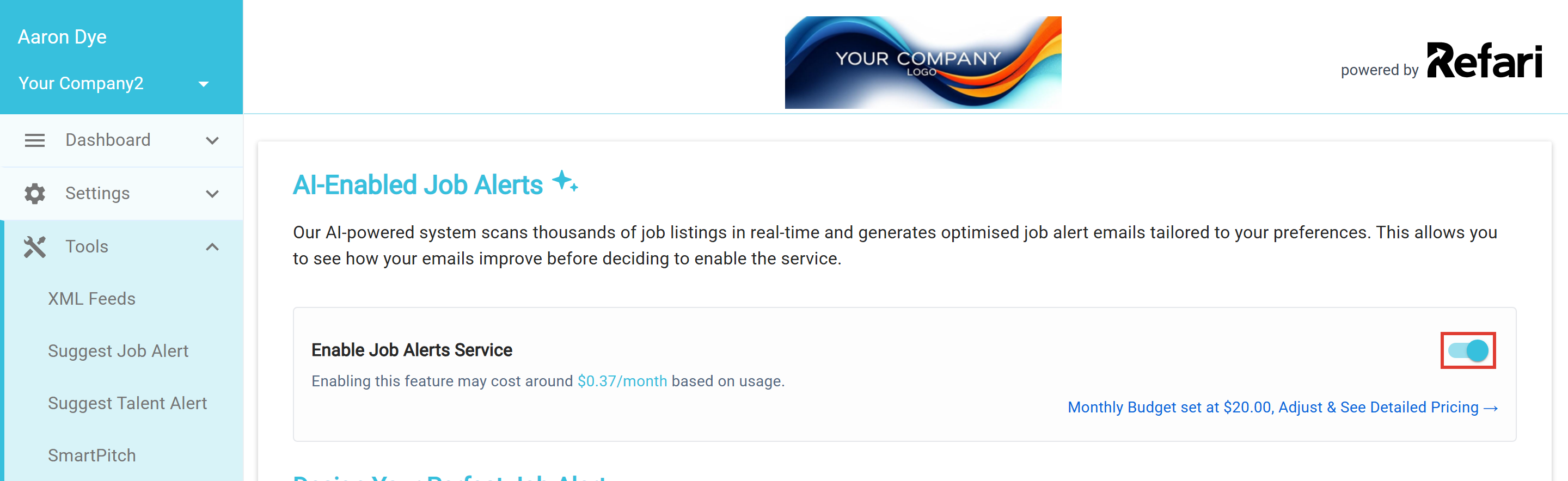
Note: This is an AI feature, so it has a small usage-based cost. The page shows an estimated monthly cost ("Enabling this feature may cost around $X.XX/month based on usage") and your monthly budget. Use Adjust & See Detailed Pricing to review or change the budget before you enable the service.Step 2: Design how your alert looks
Under Design Your Perfect Job Alert, you are not limited to your default branding colours. In Select Colour Palette for Email you have two options:
- AI Generate Colour Palette lets AI create a palette that matches your style. It builds a set of branded options inspired by your logo and colours for you to pick from.
- Manually Edit Colour Palette gives you full control to refine each colour yourself.
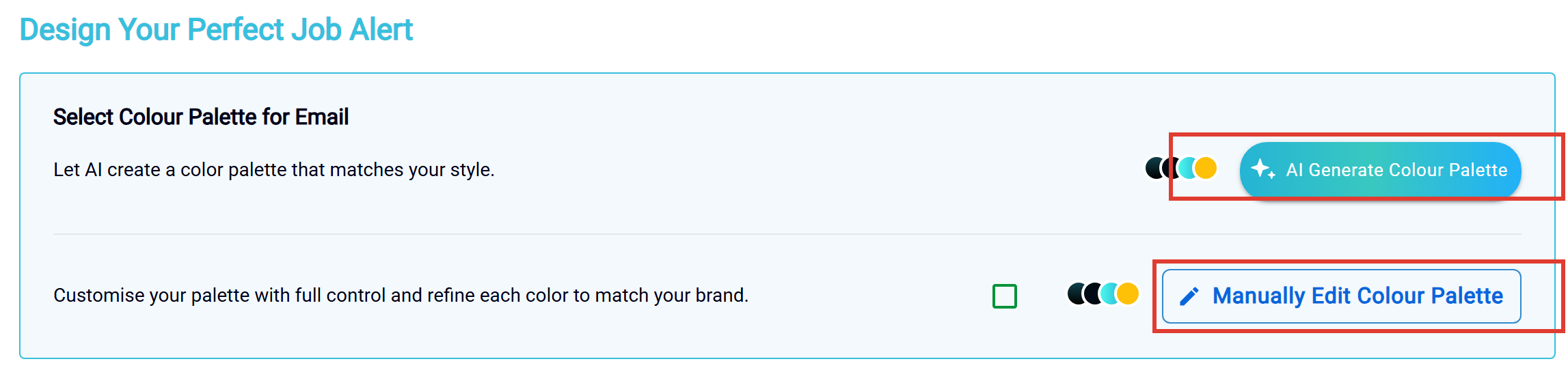
Either way, you can set the colour of each part of the email individually:
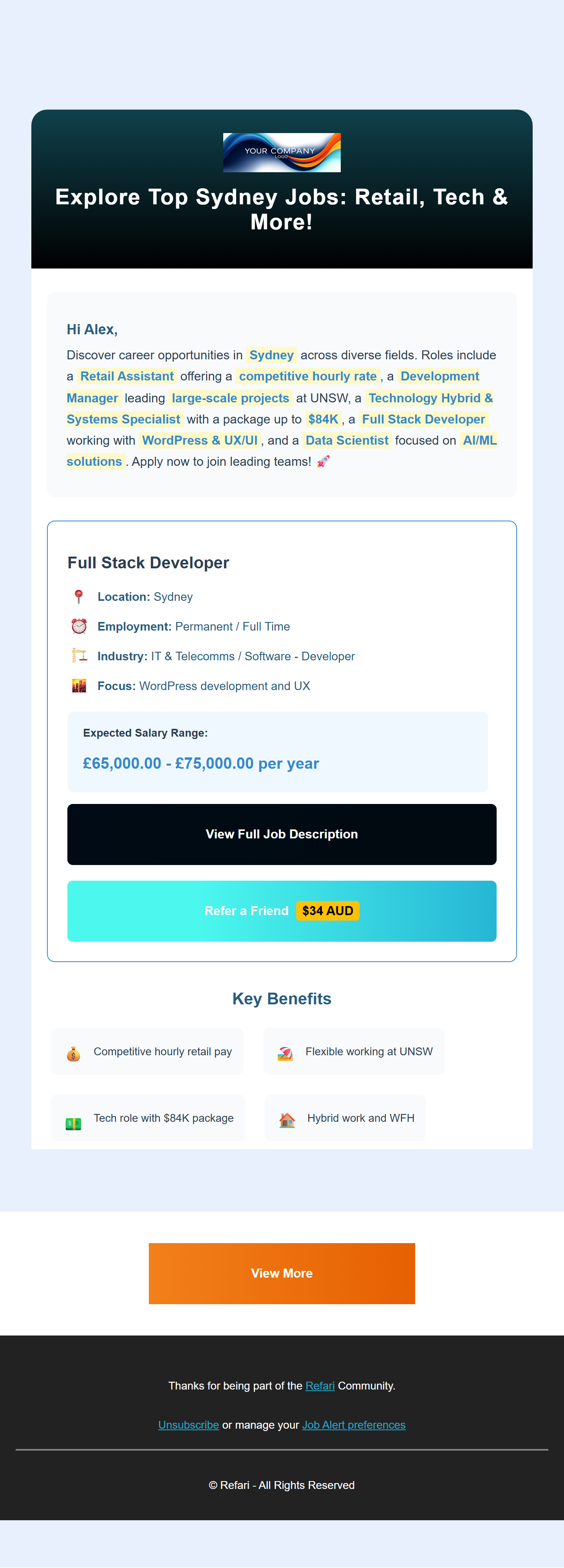
- The header background
- The View Description button
- The Refer a Friend button
- The Refer a Friend badge background and its text
- The View More call-to-action button
Step 3: Steer the wording with the AI Custom Prompt
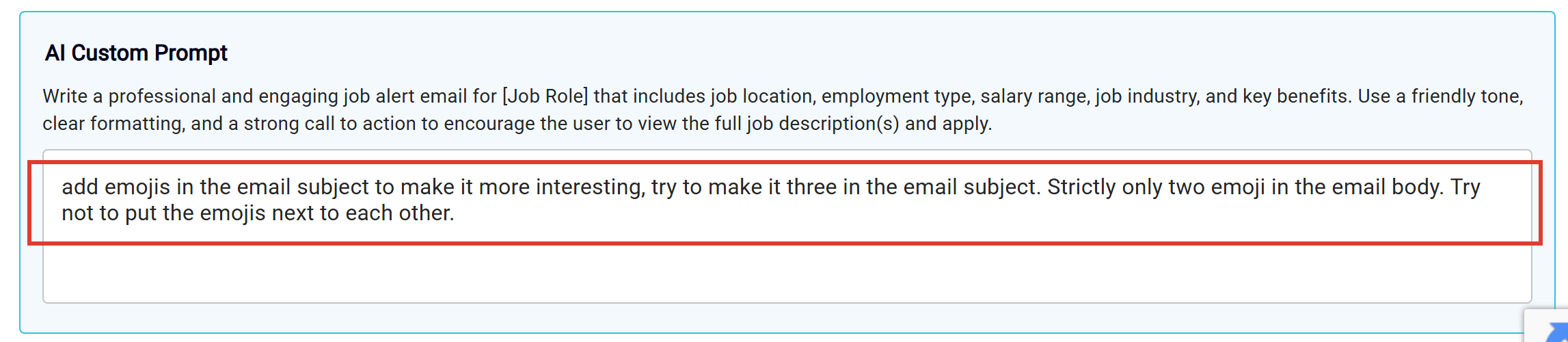
The AI Custom Prompt box lets you tell the AI how to write the email. Add any instructions you want it to follow, or leave it blank to use the default. It is good for guiding things like:
- The tone and style of the writing, for example warm and friendly, or short and professional
- The wording of the subject line and the opening introduction
- The short highlight the AI writes for each job and the key benefits it draws out
- Whether it uses emojis, and the language the copy is written in
For example, you might write: "Keep the tone upbeat and concise, write in British English, and use a couple of relevant emojis."
Note: The custom prompt only changes the words the AI writes, namely the subject line, the introduction, the per-job highlights, and the key benefits. It does not change the email's design, layout or colours (you control those in Step 2), and it does not change the job details such as title, location, salary and work type, which are taken from your live jobs.Step 4: Generate templates and preview
When you let AI build your palette, use Generate Branded Templates to create a set of email templates inspired by your logo and colours (it produces several at once, so give it a few minutes). You can then edit any template individually, adjusting its text sections, colours, layout and button styles.
To see exactly how an alert will look, go to Email Preview and choose Generate Preview. Refari builds a preview from your recent job alerts using the colours you have selected, so you can check the result before anything is sent. When you are happy, save with Apply Changes, then turn on the Enable Job Alerts Service toggle from Step 1.
Here is an example of a finished AI-Enabled Job Alert:
Idea: Because you can create several templates, set up different designs for different roles, industries or campaigns, and pick the one that fits each time.Done: Once the service is on, your job alerts go out as polished, on-brand emails written by AI and designed exactly the way you want them.Final Notes
Design and preview your alerts first, then enable the service when you are happy with the look. Keep an eye on your monthly budget so the alerts keep sending, and revisit your templates whenever your branding or campaigns change.
Other articles you might be interested in: Allocating AI Budget | How to set up AutoSuggest AI for automatic job alerts
Was this article helpful?
That’s Great!
Thank you for your feedback
Sorry! We couldn't be helpful
Thank you for your feedback
Feedback sent
We appreciate your effort and will try to fix the article