This article explains AI-Enabled Talent Alerts: what the service changes in your Talent Alert emails, what it costs, and how to turn it on.
A Talent Alert is a regular email that tells a hiring manager about new candidate adverts on your Talent Board that match what they are looking for. A candidate advert is an anonymised profile of a candidate that you publish on your Talent Board. Talent Alerts work without AI, using a standard layout and wording. AI-Enabled Talent Alerts is an optional service that has AI write part of each email for you.
What the service changes
When the service is on, AI writes the subject line and the opening paragraph of each Talent Alert email, using the candidate adverts in that email and your default Brand Voice. Everything else in the email stays the same.
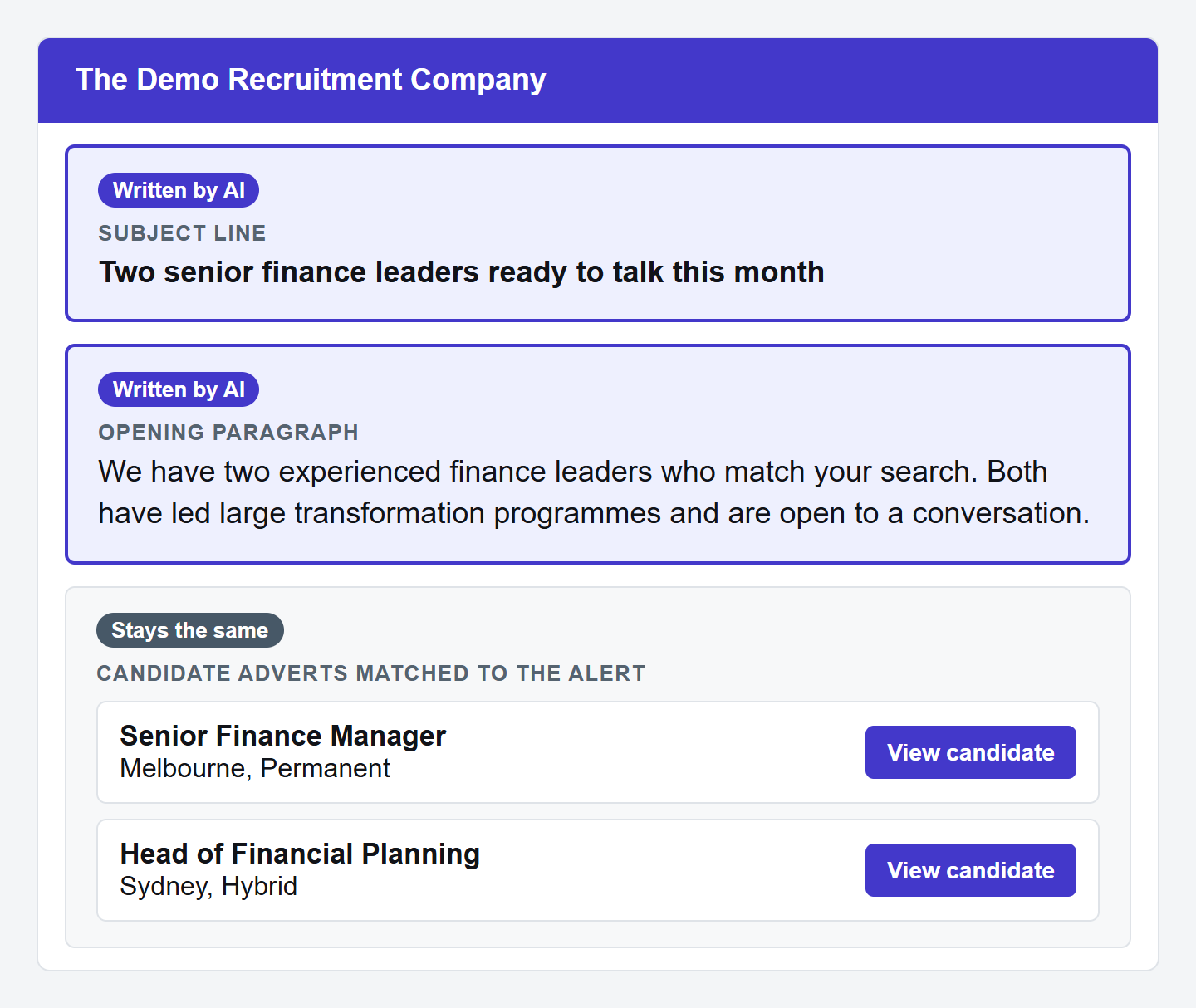
| Part of the email | Service off | Service on |
|---|---|---|
| Subject line | Standard wording | Written by AI |
| Opening paragraph | Standard wording | Written by AI |
| Candidate adverts in the email | Matched to the alert | No change |
| Who receives it, and how often | Set on the alert | No change |
Note: the service does not find candidates or choose who gets an alert. A hiring manager still has to be subscribed to a Talent Alert, and your Talent Board still needs published candidate adverts that match it. If the AI cannot write an email, the alert still goes out with the standard wording.What it costs
The service costs $0.01 per alert email sent. If you sent Talent Alerts last month, the page also shows an estimated monthly cost based on that volume. If no alerts go out, there is nothing to pay. Unlike AI-Enabled Job Alerts, Talent Alerts do not have a monthly budget setting.
How to turn it on
You need a Talent Board on your account, and you need to be a Company Admin to change these settings.
Step 1: Open the page
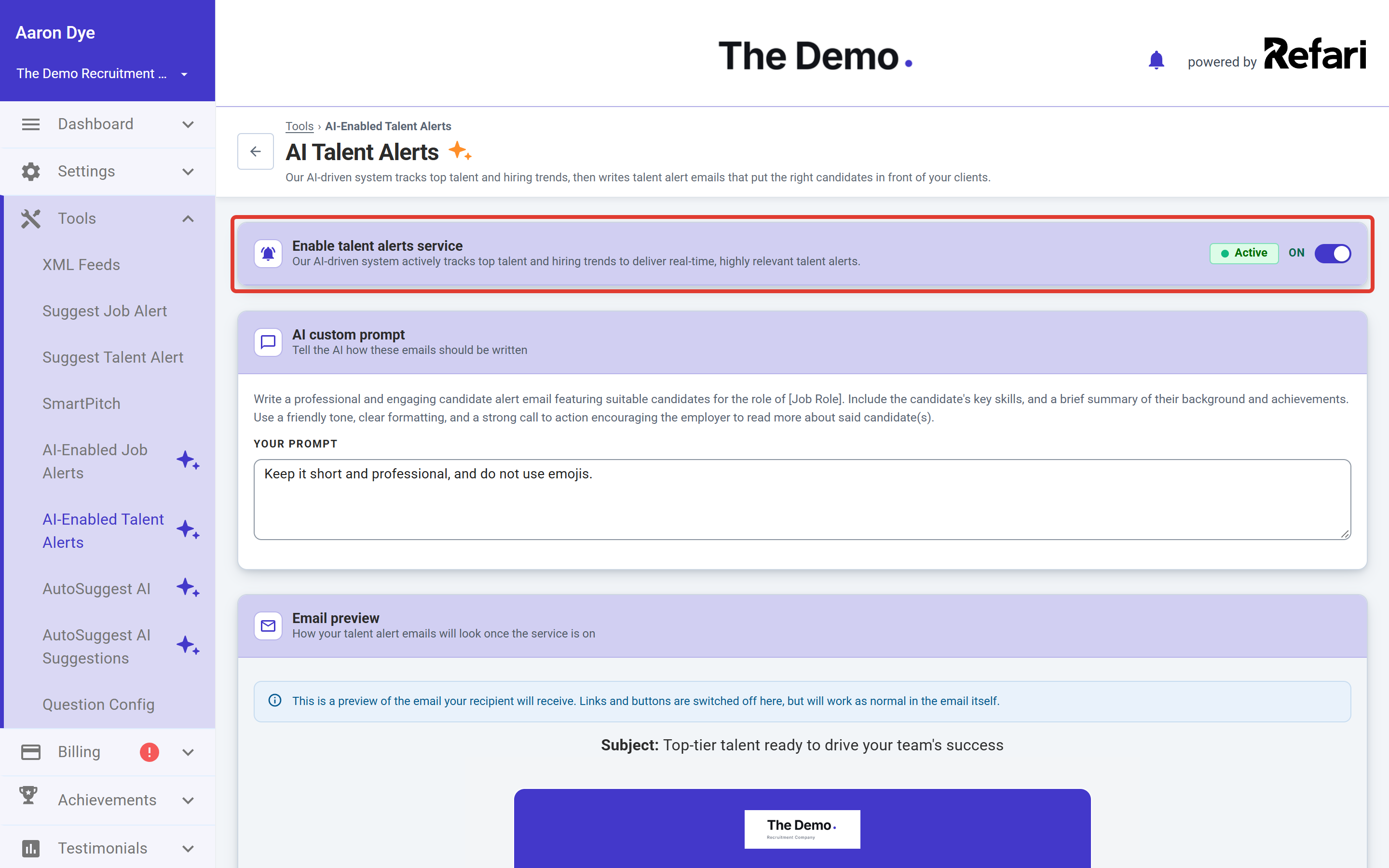
In your dashboard, go to "Tools > AI-Enabled Talent Alerts". The page is headed AI Talent Alerts.
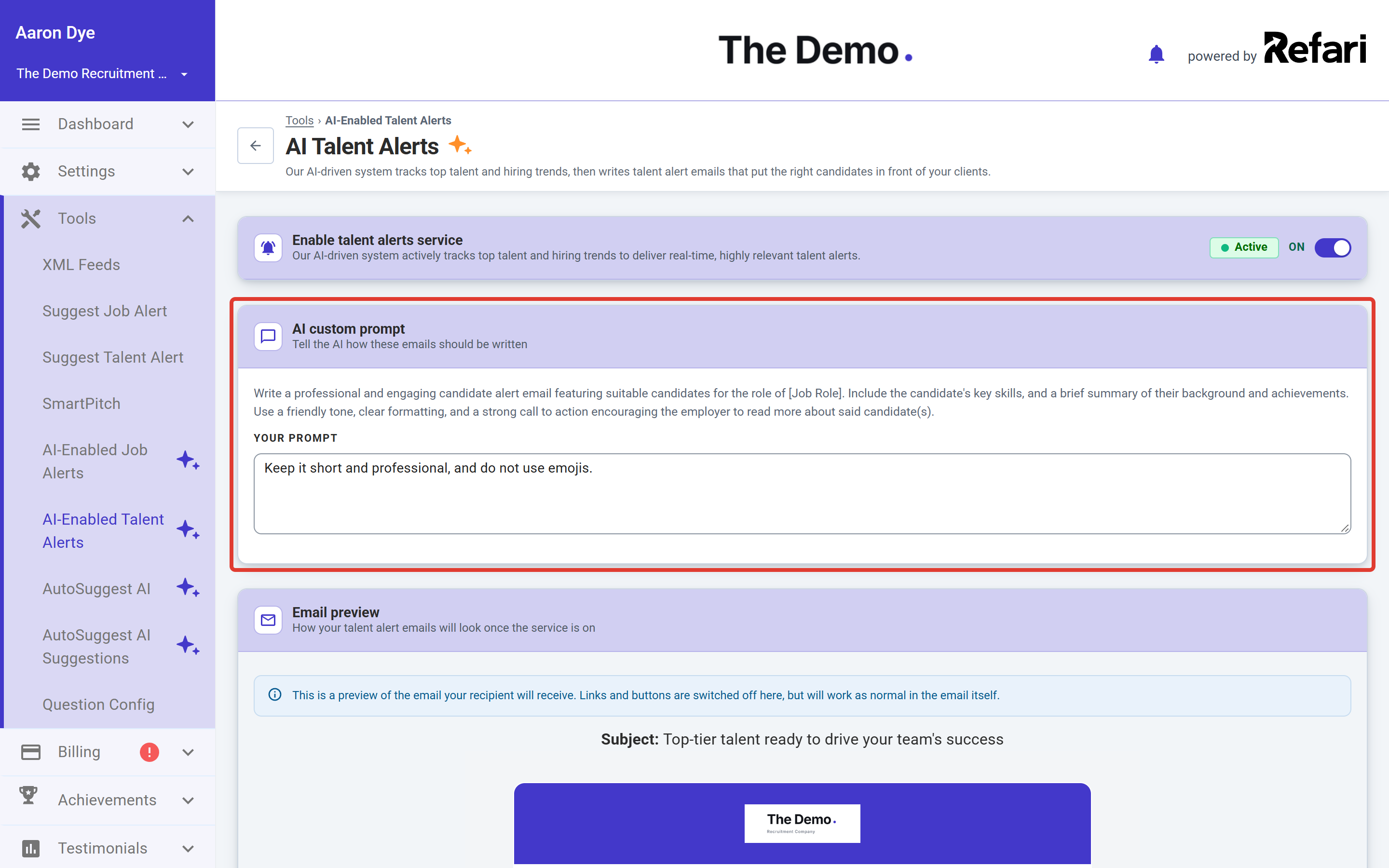
Step 2: Add a custom prompt (optional)
The AI custom prompt box lets you steer the tone and style of the writing, for example "Keep it short and professional, and do not use emojis". You can leave it blank to use the default.
Step 3: Switch the service on and apply
- Turn on the switch beside Enable talent alerts service.
- A message confirms the service is not on yet. Click Apply changes in the bar at the bottom of the page.
- Check the status beside the switch now says Active.
Done: your next Talent Alert emails will have an AI-written subject line and opening paragraph. You can turn the service off on the same page at any time.About the email preview
The Email preview section shows examples using up to five Talent Alerts already created on your account. It stays blank, showing "No preview generated yet", until the service is on and at least one Talent Alert has been created. If you are just getting started, it is normal for this section to be empty.
To start getting hiring managers subscribed, this guide shows you how to set up an alert and invite them: How to suggest a Talent Alert to a hiring manager ↗
Idea: if you have no Talent Alert subscribers yet, switching the service on will not send anything. It is a good one to turn on once a few hiring managers are signed up.Other articles you might be interested in: How to suggest a Talent Alert to a hiring manager | AI-Enabled Job Alerts
Was this article helpful?
That’s Great!
Thank you for your feedback
Sorry! We couldn't be helpful
Thank you for your feedback
Feedback sent
We appreciate your effort and will try to fix the article