This article explains why some parts of your page can't be changed with Edit by hand, and what to do instead. In Edit, the parts you can change are outlined. The parts you can't are striped (shaded with grey diagonal stripes) or, for photos, greyed out with a dotted line inside. Point at a striped part (or tap it on a touch screen) and a short message says why, usually with a button that takes the next step for you. For the basics of Edit, see How to edit your website by hand ↗.
The main reasons a part can't be changed by hand
- Words at the start of a post, on its card
- A photo Edit can't change
- Words written by code
- A name other parts of your website use to find things
- Parts run from your Refari dashboard
- Videos, embeds and animations
- Sections that must stay where they are
- Menus
Each is explained below, with what to do instead.
1. Words at the start of a post, on its card
A post card is the small preview of a blog post or article on another page, such as your Insights page: a photo, the title and the first few lines. Pointing at those first lines says “This is the start of a post, on its card”.
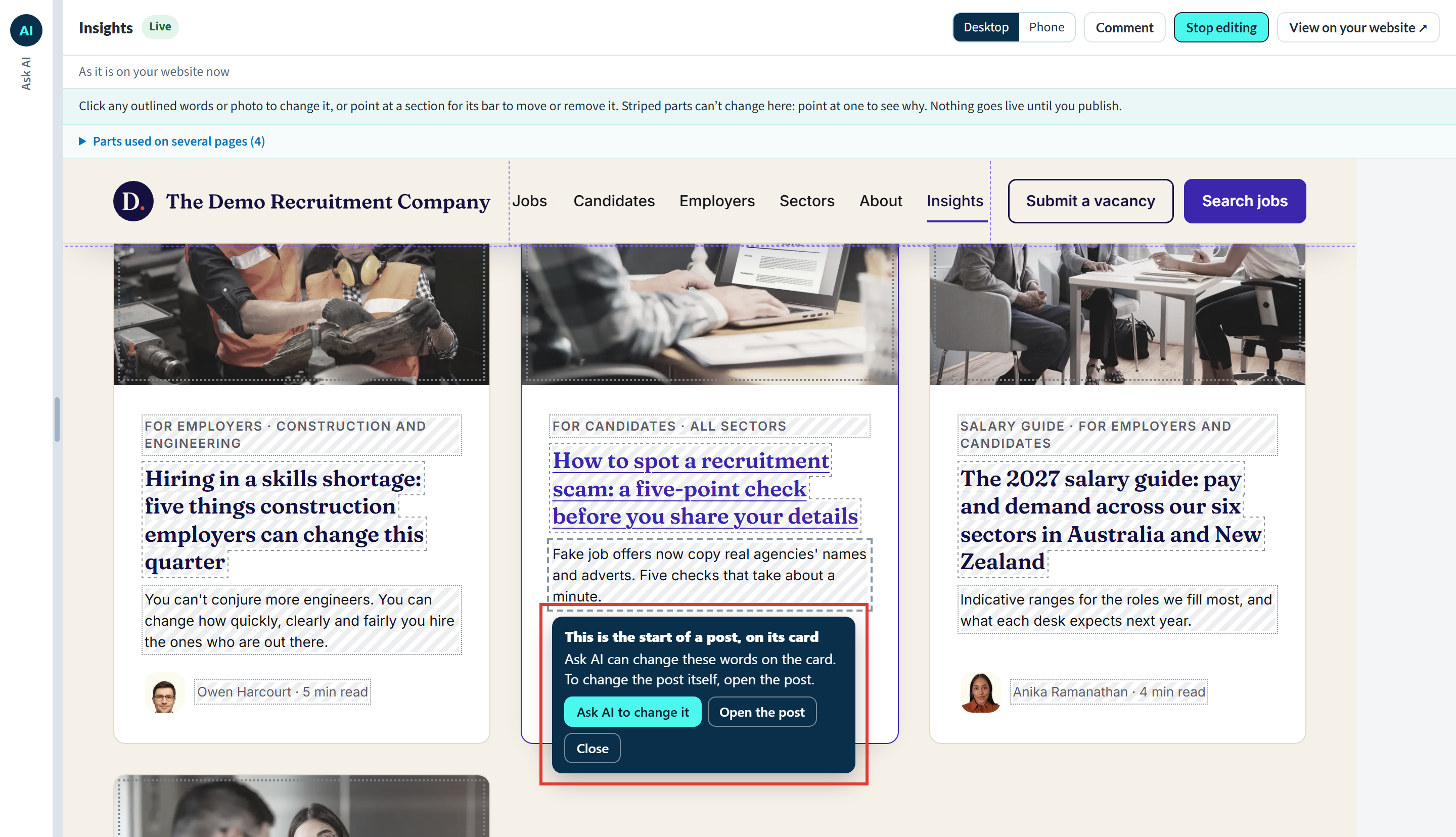
- To change the words on the card only, press Ask AI to change it and say what they should read.
- To change the post itself, press Open the post. The post opens in a new tab with Edit on, at the paragraph the card's words come from.
2. A photo Edit can't change
Some photos are placed in a way Edit doesn't know how to swap, for example the photos on cards that link to other pages. These photos are greyed out with a dotted line inside, and pointing at one says “This can’t be changed here”.
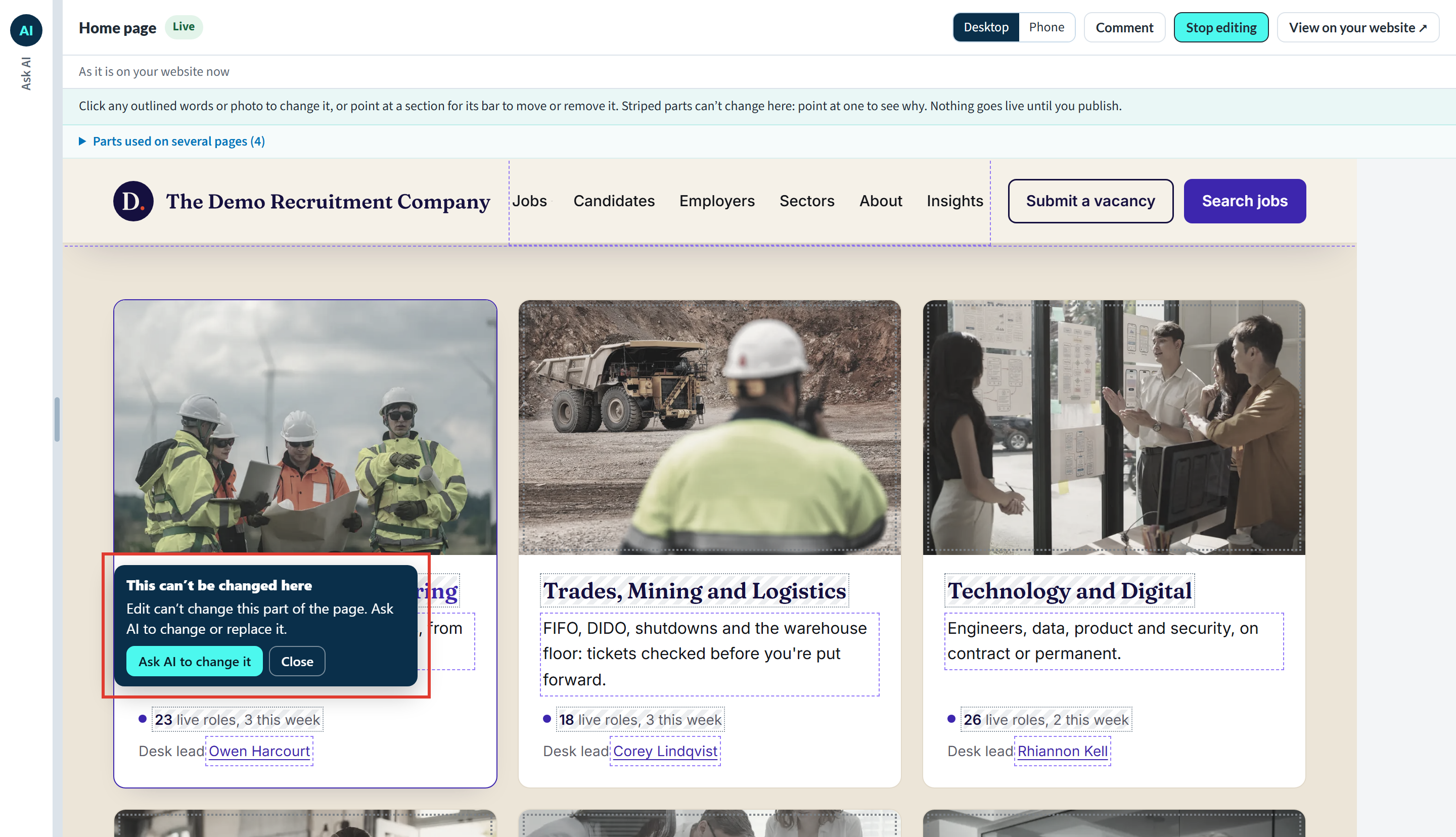
Press Ask AI to change it and describe the photo you want instead, or upload one in the chat.
3. Words written by code
Some words are produced by your website itself rather than typed in, such as a count of reviews or live roles, a date, or the time a list was last updated. Pointing at them says “This is written by code”.
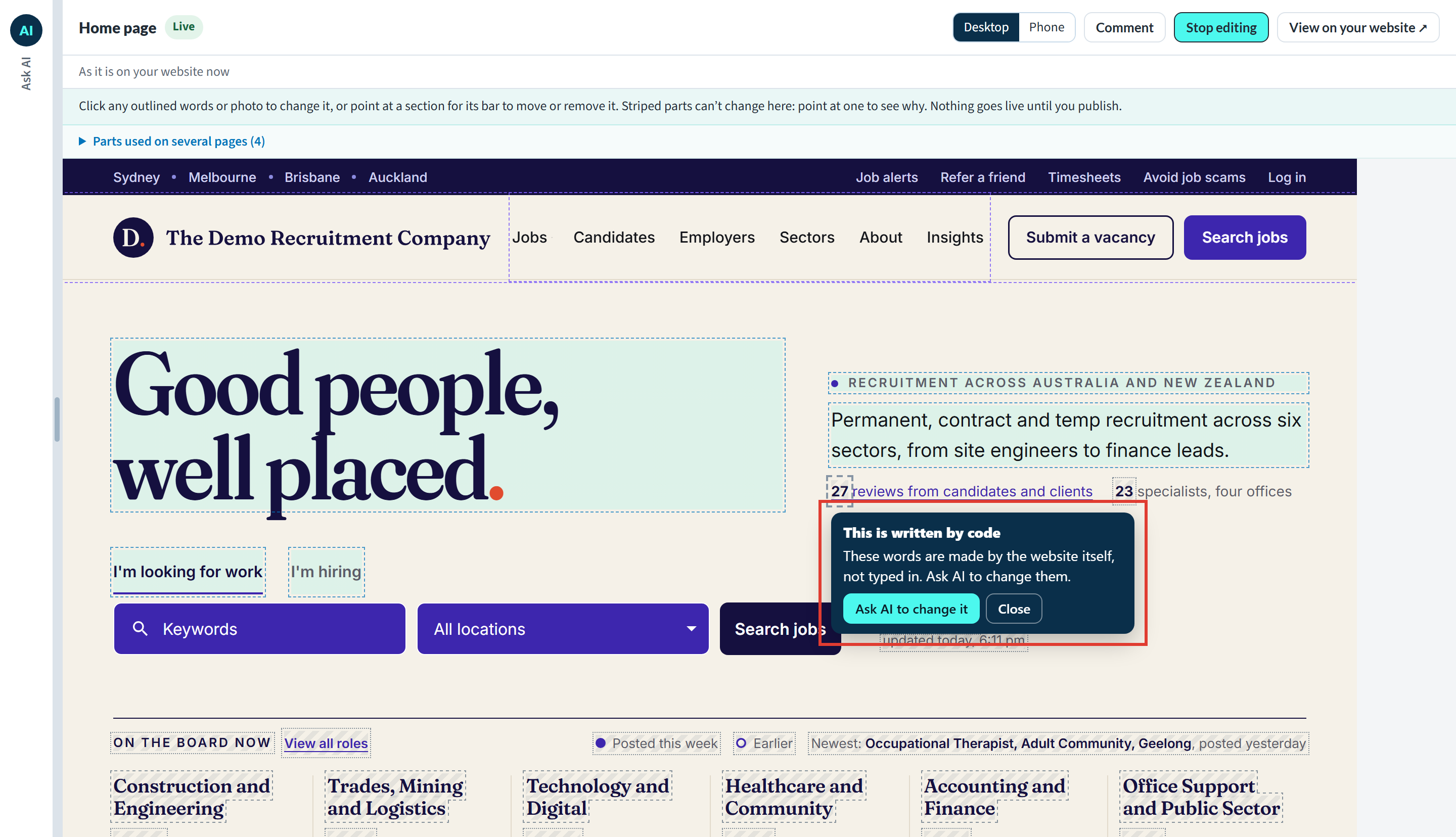
Press Ask AI to change it if you want the wording around them changed. Counts of jobs, reviews and team members update by themselves.
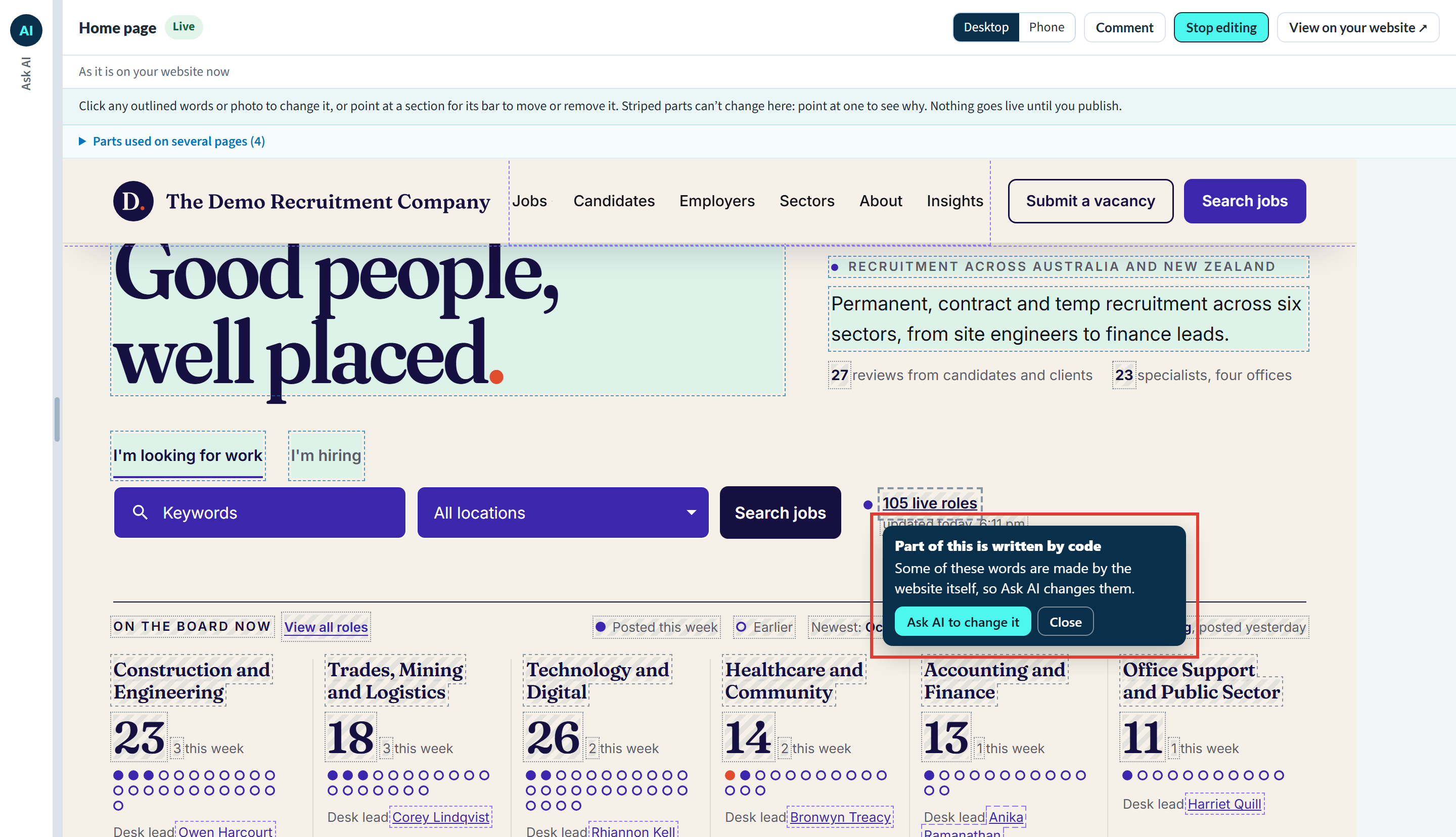
Where only part of a line is written by code, the message says “Part of this is written by code”. For example, in “105 live roles” on the home page the number is counted by your website, so Ask AI changes the words around it. Press Ask AI to change it and say what the line should read.
4. A name other parts of your website use to find things
Some names do two jobs: they are words on the page, and other parts of your website use them to find things. For example, the name on a sector or desk card may be how your menu finds the specialists for that desk. Renaming one by hand would break that link, so these names are striped and pointing at one says “This name is used to find other things”.
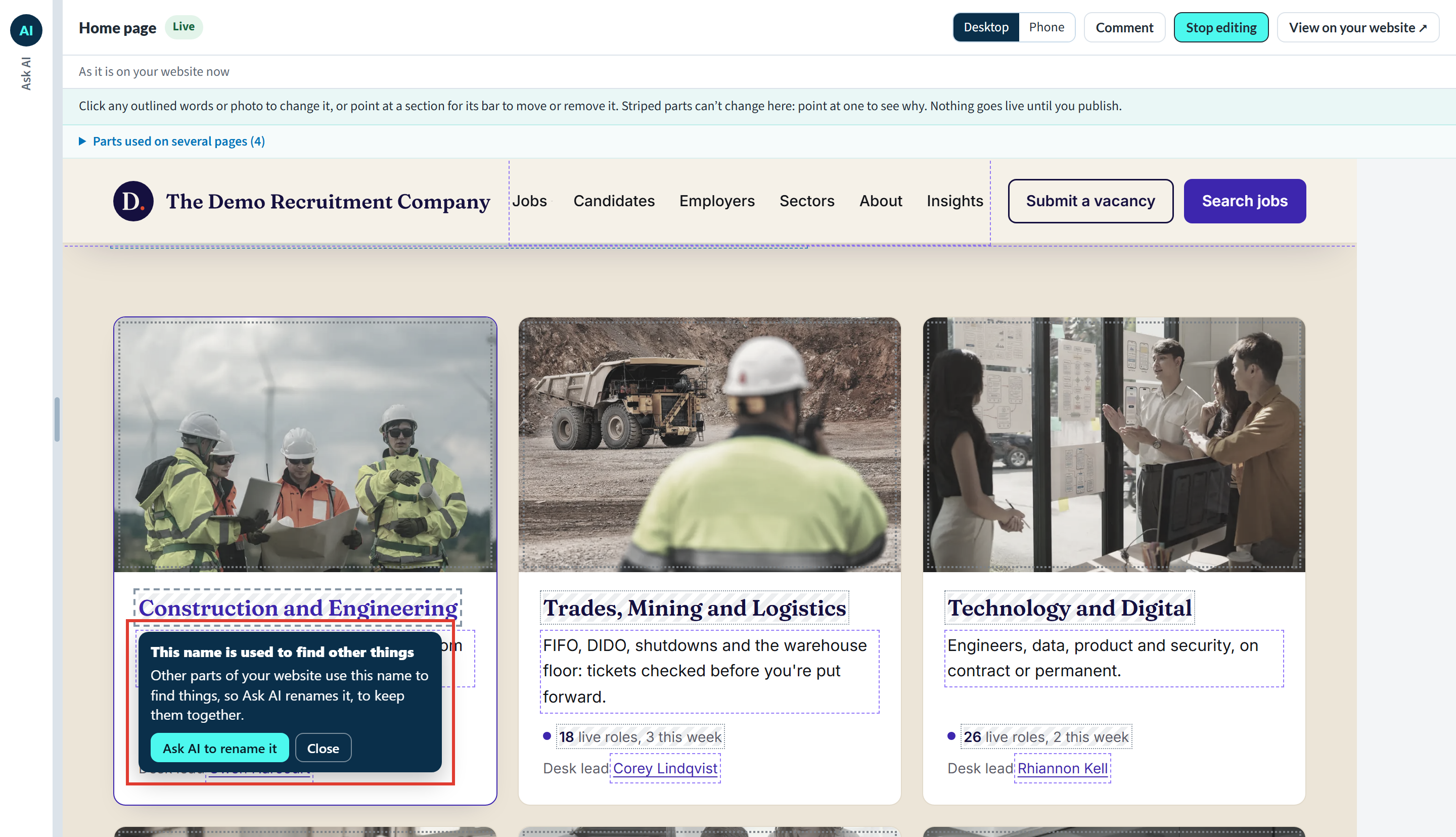
Press Ask AI to rename it. Ask AI renames it everywhere it is used, so everything that depends on the name stays together. The other words on the card, such as its description, can still be changed by hand.
5. Parts run from your Refari dashboard
Your jobs, reviews and team profiles are managed in your Refari dashboard, the main Refari account where your team keeps them up to date, and they show on your website by themselves. Pointing at them says “This comes from your Refari dashboard” (or, for a review, “This is a customer review”, which stays as your customer wrote it).
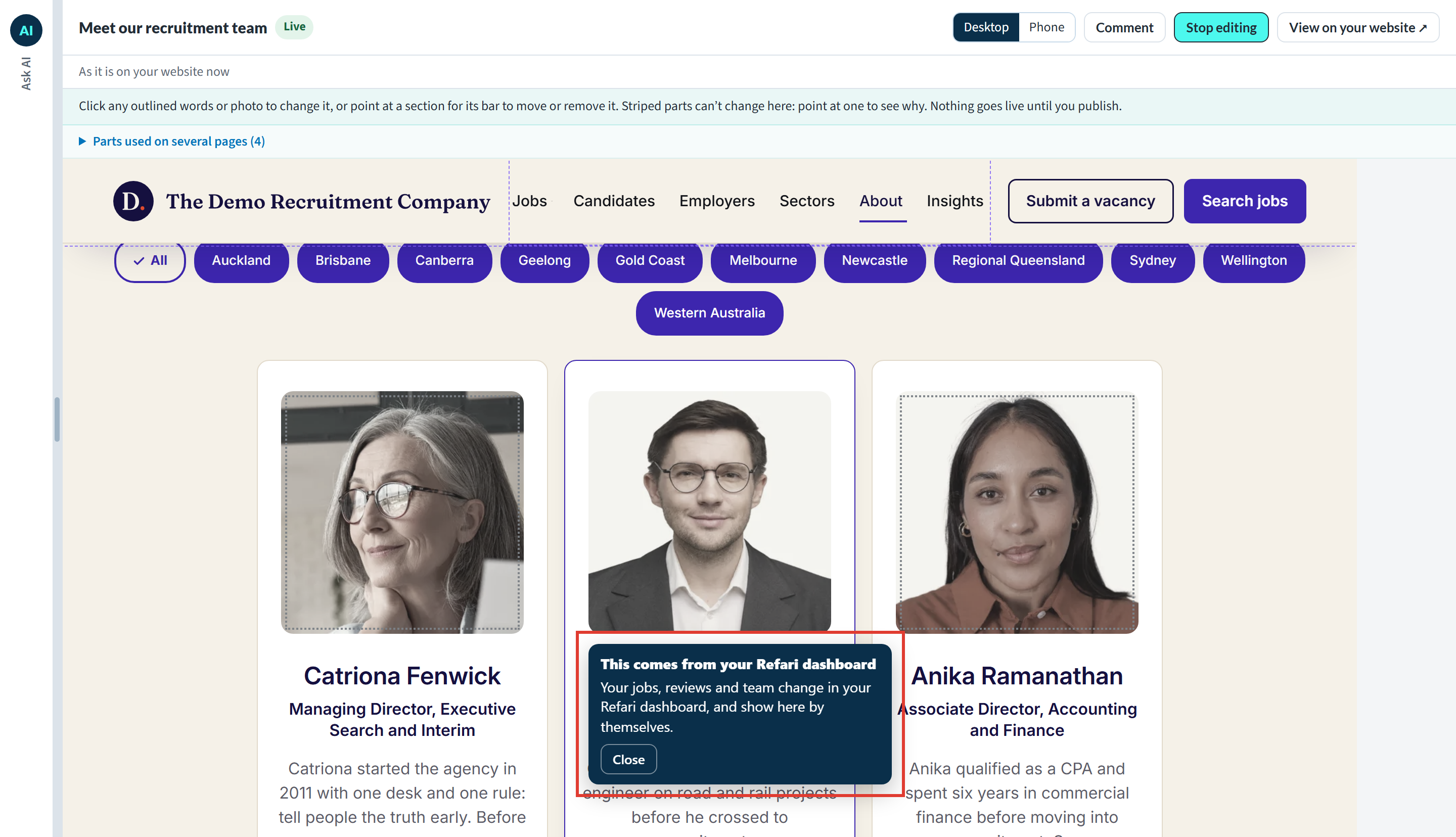
Change them in your Refari dashboard: update a job or a team member's profile there, or choose which reviews show. The website follows automatically.
6. Videos, embeds and animations
A video, something embedded from another service (such as a booking form or a map), or an animation is striped too. Pointing at a video says “This is a video”, and at the others “This can’t be changed here”. Press Ask AI to change it to change or replace it.
7. Sections that must stay where they are
When you point at a section, its bar normally offers Move up, Move down, Duplicate and Remove. Some sections keep their place, and the bar greys those buttons out and says why:
- “This is the page’s first section, so it stays where it is.” The top banner of a page always stays first.
- “This section is run from your Refari dashboard, so it stays.” For example your jobs, reviews or team.
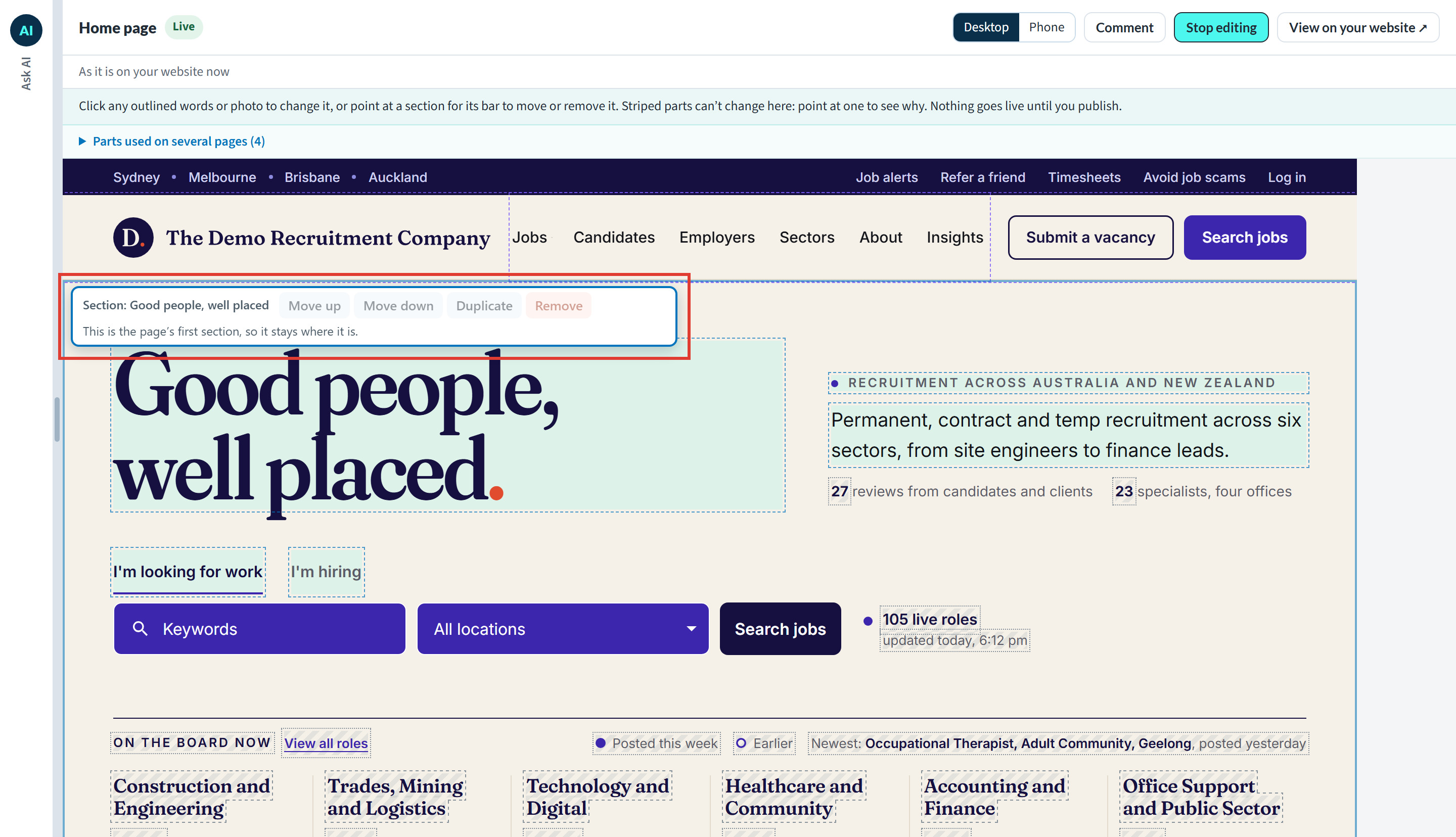
You can still change the outlined words and photos inside these sections. To rearrange around them, move the other sections instead, or ask Ask AI.
8. Menus
A menu is a list of links to your pages, so it is changed with Ask AI rather than by hand. Pointing at one says “This is a menu”. Press Ask AI to change it to add, take out or rename an item.
How to fix it at a glance
| What you pointed at | What to do instead |
|---|---|
| Start of a post, on its card | Ask AI to change it for the card, or Open the post to change the post |
| A photo that can't be changed here | Ask AI to change it |
| Words written by code | Ask AI to change it |
| A name other parts use to find things | Ask AI to rename it |
| Jobs, reviews or team | Change them in your Refari dashboard |
| Video, embed or animation | Ask AI to change it |
| A section that stays | Move the sections around it, or ask Ask AI |
| A menu | Ask AI to change it |
If Check and preview doesn't pass
Before anything goes live, Check and preview builds your website with your changes and checks that nothing else on the page moved or broke. If it finds a problem, nothing on your website changes, and the list of changes says: “These changes did not pass the website’s checks, so nothing on your website changed. Take a change out with × and press Check and preview again, or ask AI to make them.” The same message appears in the chat.
- Take changes out one at a time with × and press Check and preview again, to find the change that caused it.
- Or press Ask AI to make them. Your changes are written out in the chat for Ask AI to make, which uses AI credit.
The list may also stop you before checking, with a message saying what to do:
- “Type plain words here, with nothing in angle brackets (< >).” Edit takes plain words only, so remove anything in angle brackets.
- “Photos and sections are changed one at a time. Publish one, then make the other.”
- “Change one photo at a time: publish this one, then change the next.”
- “That is 40 changes. Check and publish these first.”
- “This part has changed since the page loaded. Reload to edit it.” Someone else has changed the page. Reload it and make your change again.
If it still doesn't work
If a part you expected to change is striped and none of the reasons above fits, or a check keeps failing after you have taken changes out, contact our support team. Tell us the page and the part you were trying to change, and we'll look into it.
Good to know: Your header, footer and other parts used on several pages aren’t striped: they are outlined in purple and are changed on a page of their own. Changing your header, footer and parts used on several pages explains how.Final Notes
A striped part is never a dead end. Each message names the right place to make the change, whether that is Ask AI, the post itself or your Refari dashboard.
Other articles you might be interested in: How to edit your website by hand | Changing your header, footer and parts used on several pages | How to edit your website with Ask AI
Was this article helpful?
That’s Great!
Thank you for your feedback
Sorry! We couldn't be helpful
Thank you for your feedback
Feedback sent
We appreciate your effort and will try to fix the article