This article explains where the messages from your website's forms go on the Refari Site Builder: the Enquiries inbox, the email alert that still arrives, how to search your enquiries or mark one as spam, how to choose who gets the email alerts, and how to change a form with Ask AI.
An enquiry is a message a visitor sends through one of your website's forms, such as a contact form or a "find talent" form for employers. Spam is junk sent through a form, usually by a robot selling something.
Note: Owners and Editors of your website can read enquiries and change who gets them. Someone from an outside company (such as an agency you work with) never sees them. Job applications are not enquiries: they go straight into Refari, as they always have.Where enquiries go
Every enquiry does two things at once:
- An email alert goes straight away to the addresses chosen for that form, with any file the visitor attached.
- A copy is kept in Your website, under Grow > Enquiries in the left-hand menu, within about ten minutes. Copies are kept for 12 months, then removed automatically.
Reading your enquiries
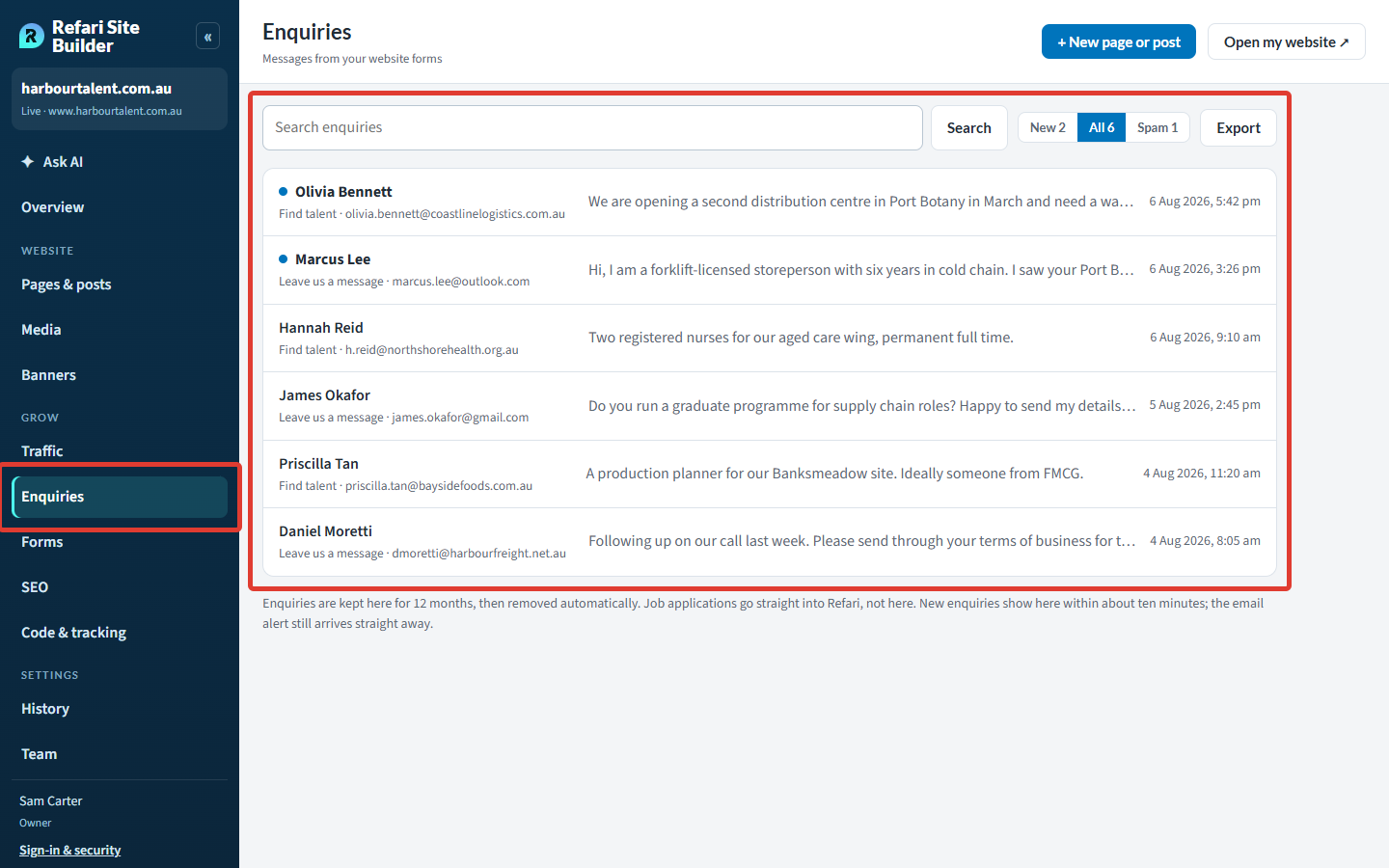
Open Grow > Enquiries. A blue dot marks one nobody has opened yet. Across the top:
- New, All and Spam switch between the enquiries not yet opened, every enquiry, and those filed as spam.
- Search enquiries looks through everything a visitor wrote, plus the form and the page they sent it from.
- Export (Owners only) downloads every enquiry as a spreadsheet file you can open in Excel.
Opening an enquiry
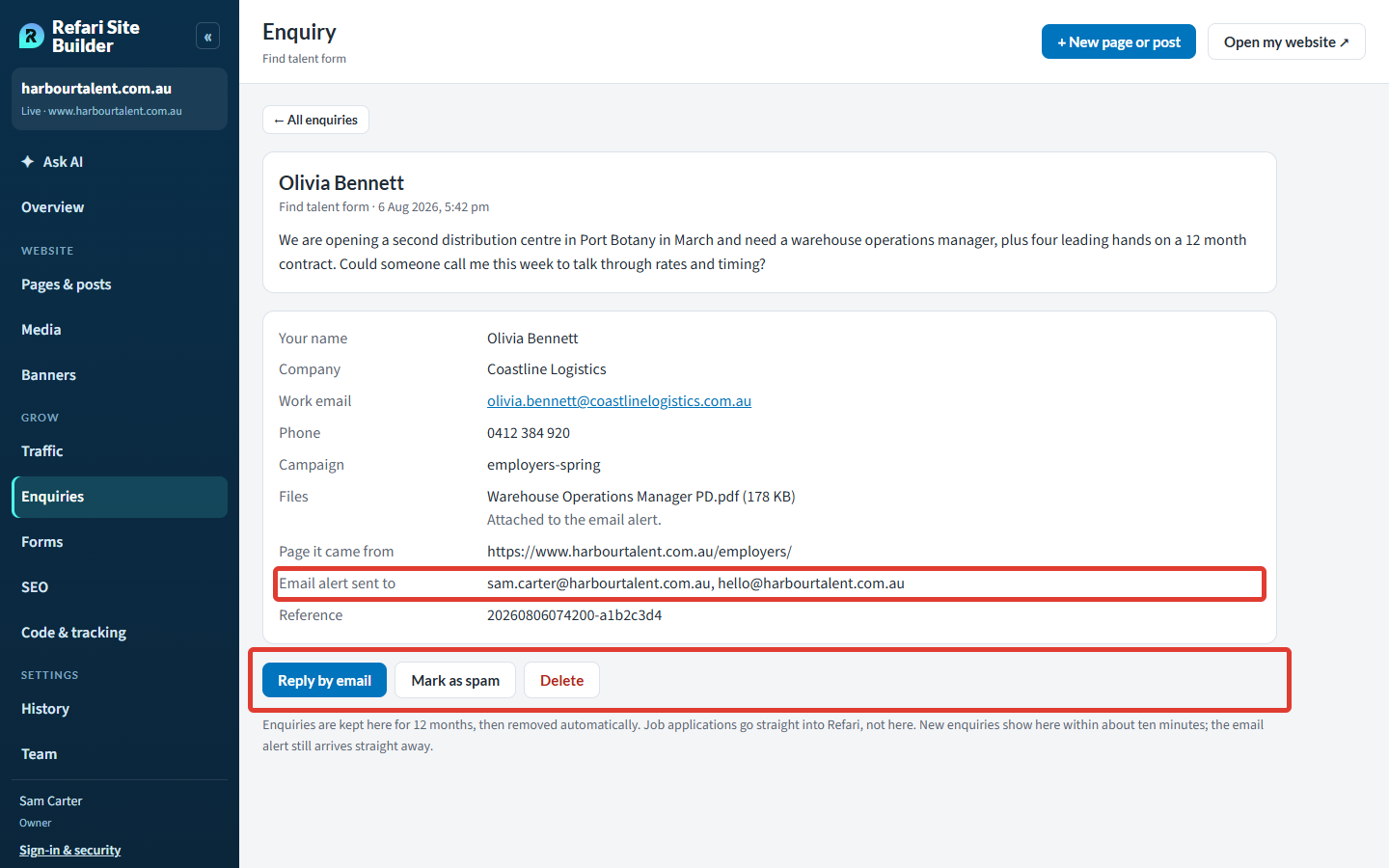
Click an enquiry to see everything the visitor sent, the page it came from and Email alert sent to, which shows exactly who was emailed. Opening it marks it as read for everyone. From there you can:
- Reply by email: opens a reply to the visitor in your own email program.
- Mark as spam: moves it to the Spam list. Changed your mind? Open it from Spam and press Not spam.
- Delete: removes it from the inbox for everyone at your company. The email alert already sent is not affected.
Spam
Your forms catch most spam by themselves: it goes to the Spam list and nobody is emailed about it. Glance at it now and then in case a real message was caught. A form can also be set to treat any message with a web address in it as spam, or to accept only business email addresses (no Gmail, Outlook and the like). Ask AI can switch either on for a form.
Idea: You can also ask Ask AI about your enquiries, for example "Any new enquiries this week?" or "What did Olivia from Coastline Logistics ask about?"Choosing who gets the email alerts
Open Grow > Forms. Who gets your enquiries at the top lists the addresses that get every form's alerts, and each form below says what it asks for and what happens after sending.
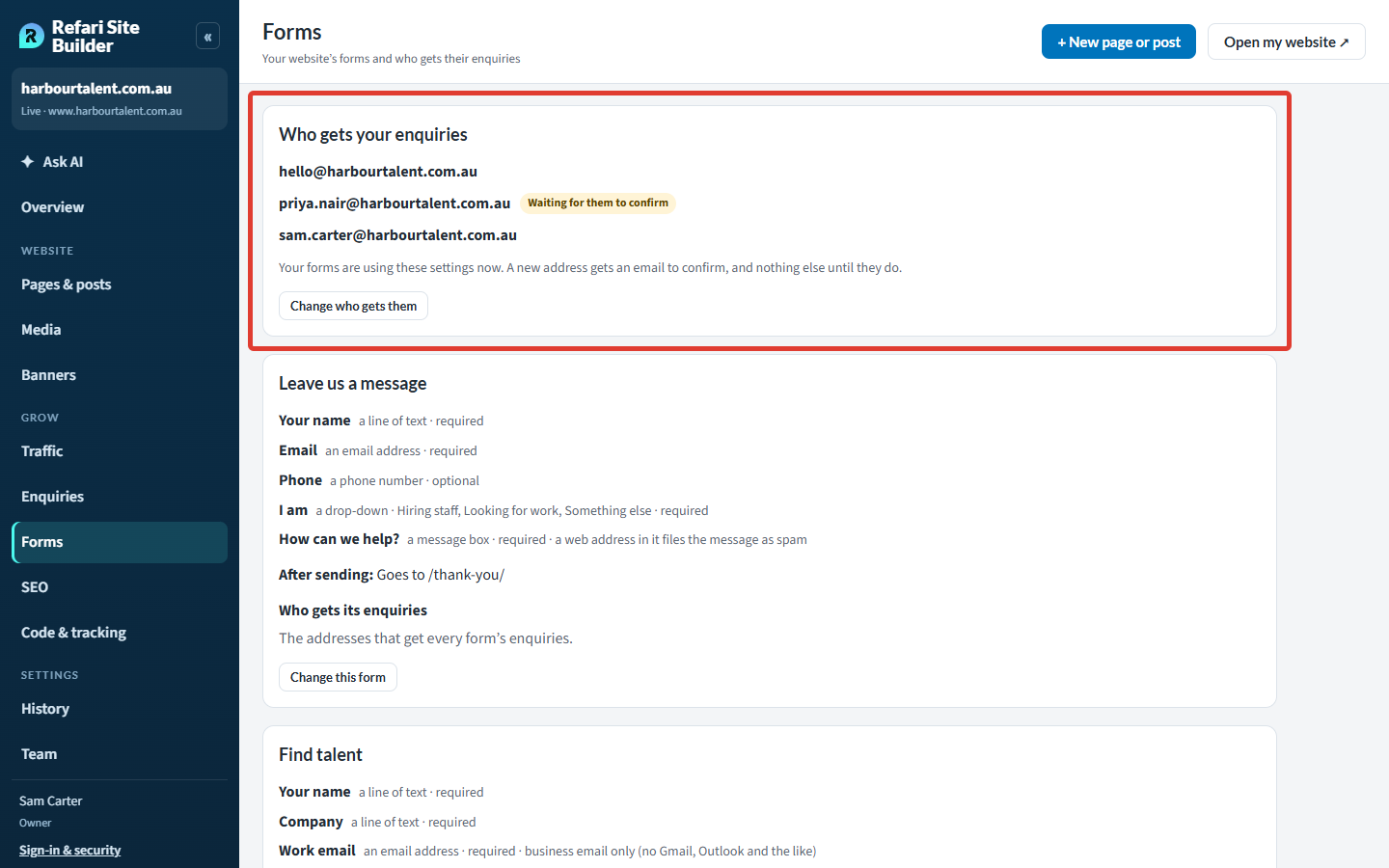
- Press Change who gets them.
- Type the Email address. If it should take over from someone, choose them under Instead of. If your website has more than one form, choose Every form or Only this form.
- Press Send them a link to confirm.
The new address gets an email with a link to confirm, and receives nothing until they press it. The link lasts a week. Anyone they take over from keeps getting enquiries until then. To stop someone getting them, press Take off beside their address. A form can have up to 10 addresses, and the last one can't be taken off until someone else has confirmed.
Or just tell Ask AI, for example "Send our enquiries to priya@ourcompany.com.au instead of sam@ourcompany.com.au". It shows a card to confirm.
Note: Until your website goes live, its enquiries come to Refari so we can test the forms. They go to your addresses from the day it goes live.Changing a form
The easiest way is to ask Ask AI, for example "Add a Company field to the contact form", "Make the phone number required", "Change the button to Send message" or "Send people to our thank-you page after they send the form". If you are new to it, How to edit your website with Ask AI ↗ explains how to start a conversation.
Ask AI makes one change at a time and shows the form before and after. Nothing changes on your website until you publish it.
If you prefer, press Change this form on the Forms screen. You can change each field's label, type and choices, make it required, take it out or add one, choose what happens After sending (show a message, or go to a thank-you page of your website) and change the Words on the button. Press Preview the change and it opens in Ask AI, ready to check and publish.
Checking a form works
Under Send a test enquiry on the same screen, press the button to send one through the form as a visitor would. It shows in Enquiries marked as a test. Tick Also email it to the people who get this form's enquiries to check the alert too.
Sending enquiries somewhere else
- Candidates into JobAdder: a page can show the Refari Registration widget or a FormFlow form instead, both set up in your Refari dashboard.
- Salesforce or another CRM: this is a job for the Refari team. Ask in Ask AI and it goes to them.
If Grow > Forms says the Refari team looks after your website's forms for now, ask Ask AI for the change and it goes to us. If Enquiries says Not connected yet, your enquiries still arrive by email and will show in the inbox once Refari connects them.
Final Notes
Keep at least two people on Who gets your enquiries so a message is never missed while someone is away, and send a test enquiry after any change to a form.
Other articles you might be interested in: How to edit your website with Ask AI
Was this article helpful?
That’s Great!
Thank you for your feedback
Sorry! We couldn't be helpful
Thank you for your feedback
Feedback sent
We appreciate your effort and will try to fix the article