This guide walks you through the candidate longlist: a private list of candidates you are considering for a job order, built up before anybody formally applies. It covers what a longlist is, how to add candidates to one, how to review it, and how to put the candidates you like forward as applications.
Idea: Longlists used to be limited to certain accounts. They are now switched on for every company, so if you looked for this before and could not find it, it is worth looking again.What a longlist is
A job order is the role you are recruiting for. A longlist is the group of candidates you are considering for that job order, before any of them becomes a formal application. It is the digital version of the names you would otherwise keep in your head, on a notepad, or in a spreadsheet.
Three things are worth knowing about how it behaves.
- It is private to your team. A candidate is never told they have been longlisted, and nothing is sent to them when you add them.
- It belongs to the job order, not to an advert. If you repost the role, or expire one advert and run another, the longlist stays where it is. You are not rebuilding it every time.
- It works whether the job order came from Refari or from your ATS. Job orders synchronised in from JobAdder can carry a longlist just as ones created in Refari can.
Adding a candidate to a longlist
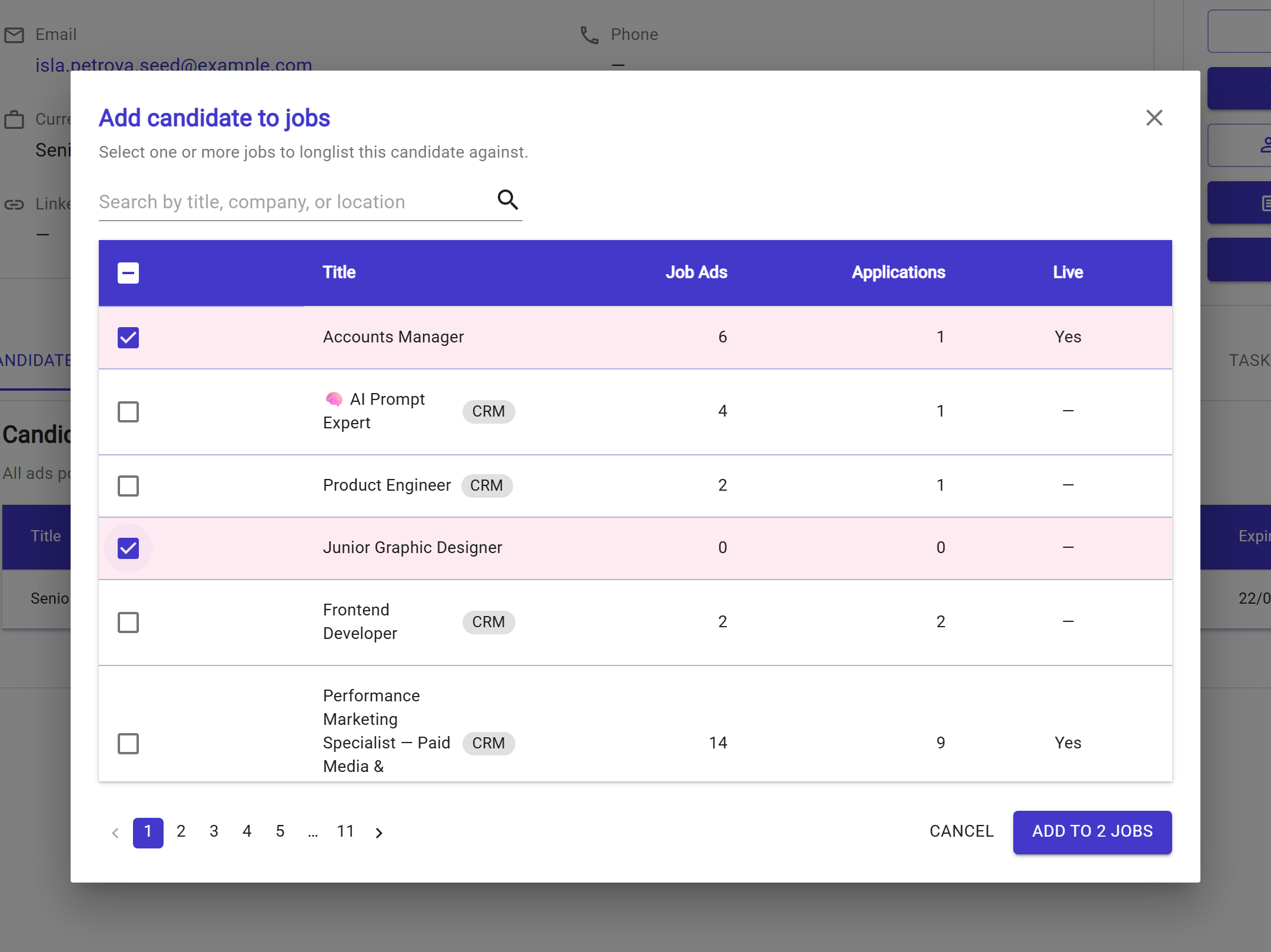
You add candidates from the candidate side, one candidate at a time, and you can put that one candidate onto several job orders at once.
- Open the candidate profile from Candidates in the left-hand menu.
- In the actions panel on the right, click Add to Job.
- Tick every job order you want this candidate longlisted against. Closed job orders are not offered, since there is nothing to put anybody forward for.
- Once the jobs you want are ticked, click the button in the bottom right of the window. It counts your selection as you go, so with two ticked it reads ADD TO 2 JOBS.
Adding the same candidate twice does no harm. If they are already on that longlist nothing is duplicated, and you are told so.
To see every job order one candidate is being considered for, open their profile and look at the Longlisted Jobs tab.
Reviewing and pruning the longlist
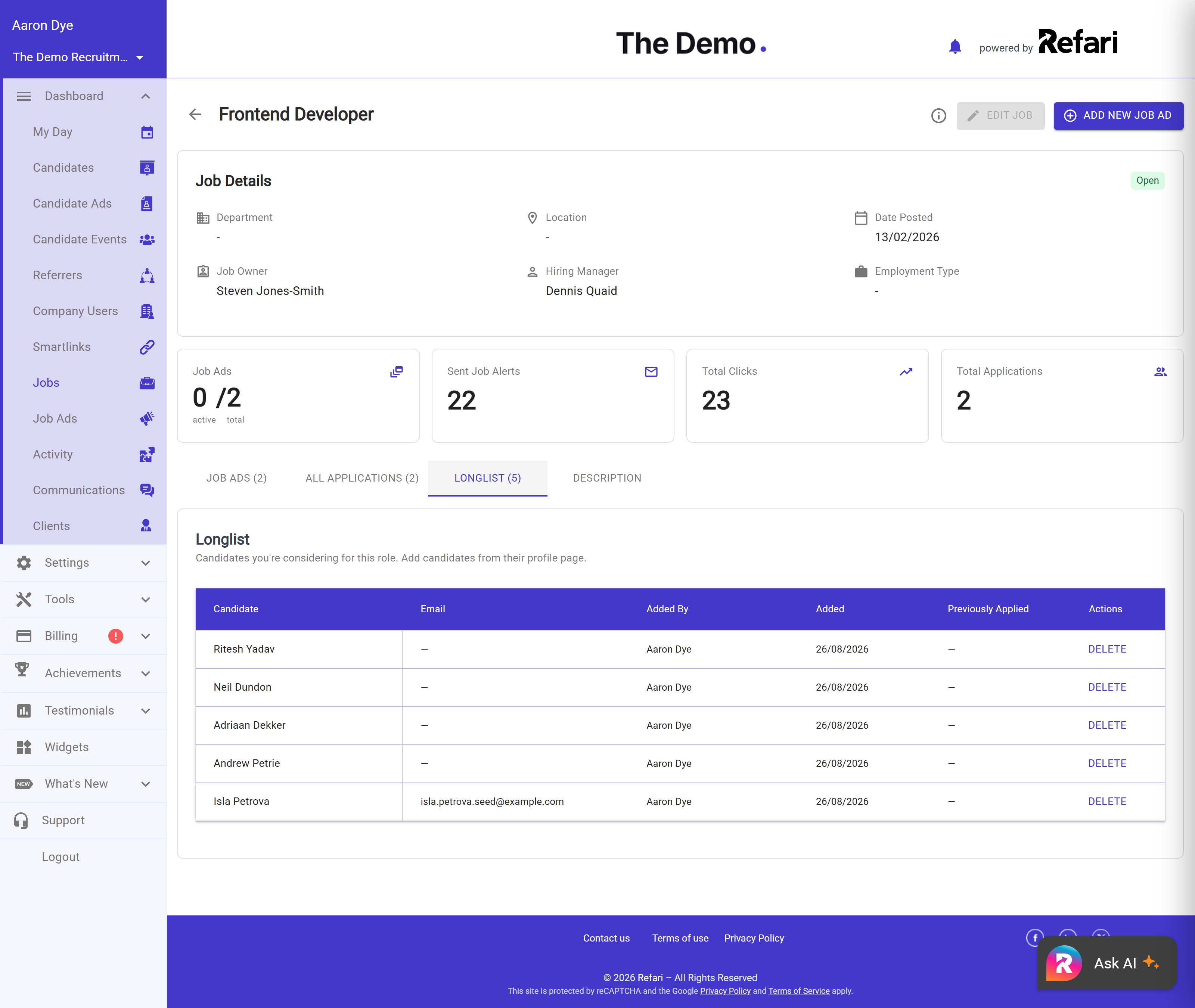
Open the job order and go to its Longlist tab. This is the single place to see everyone in the running, who added them and when, and whether a candidate has already applied for this role before.
Removing somebody is done from this tab, and you are asked to confirm first. Removing a candidate from a longlist does not delete their profile or change anything else about them: it only takes them out of the running for this one job order.
Putting candidates forward
Longlisting is the thinking stage. Once you have decided who is genuinely in, you convert them into applications against a job advert, which is the point they enter your normal process. There are two moments you can do that.
From an advert that already exists
Open the job advert and click Put Candidates Forward in the actions panel. You get the list of everyone longlisted against that job order, and you tick whoever you want. This route works for every company, including those whose adverts are written in an ATS and synchronised into Refari, so if you only remember one way of doing this, make it this one.
While you are creating the advert
If you write your job adverts inside Refari, the create window offers a Longlist candidates section whenever the job order already has a longlist. Expand it, tick the people you want, and they are put forward the moment the advert is saved, which saves you a second trip.
Note: If your adverts originate in your ATS rather than in Refari, you will not see this second route, because adverts are not written in Refari on that setup. That is by design rather than something missing from your account. Use Put Candidates Forward on the synchronised advert instead, which does exactly the same job.Note: Putting somebody forward does not email them. It creates the application inside Refari so it appears in your process like any other, and any contact with the candidate is still yours to make in the way you normally would.One thing to expect if the advert carries screener questions: the people you are putting forward have not answered them, because they never applied through the form. Refari will ask you to confirm that before it goes ahead, so read that prompt rather than clicking past it. Saying yes is recorded against those applications, so anyone looking at them later can see the questions were skipped rather than failed.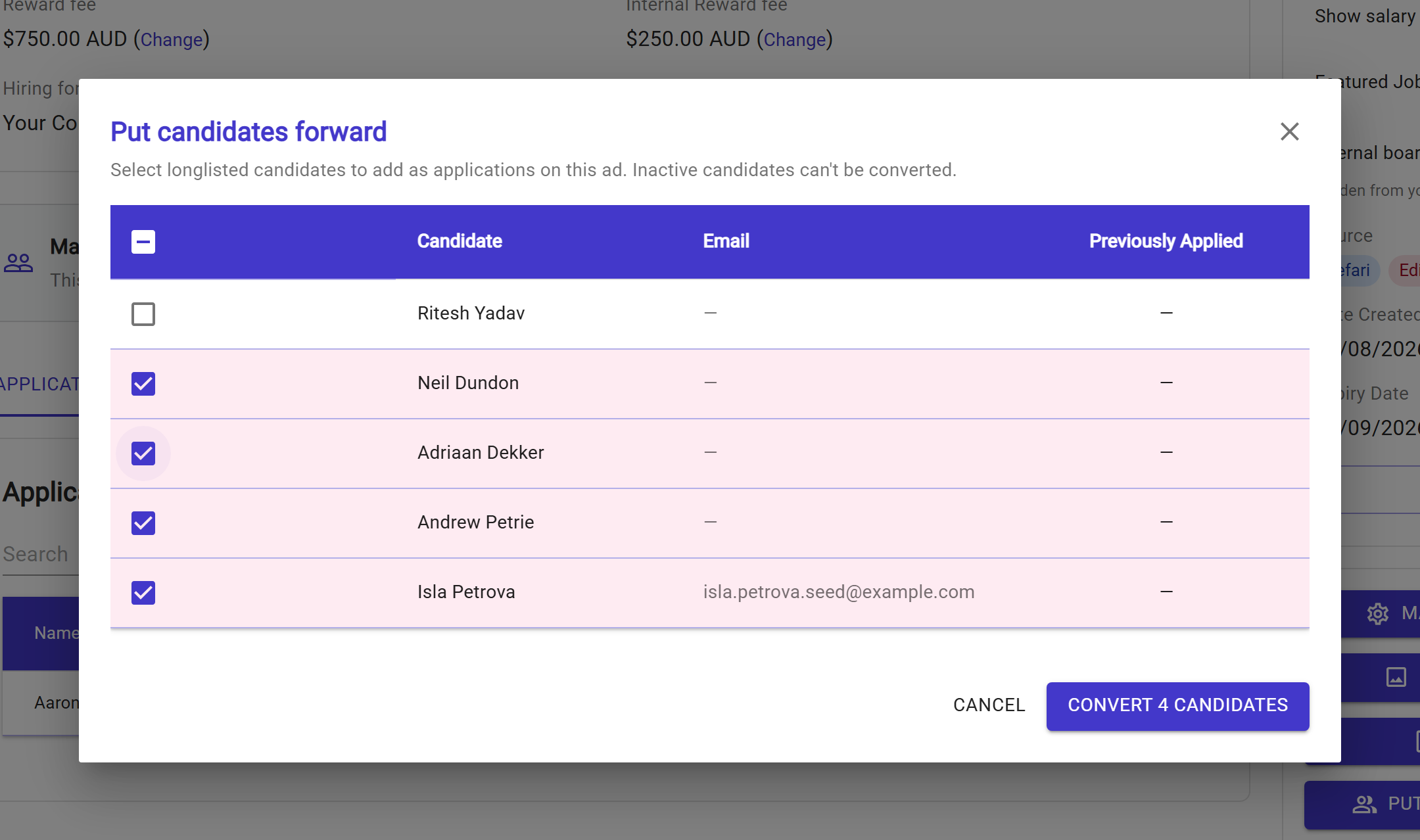
Who can use longlists
Longlists are a recruiter tool, so they are available to Company Admins, Company Managers and Company Members. Hiring managers and referrers do not see them at all, which is deliberate: a longlist is your internal thinking and it should not be visible outside your team. The roles themselves are set out in Refari Roles ↗.
Final Notes
The habit that makes longlists pay off is adding people early and generously. A longlist costs nothing to build and nobody outside your team sees it, so when a candidate crosses your desk who might suit a role you are working on, put them on it there and then. By the time you come to write the advert, half your shortlist is already waiting.
Other articles you might be interested in: How to add a candidate by uploading their CV | Refari Roles
Was this article helpful?
That’s Great!
Thank you for your feedback
Sorry! We couldn't be helpful
Thank you for your feedback
Feedback sent
We appreciate your effort and will try to fix the article