This guide walks you through My Day, the page that collects everything that needs doing today. It covers what the page shows you, how to create a task and attach it to a candidate, how to push a task back when today is not the day, how reminders work, what arrives in your morning digest email, and how a Company Admin or Company Manager sets up the task types your team chooses from.
Note: My Day is available on every full Refari account. If you cannot see My Day in your left-hand menu, your company's account is probably limited to the widgets on your website. Your Company Admin can get in touch with us to talk about moving to a full account.What My Day is
A task in Refari is a single piece of work you need to get done: a call to return, a reference to chase, an interview to prepare for. My Day is the page that gathers every open task assigned to you and sorts it into four lists, so you start the day looking at one screen instead of holding it all in your head.
You will find it as My Day in your left-hand menu. It sits at the top, and for most people it is the first thing they open after signing in.
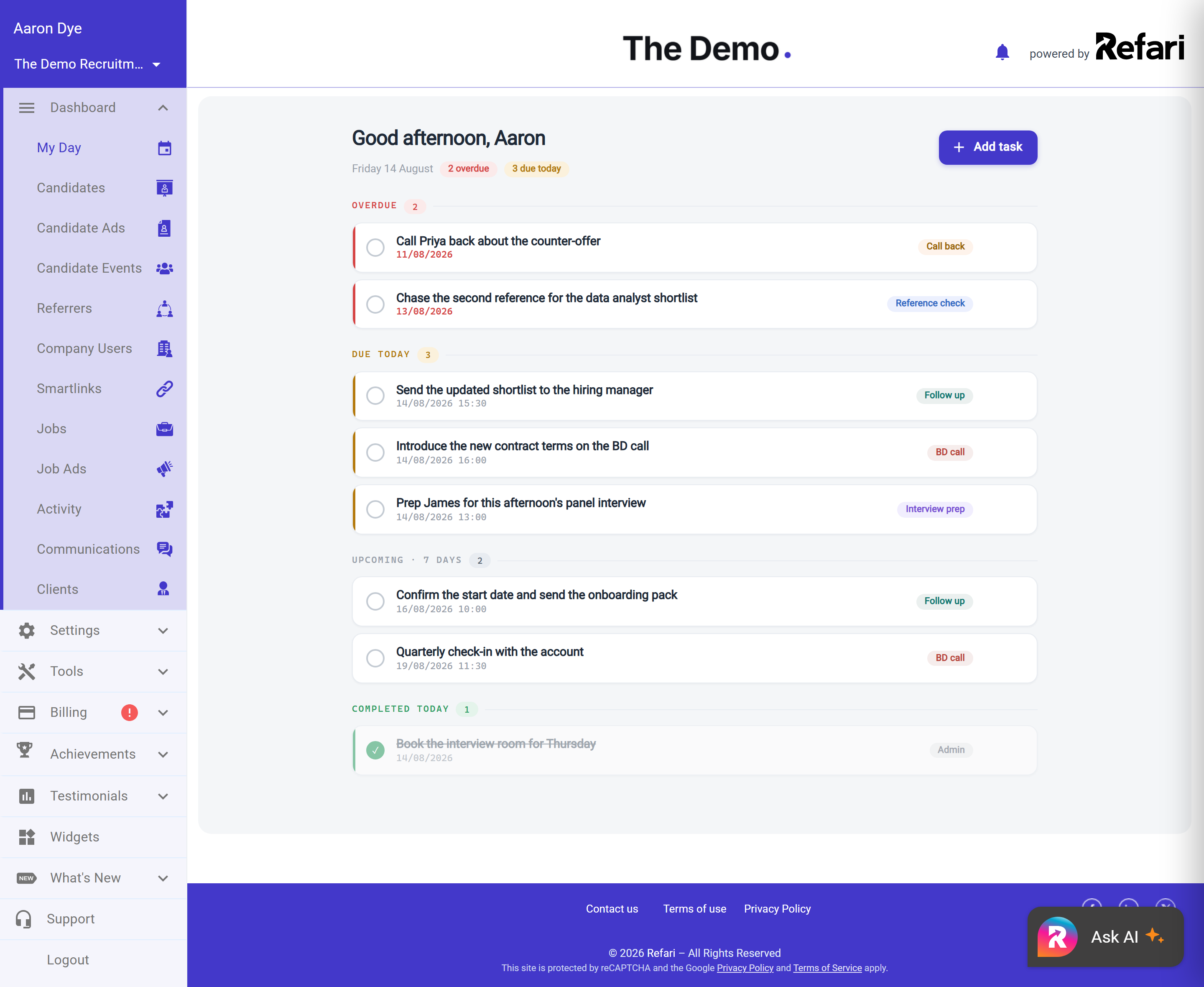
The top of the page greets you by name and shows today's date, followed by two counters: how many of your tasks are overdue and how many are due today. Below that, your tasks are split into four sections.
| Section | What it holds |
|---|---|
| Overdue | Your open tasks whose due date has already passed. This section is red, because it is the one to clear first. |
| Due today | Your open tasks due today, in due-time order. |
| Upcoming · 7 days | What is coming in the next week, so nothing lands as a surprise. |
| Completed today | What you have already ticked off today. Useful at five o'clock, and it is also where you go to undo a task you ticked by mistake. |
My Day only ever shows tasks assigned to you. Your colleagues have their own My Day, showing theirs.
Creating a task
You can create a task from My Day itself, or from the Tasks tab on a candidate's profile. Creating it from the candidate attaches it to them automatically, which is usually what you want.
- Click Add task on My Day, or open the Tasks tab on a record and add it from there.
- Give the task a Title. This is the only text field you have to fill in, and it is what you will read on the list, so write it as the action: "Call back about counter-offer" beats "Counter-offer".
- Pick a Due date. This is required. Use the Today, Tomorrow and Next week shortcuts underneath the field, or open the date picker. You cannot set a due date in the past.
- Optionally pick a Due time. Leave it on No time and the task is simply due that day, with no particular hour attached.
- Optionally choose a Type. Types are the coloured categories your company has set up, and each one shows as a coloured dot on the task, so you learn to recognise a "Call back" without reading it.
- Choose when you want to be nudged under Remind me.
- Click Create task.
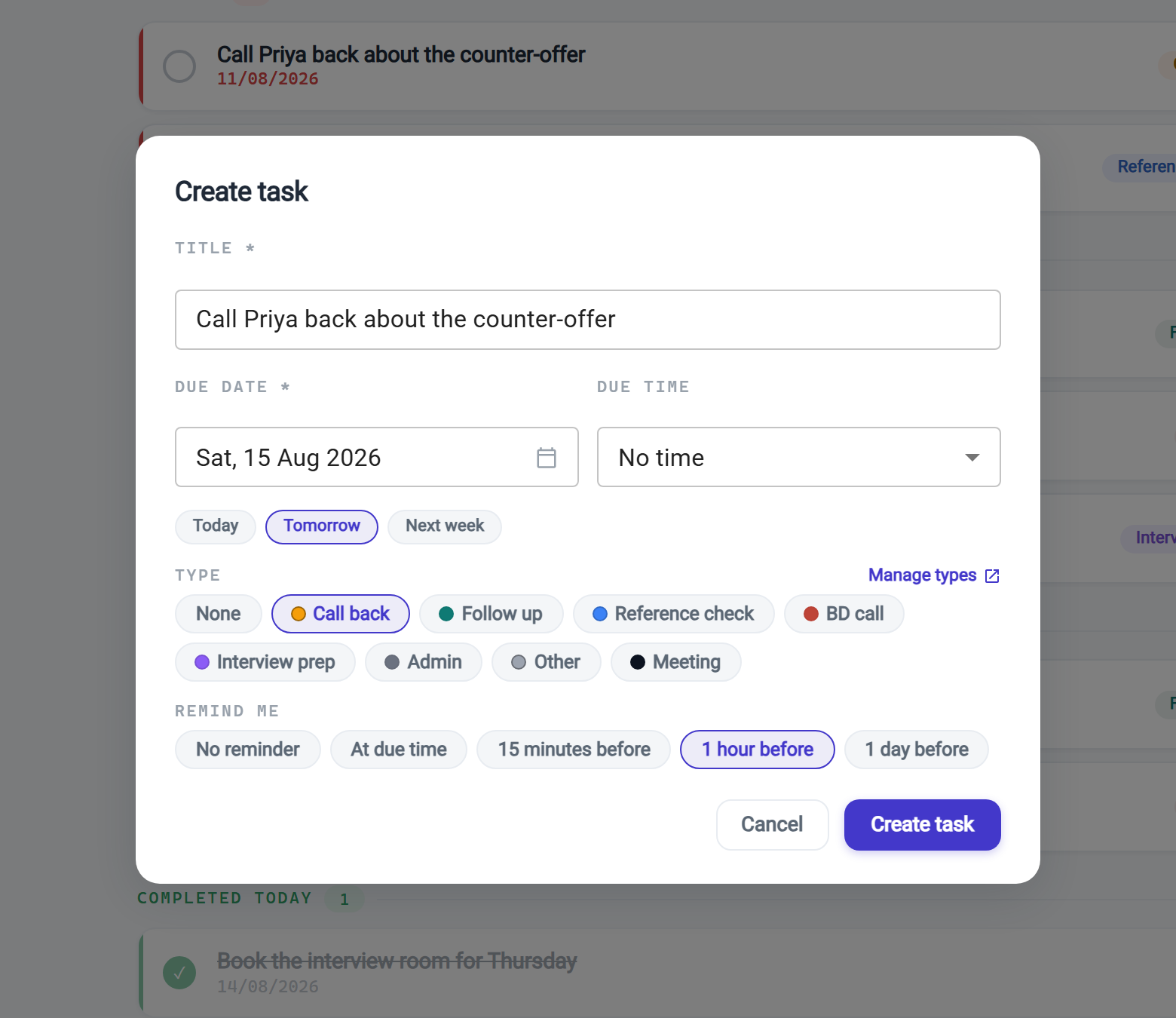
Idea: The Today, Tomorrow and Next week shortcuts only set the date. If you have already chosen a due time, they leave it alone, so you can change the day of a 9:30 am call without setting the time again.Attaching a task to a candidate
A task can stand on its own, or it can be attached to a candidate. Attaching it means the task appears in two places: on your own My Day, and on that candidate's Tasks tab, so whoever opens the record next can see what is still outstanding on it.
If you do not attach a task to anybody, it is a standalone task. It still appears on My Day and still reminds you, it simply is not tied to a record. That is the right choice for general work like "Write up the Tuesday shortlist".
Step by step
You attach a task by starting from the candidate's profile rather than from My Day.
- Open the candidate's profile, from Candidates in the left-hand menu.
- Below the profile card you will see a row of tabs. Click Tasks, the last one.
- Click Add task.
- Fill the task in as usual. You do not have to tell Refari which record it belongs to: because you started from the candidate, it attaches to them automatically, and the dialog shows you which record that is at the top.
- Click Create task. It appears on this tab immediately, and on your My Day under whichever section its due date falls in.
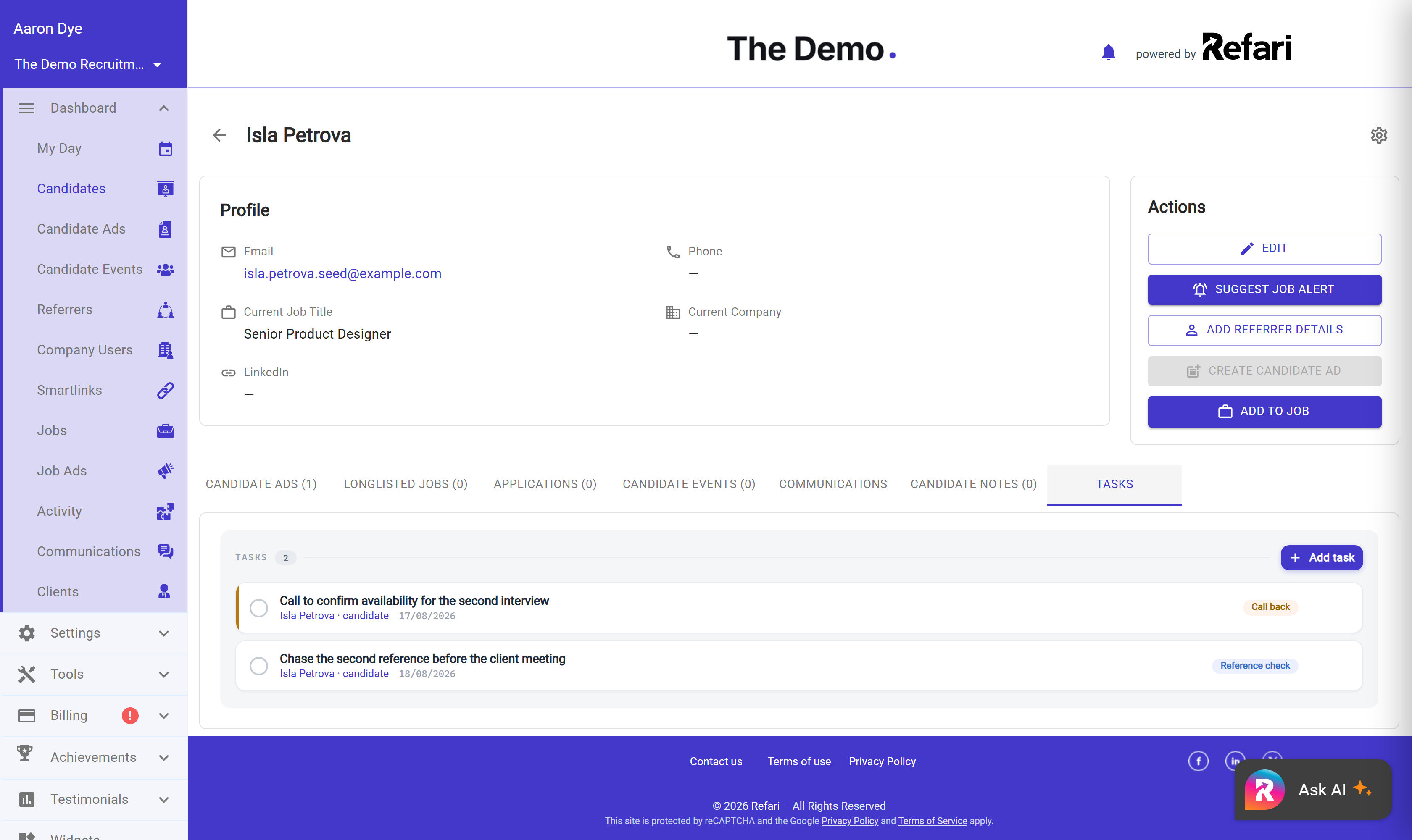
Each task on the tab shows the record it is attached to underneath its title, so a task you opened from somewhere else still tells you who it concerns.
The Tasks tab is currently the only place in Refari where a task can be pinned to a record, so if a piece of work does not belong to one particular candidate, leave it standalone and it will still reach you on My Day.
Reminders
A reminder is a notification inside the dashboard, delivered to the bell in the top right. You choose when it fires when you create or edit the task.
| Remind me | When you are notified |
|---|---|
| No reminder | Never. The task still sits on My Day and still appears in your morning digest. |
| At due time | At the moment the task falls due. |
| 15 minutes before | A quarter of an hour beforehand. Good for calls you want a moment to prepare for. |
| 1 hour before | An hour beforehand. |
| 1 day before | The day before, at the same time of day. |
If a task has a due date but no due time, there is no hour for the reminder to count back from, so Refari works it out against 9:00 am on the due date. A task due tomorrow with no time and a reminder set to "1 hour before" will therefore reach you at 8:00 am tomorrow.
Reminders run on your own clock, not the company's, so a recruiter in London and a recruiter in Sydney each get theirs at the right local moment. Refari checks for due reminders every few minutes, so one may arrive a minute or two after the time you picked rather than exactly on it.
Note: Reminders appear in the dashboard, not in your inbox. The only email My Day sends is the morning digest described below, so you will not be emailed every time a task falls due.Your morning digest email
Each morning at around 7:00 am, in your own timezone, Refari emails you a short summary of the day ahead. It is only sent if you actually have something outstanding: at least one open task due today or earlier. On a morning when you are completely clear, no email arrives.
The digest contains:
- The date, and a one-line summary of how much is on your plate.
- Two tiles showing your Overdue and Due today counts.
- Your overdue tasks and your tasks due today, each with its due date or time and its type.
- An Open My Day button that takes you straight to the page.
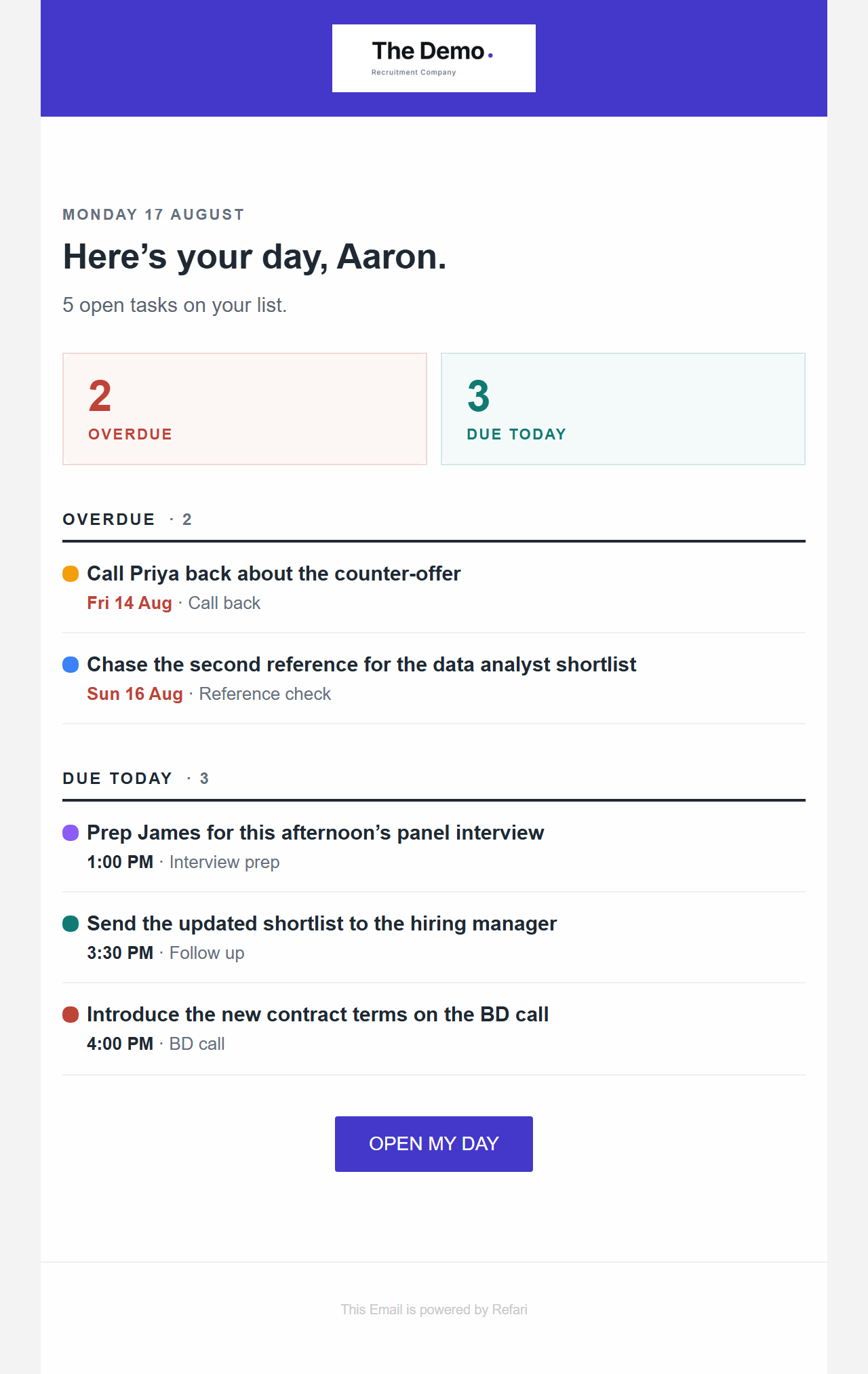
Each of the two lists shows at most eight tasks, with a "… and N more" line underneath if you have more than that. The email is meant to be a nudge rather than the list itself, and a genuinely long list would be cut short by most email clients anyway. The counts on the two tiles are always your real totals, so if the tile says twelve and you can only count eight rows, the other four are waiting on My Day.
The digest is deliberately a morning email. If something delays it past the middle of your morning, it is dropped rather than sent late, because a plan for your day is not much use arriving at four in the afternoon. Nothing is lost when that happens: My Day itself is always current.
Completing, editing and deleting tasks
Every task has an empty circle on its left, and that circle is the button. Click it and the task is complete: the circle fills green with a tick, the title is struck through, and the task drops into Completed today. This works the same way on My Day and on a candidate's Tasks tab.
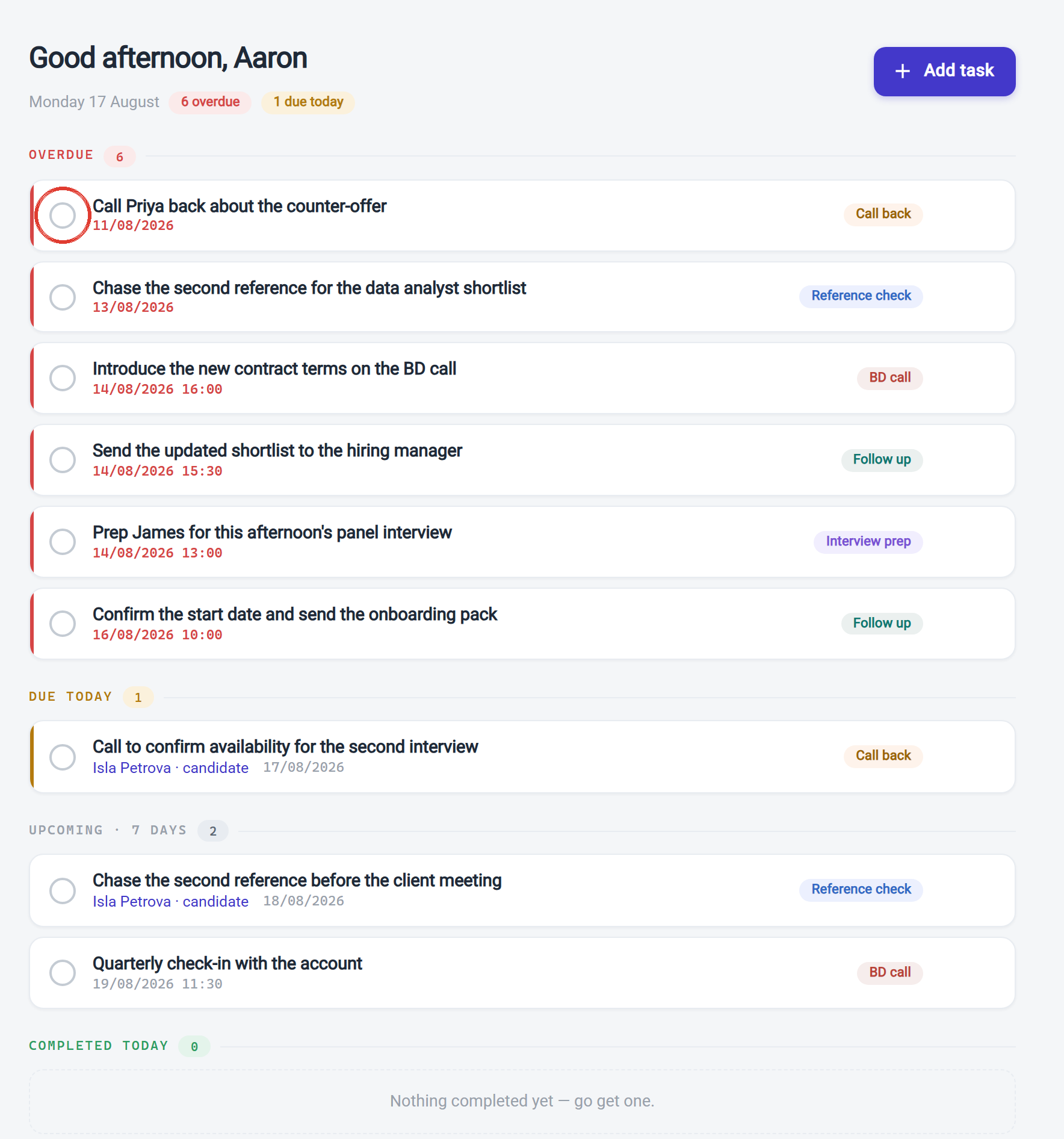
Clicking that same circle a second time reopens the task. It returns to whichever section its due date puts it in, and the due date itself is untouched, so nothing is lost if you tick the wrong one. If a circle does not respond when you click it, you do not have permission to complete that particular task, which the table below explains.
To change or delete a task, hover your mouse over its row. A tick, a pencil and a bin appear at the right-hand end. The tick completes the task, exactly like the circle. The pencil reopens the same form you filled in to create it, and the bin asks you to confirm before anything is removed. The icons only appear on tasks you are allowed to change, so if you cannot see them on a colleague's task, that is why.
Everyone in your company can see the company's tasks, which is the point: if a colleague is on leave, you can see what was owed and pick it up. What you can change depends on your role. If you are not sure which role you have, your Company Admin can tell you, and the roles themselves are set out in Refari Roles ↗.
In the table below: ✓ means yes, ✗ means no, and Own means only for tasks you created or that are assigned to you.
| What you can do | Company Member | Company Manager | Company Admin |
|---|---|---|---|
| See the company's tasks | ✓ | ✓ | ✓ |
| Create a task | Own | ✓ | ✓ |
| Edit a task | Own | ✓ | ✓ |
| Complete or reopen a task | Own | ✓ | ✓ |
| Reassign a task to someone else | ✗ | ✓ | ✓ |
| Delete a task | Own | ✓ | ✓ |
| Manage the company's task types | ✗ | ✓ | ✓ |
Two details worth drawing out of that table. A Company Member creates tasks for themselves, so if you need to hand work to a colleague, ask a Company Manager or Company Admin to create it or reassign it. And deleting a task is limited to the person who created it, plus Managers and Admins, so being assigned a task does not let you make it disappear.
Pushing a task back
Not every task gets done on the day it was meant for. Rather than leaving it sitting in Overdue, or opening it up to find a new date, you can push it back by a day or two in one click.
Every open task you are allowed to edit has two buttons: +24h moves it back one day, and +48h moves it back two. Where you see them depends on the section the task is in.
- Overdue and Due today: the buttons are always showing, because these are the tasks you are most likely to move.
- Upcoming: hover over the task and they appear, alongside the tick, pencil and bin.
- Completed today: there is nothing to push back, so they do not appear.
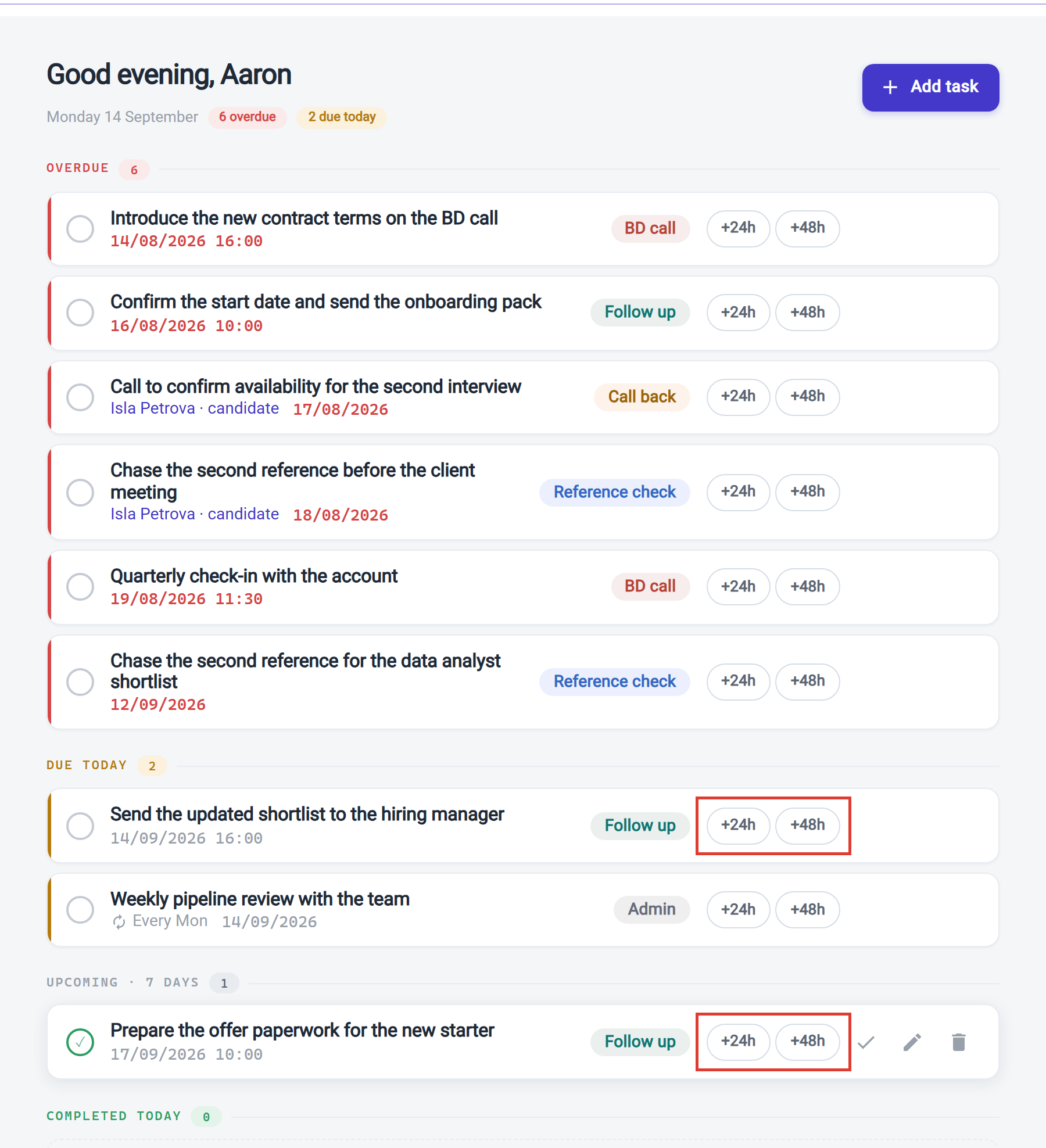
The same two buttons also sit in the bottom left of the Edit task dialog, and on a candidate's Tasks tab. They work the same way wherever you use them.
Step by step
- Click +24h or +48h on the task.
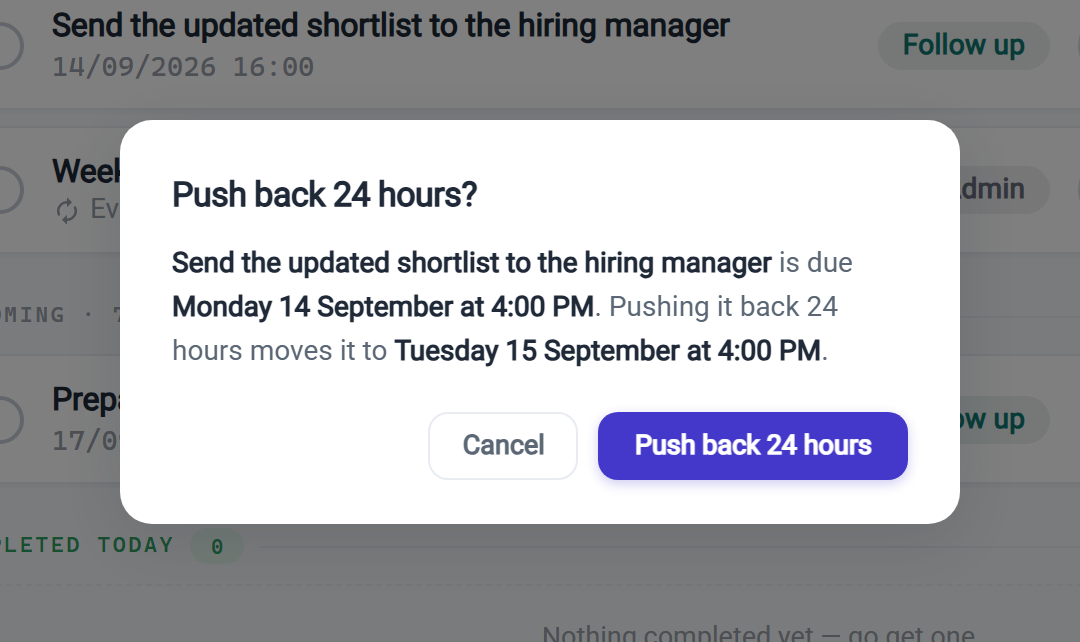
- A confirmation opens, showing when the task is due now and exactly where it will land. Nothing has moved yet.
- Click Push back 24 hours (or Push back 48 hours) to move it, or Cancel to leave it where it is.
The task moves straight away, a short message confirms its new date, and it drops into whichever section that date belongs in.
How the new date is worked out
The new date counts from when the task was due, not from the moment you click, and the time of day is kept. A task due Monday at 4:00 PM, pushed back 24 hours, is due Tuesday at 4:00 PM. A task with no due time simply moves to the next day, still with no time.
Because it counts from the due date, a task that is several days overdue can still be overdue after you push it back. The confirmation tells you when that will happen, so it is never a surprise. If you want a task on a specific date instead, edit it and change the Due date.
If the task has a reminder, the reminder moves with it. The one exception is a reminder time that has already passed: Refari does not send it late, so you will not get a notification seconds after pushing a task back.
Repeating tasks
Pushing back a repeating task moves only this occurrence. The schedule carries on as before, and the confirmation shows you the date the task comes back on.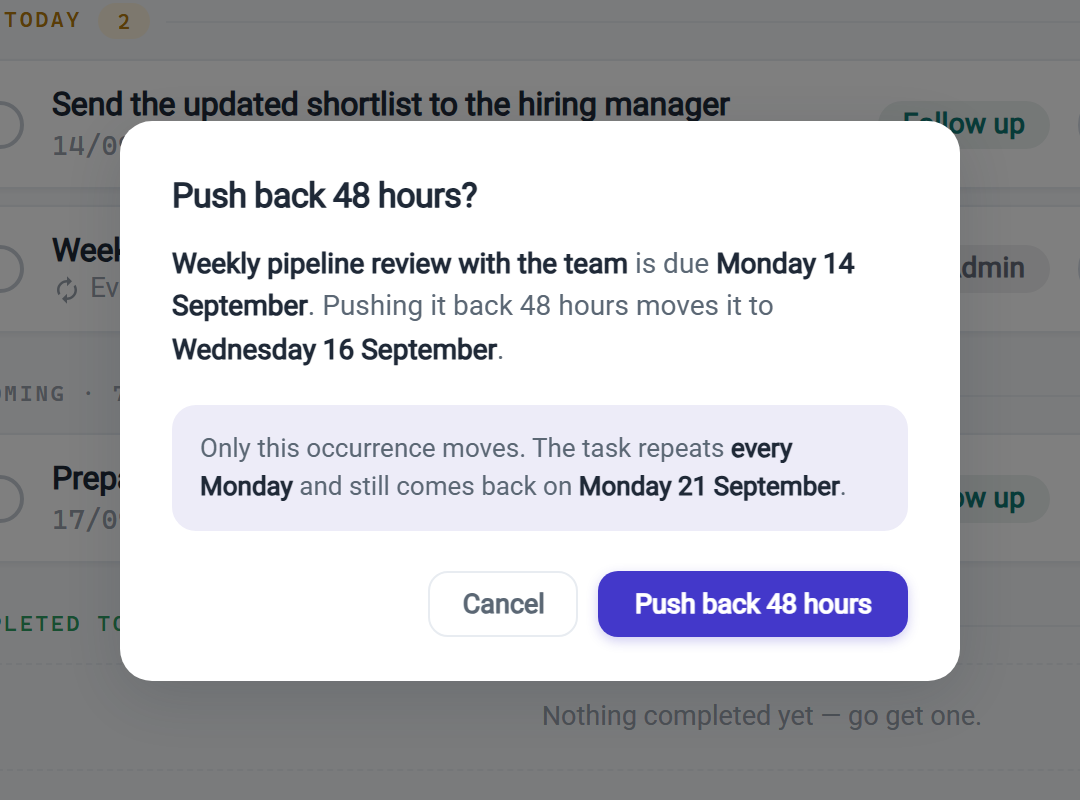
An occurrence can only be pushed back as far as the day before the next one is due, so the two never land on the same day. When a button would go too far it is greyed out, and hovering over it tells you why.
| The task repeats | What you can do |
|---|---|
| Every day | Neither button is available, because tomorrow already brings the next one. Complete this one instead. |
| Every weekday | From Monday to Thursday the next weekday is tomorrow, so neither button is available. A Friday occurrence can move to Saturday or Sunday. |
| Weekly or monthly | Both buttons work, until the occurrence is one or two days away from the next one. |
Setting up your task types
A task type is a coloured category that tells you at a glance what kind of work a task is. Types belong to your whole company, so everybody picks from the same list, and only a Company Admin or Company Manager can change it. You will find it under Settings > My Day Settings, on a page headed Task Types.
Every company starts with seven built-in types, ready to use: Call back, Follow up, Reference check, BD call, Interview prep, Admin and Other. You can add as many of your own as you like alongside them.
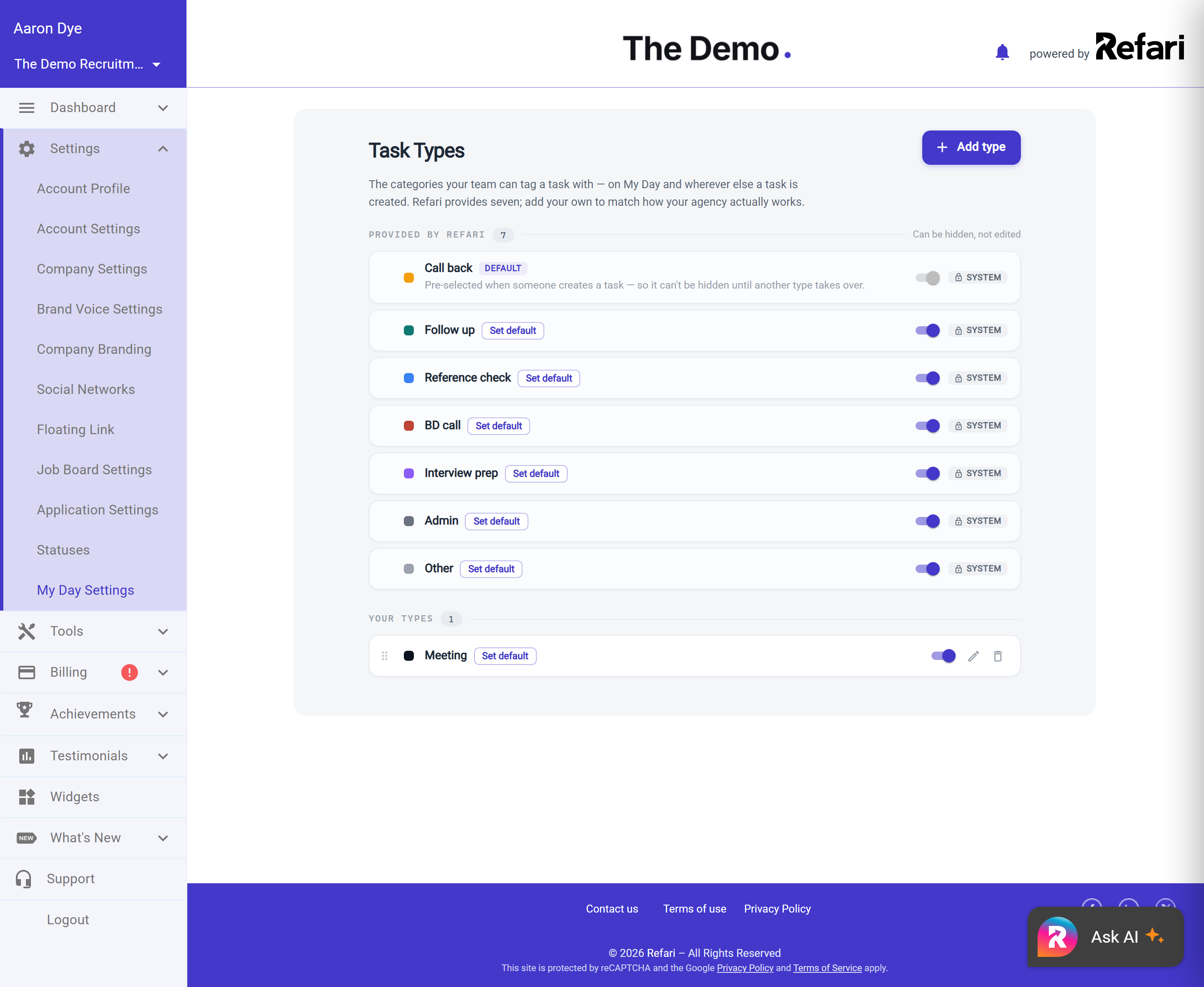
The built-in types and your own behave slightly differently:
| What you can do to a type | Built-in types | Types you create |
|---|---|---|
| Rename it | ✗ | ✓ |
| Change its colour | ✗ | ✓ |
| Hide it from the picker | ✓ | ✓ |
| Make it the default | ✓ | ✓ |
| Delete it | ✗ | ✓ |
If a built-in type does not suit how your team works, hide it rather than looking for a delete button. Hiding takes it out of the picker straight away, so nobody chooses it again, while every task already using it keeps its label.
One type is the default, which means it is pre-selected when someone creates a task. You can have only one at a time, and you can move it to any type you like, built-in or your own. You can also drag the list into whatever order you want, and that is the order everyone sees in the picker, so it is worth putting your team's most common few at the top.
Note: Deleting a type you created does not damage the tasks that used it. Each task keeps the label and colour it was given when it was written, so your history stays readable. What changes is that nobody can choose that type on a new task.Final Notes
The habit that makes My Day earn its place is a small one: whenever you finish a call and there is a next step, put it in as a task before you move on, attached to the record it belongs to. Do that for a fortnight and the morning digest stops being a list of things you had forgotten and starts being an accurate plan for the day.
If My Day is missing from your menu, or a task is not behaving the way this article describes, contact your Company Admin in the first instance. They can check your role and your company's setup, and raise it with us if it needs our help.
Other articles you might be interested in: Refari Roles | Managing your email notifications
Was this article helpful?
That’s Great!
Thank you for your feedback
Sorry! We couldn't be helpful
Thank you for your feedback
Feedback sent
We appreciate your effort and will try to fix the article