This article explains how Refari's candidate-facing forms work as a set. There are three of them: the application form (for applying to a specific job), the registration form (for registering interest without applying to a role), and the referral form (for recommending someone else for your roles). It covers where a candidate meets each form, what each one captures, what happens when a candidate submits, and the small amount of setup a Company Admin controls.
A quick definition before we start. A referral is a recommendation: someone tells you about a person who could suit one of your roles. The person making that recommendation is the referrer. Your job board is the careers board on your website where your live roles appear.
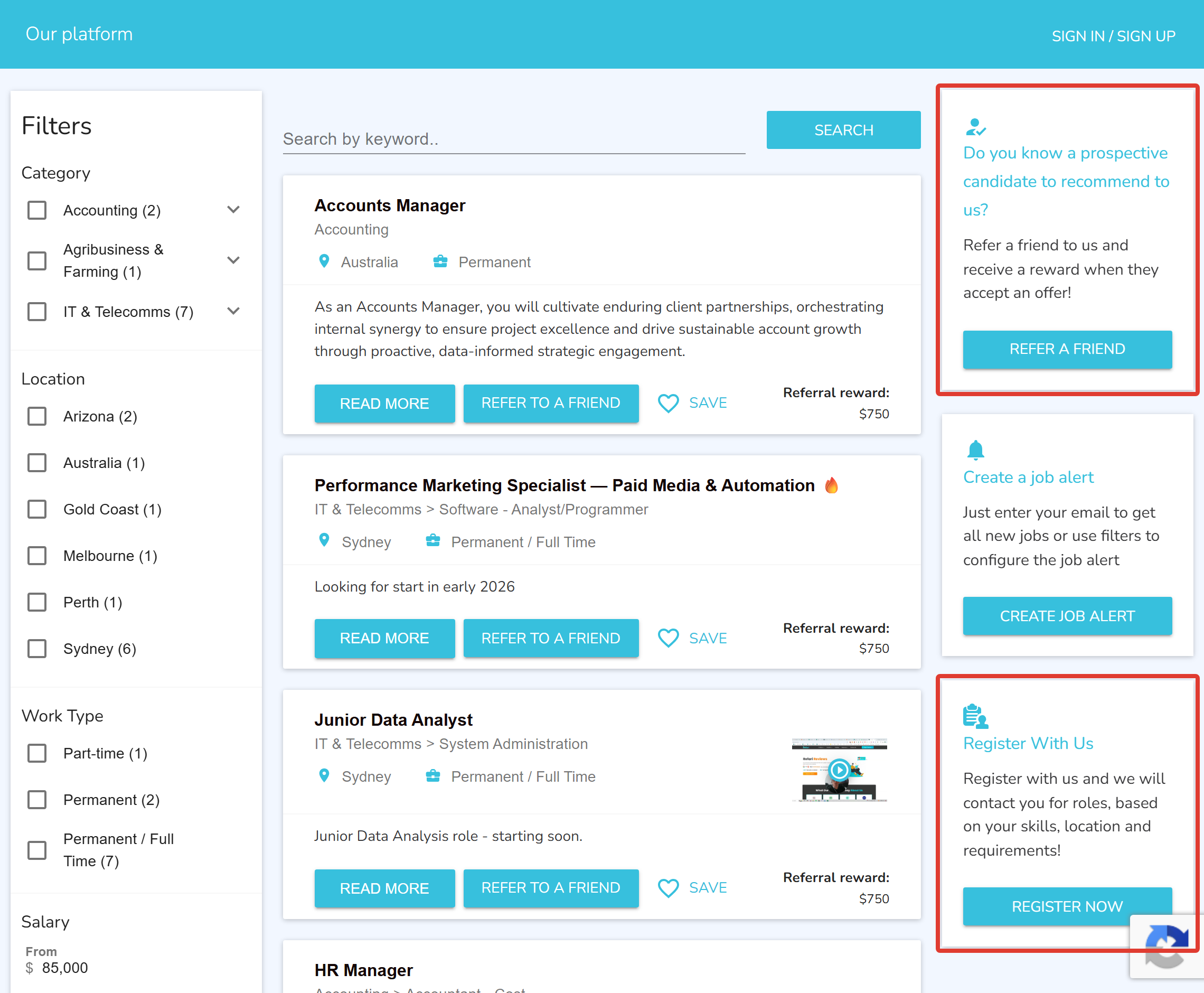
The three Refari forms at a glance
Each form serves a different moment in the candidate journey, and each one creates or updates a record in your connected recruitment system. Here is how they compare.
| Form | What it is for | Where a candidate meets it | What it records when submitted |
|---|---|---|---|
| Application form | Applying to a specific job | On a job's detail page in your Refari job board | A candidate record and a job application against that advert |
| Registration form | Registering interest without applying to a role | A "Register with us" widget or button on your site | A candidate record |
| Referral form | Recommending someone else for your roles | A "Refer a friend" widget or button on your site | A candidate record for the referred person |
Refari forms are widgets, not website forms
This is the part most people get tangled up on, so it is worth being clear. Refari forms are delivered by embedding a small piece of Refari code, a widget, on a page of your website. They are not Gravity Forms, Contact Form 7, or any form you have built in your own website builder. The widget renders the form, validates it, handles the file uploads, and sends the submission straight through to your connected recruitment system. A form you build yourself in your website tool does none of that and will not reach your recruitment system.
There are three widgets behind the three forms:
- The Job Board widget, which lists your live roles and carries the application form on each job's detail page. It can also offer "Register with us" and "Refer a friend" alongside your jobs.
- The Candidate Registration widget, which is the standalone registration form ("Register with us").
- The Referral widget, which is the standalone referral form ("Refer a friend").
Note: If you collect candidate details through a form you built yourself in your website tool, those details stay in your website and do not reach your recruitment system. To capture candidates into your connected system, the form has to be a Refari widget.Application form
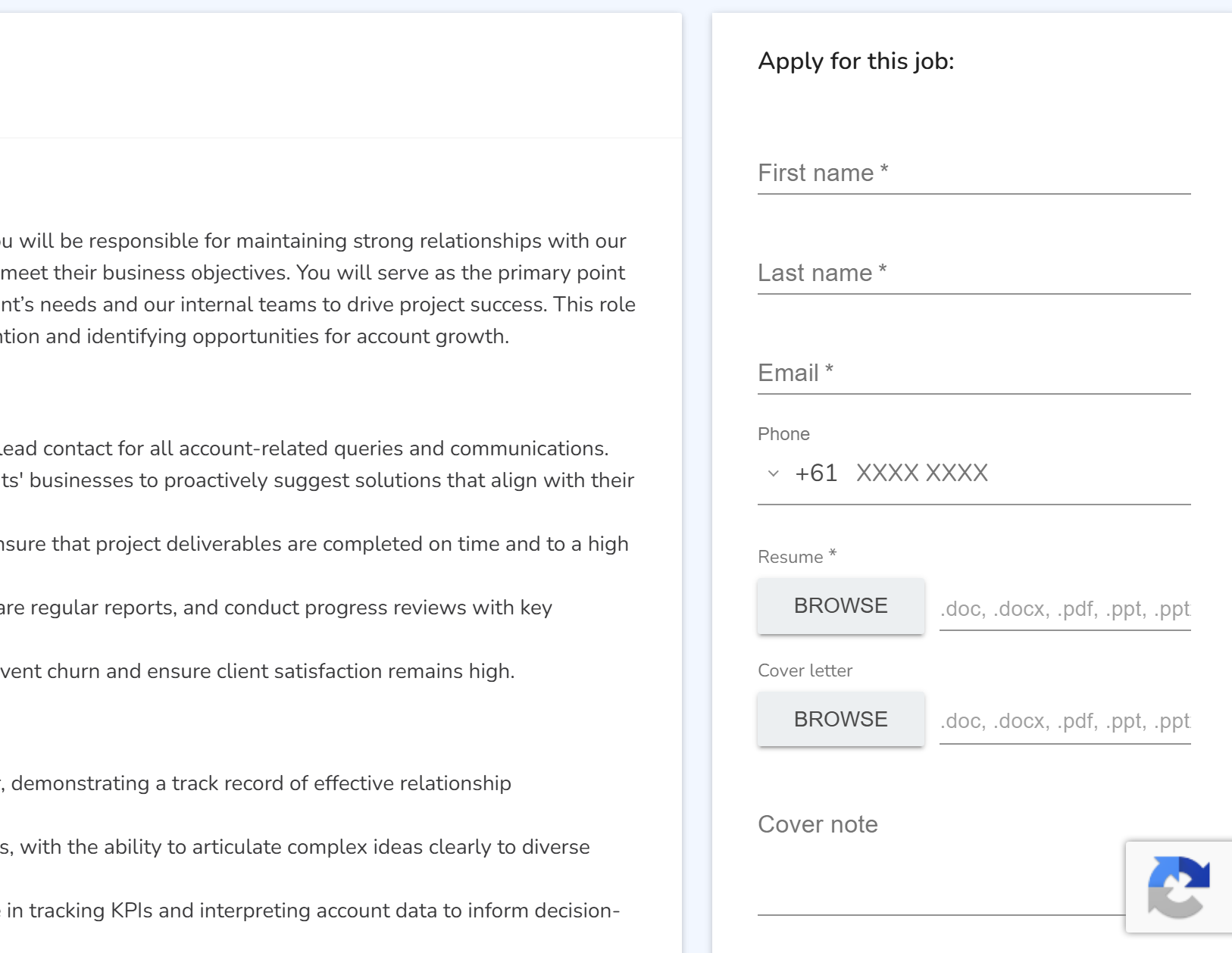
The application form is how a candidate applies to one specific job. A candidate meets it on the job's detail page inside your Job Board widget, either inline on the page or in a pop-up "Apply for a job" window once they click to apply.
The application form captures:
- First name, last name and email (always required).
- Phone number.
- LinkedIn profile URL.
- Resume (file upload, up to 10 MB).
- Cover letter (file upload) and a short cover note.
The set of fields on the application form is fixed, but you control which of the optional ones a candidate must complete. The resume can be made required or optional (see Setting up your Refari forms below), and the phone, resume, cover letter and cover note can each be set as mandatory when the widget is installed.
Registration form
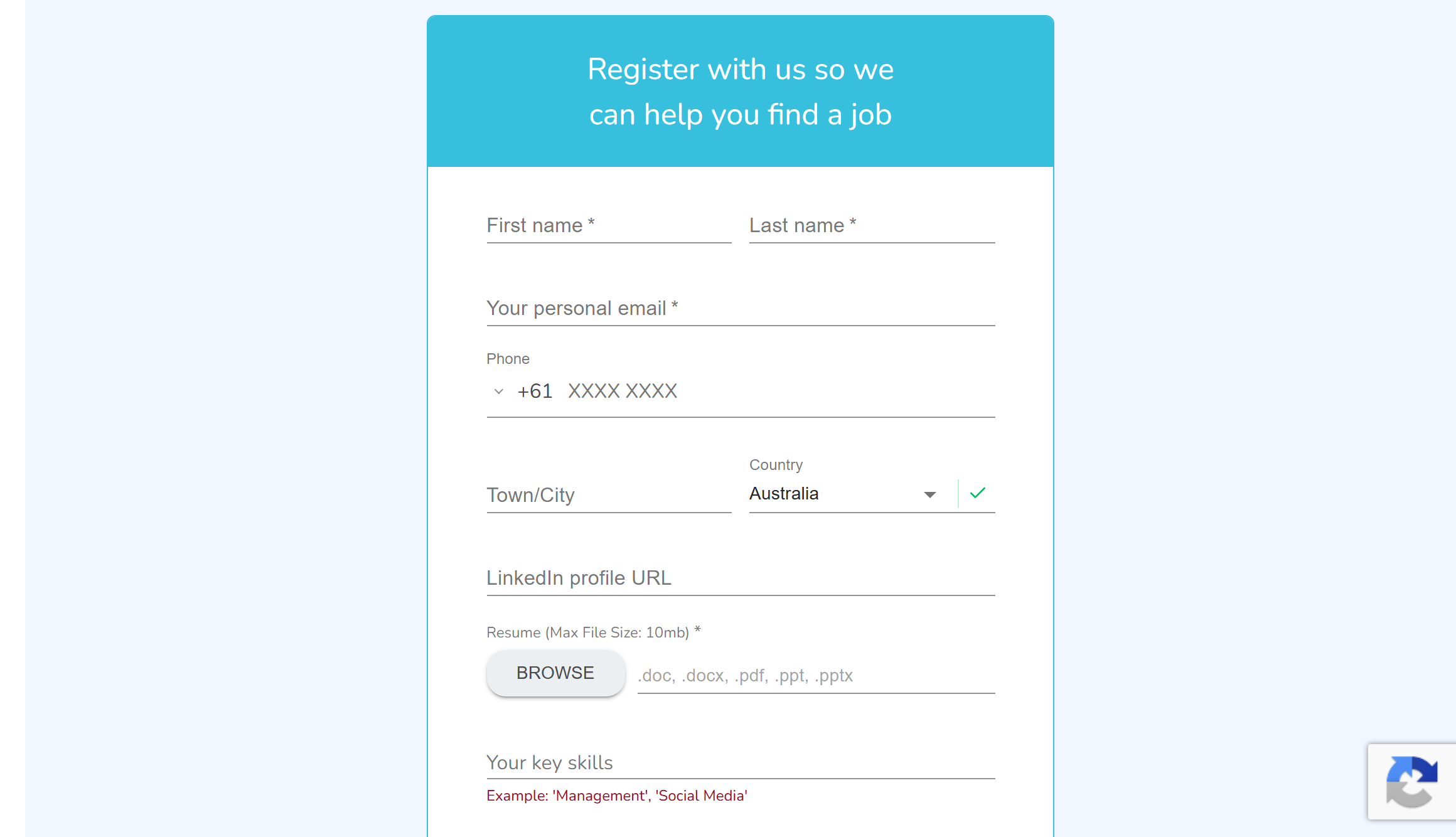
The registration form is a general "Register with us". It is not tied to a particular role. It is for the candidate who wants to be on your radar for future opportunities rather than applying to a job that is open right now.
A candidate can reach it in a few ways:
- Through the standalone Candidate Registration widget on your site, shown either as a form on the page or as a "Register with us" button that opens the form.
- As a "Register with us" option alongside your jobs in the Job Board widget.
- Through a direct link that opens the form automatically. Adding ?registerWithUs to the end of a page URL that hosts the widget opens the registration form straight away, which is handy for email campaigns or a "Register your interest" call to action.
The registration form always captures first name, last name and email. On top of those, the following fields can be shown or hidden, and made required or optional, when the widget is installed:
- Phone number.
- Town or city, and country.
- LinkedIn profile URL.
- Resume (file upload).
- Skills.
- A short "Tell us about yourself" message.
The registration form is the most configurable of the three, so it is the one to reach for when you want a lighter or a fuller form depending on the page it sits on.
Referral form
The referral form is for someone recommending another person for your roles, the "Refer a friend" flow. The person filling it in is the referrer, and the details they enter are about the candidate they are referring, not about themselves.
A candidate (or rather, a referrer) can reach it:
- Through the standalone Referral widget on your site, shown as a form or as a "Refer a friend" button.
- As a "Refer a friend" option alongside your jobs in the Job Board widget.
- Through a direct link: adding ?referfriend to the end of a page URL that hosts the widget opens the referral form straight away.
The referral form captures the referred person's details:
- First name, last name and email (always required).
- Phone number.
- Current company and current job title.
- LinkedIn profile URL and a resume upload.
- A message about why they are a good fit (a minimum length applies so the recommendation has some substance).
- A recruiter to direct the referral to, if you want it routed to a particular person.
Idea: By default the referral form asks the referrer to provide either a resume or a LinkedIn profile URL, so you always have a way to follow up the referred person. You can relax that requirement when the widget is installed if you want a shorter form.What happens when a candidate submits
All three forms save straight into your connected recruitment system. The sync happens automatically in the background as soon as the form is submitted, so there is nothing for your team to press. If that system is briefly unavailable, Refari keeps retrying until the record lands.
What gets created depends on the form:
- Application: a candidate record is created or updated, and a job application is logged against the matching advert. The resume and cover letter are saved as attachments, the cover note is added as a note, and any screening question answers are carried across.
- Registration: a candidate record is created or updated, with the resume attached and any registration question answers carried across.
- Referral: a candidate record is created or updated for the referred person, with their resume attached.
Refari matches candidates by email address. If the person is already in your system, their existing record is updated rather than a duplicate being created.
How candidate source is recorded
Every form records where the candidate came from, so you can see at a glance how a person reached you: as an application, a registration, or a referral. Refari sets this source when the candidate first arrives.
Exactly how that source is stored, and what happens for a candidate who already exists in your system, depends on the recruitment system you have connected. The related guides at the end of this article cover that detail.
Setting up your Refari forms (Company Admins)
Most of the heavy lifting is already done for you. Here is what is involved and what you, as a Company Admin, control.
Connecting your recruitment system
The connection to your recruitment system is set up by Refari during your onboarding, rather than through a button in the dashboard. Once it is in place, your forms start syncing automatically. If you are unsure whether you are connected, or you need it reconnected, contact Refari support.
Choosing which forms appear and what they ask
A few company-wide settings affect the forms. In your Refari dashboard, under "Settings", a Company Admin can:
- Turn the "Register with us" and "Refer a friend" blocks on or off for your Job Board widget.
- Decide whether a resume is required on the application and registration forms, or whether candidates can submit without one.
- Add a link to your referral terms and conditions, which then appears on the referral form.
Finer field choices, such as which optional fields the registration form shows and which are mandatory, are set in the widget's embed code when the widget is installed.
Getting the embed code onto your site
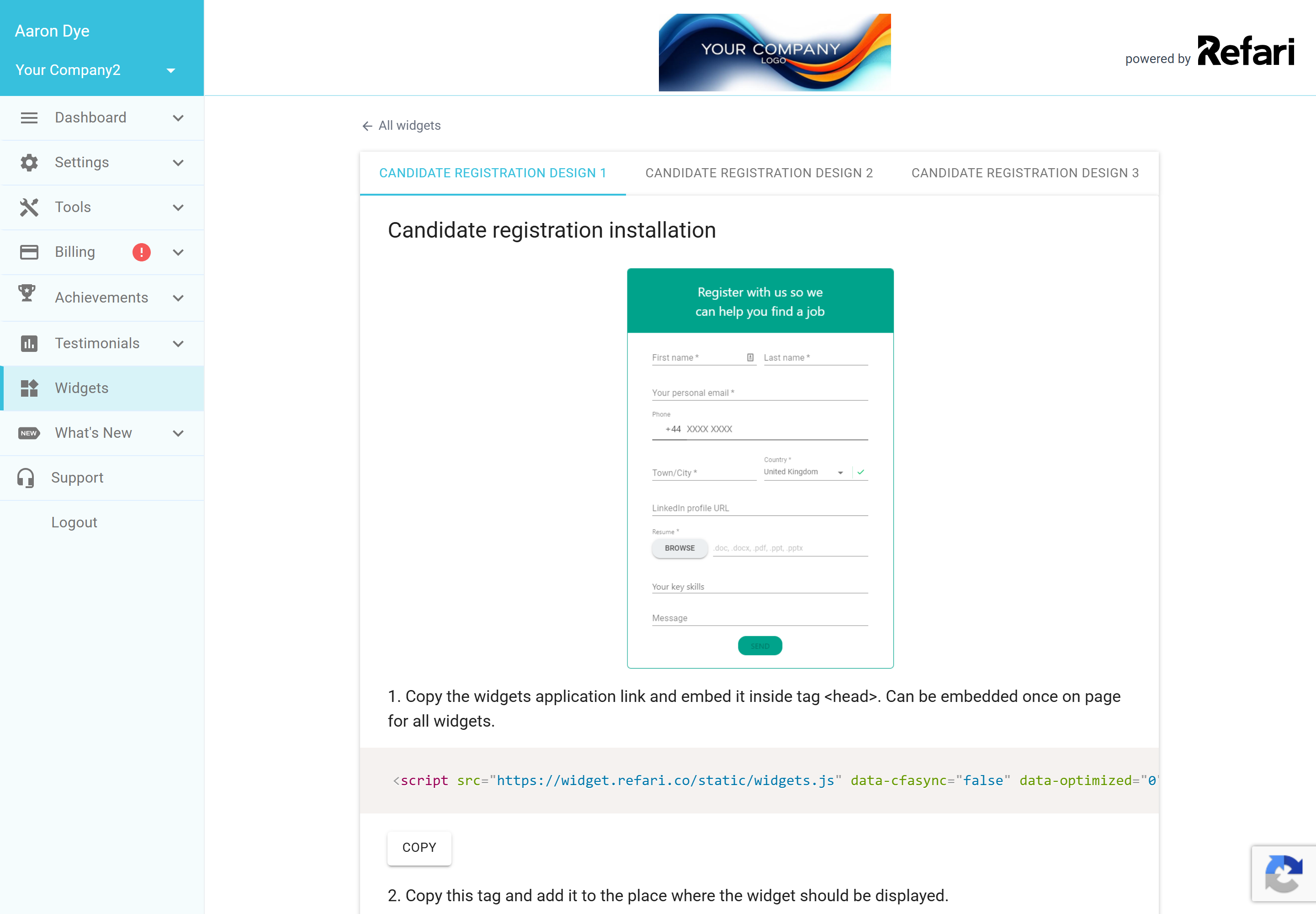
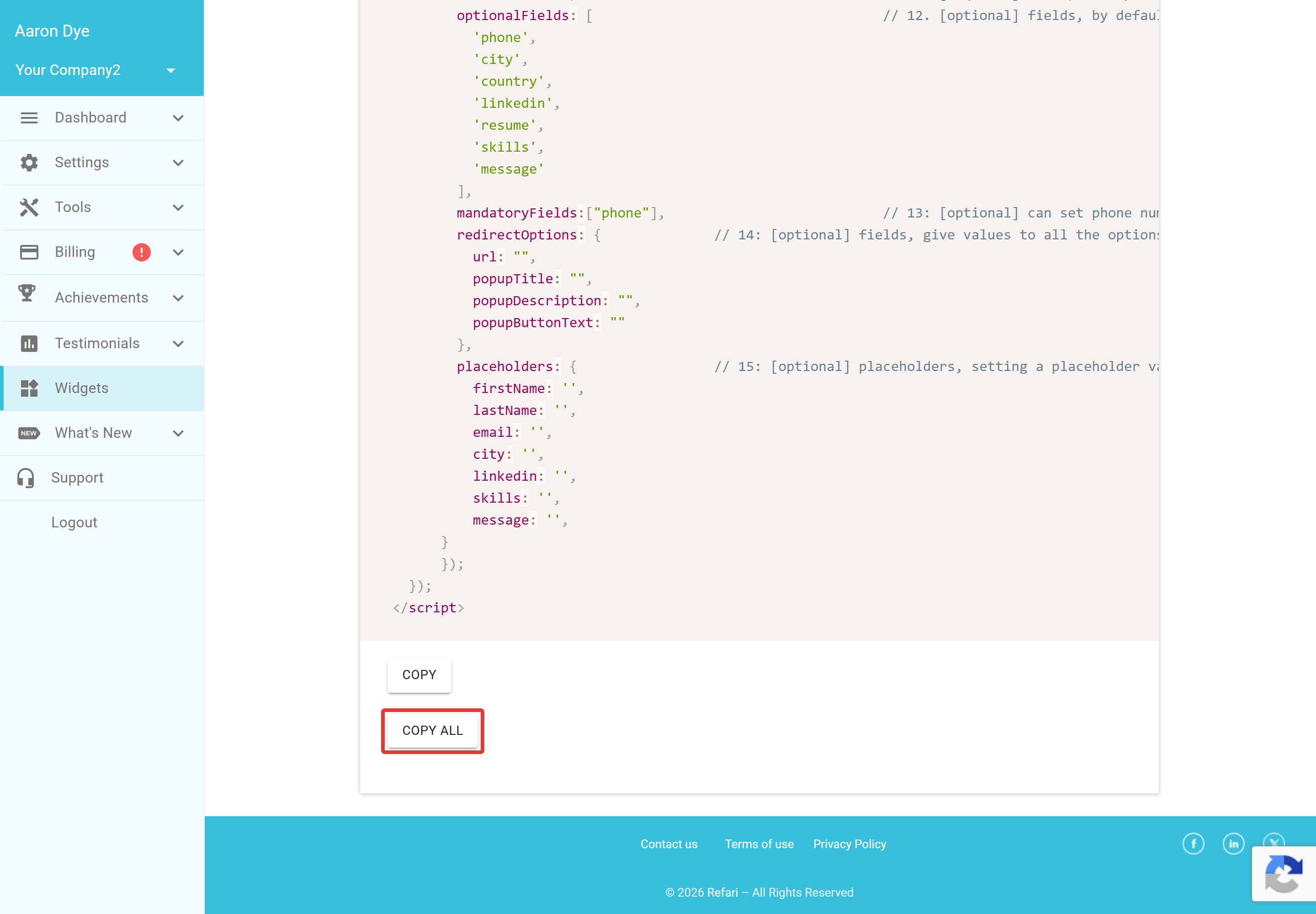
Each widget has its own page in the Refari dashboard, under "Widgets", where a Company Admin can copy the embed snippet to paste into your site. The snippet has three parts: a loader script that you add once per page, a container where the widget should appear, and a small initialisation script carrying your company's API key. Rather than copying each part on its own, use the Copy All button at the bottom of the page, which grabs all three parts in one go. The widget pages are available to Company Admins.
Note: If you collect extra information on your registration form and want those answers to land on specific fields in your connected system, that mapping is configured separately. Contact Refari support and we will help you set it up.Final Notes
The simplest way to think about it: each form is a Refari widget you place on your site, and each one drops candidates straight into your connected recruitment system, tagged with where they came from. If a form you have built yourself is not reaching your recruitment system, that is the sign it is a website form rather than a Refari widget. If you would like a hand getting any of the three set up, just reach out to Refari support.
Other articles you might be interested in: Using Refari forms with JobAdder | Referral Widget: how to install it and the customisation available
Was this article helpful?
That’s Great!
Thank you for your feedback
Sorry! We couldn't be helpful
Thank you for your feedback
Feedback sent
We appreciate your effort and will try to fix the article