This article explains why sharing your testimonials is one of the easiest ways to build trust in you and your team, and walks you through publishing a testimonial in Refari and socialising it to your social networks.
If any of these terms are new to you, here is what they mean:
| Term | What it means |
|---|---|
| Testimonial | Written feedback from someone you have worked with, such as a candidate you helped into a new role or a hiring manager you recruited for, describing what it was like to work with you. |
| TopRec | Refari’s ratings and testimonials tool. It asks candidates and hiring managers for a rating and feedback at key stages of the recruitment process, and is where most testimonials come from. |
| Socialise | Turn something in Refari (here, a testimonial) into a branded image post and share it to your social networks straight from your dashboard. |
Why share your testimonials
A testimonial that only lives in your dashboard does no work for you. Shared, it becomes some of the most persuasive content you can put in front of the people you want to reach:
- It is social proof. People trust what other candidates and hiring managers say about you far more than what you say about yourself. A testimonial is that third-party voice, in their own words.
- It builds trust with candidates. A candidate deciding whether to apply for one of your roles, or whether to take your call, can see that people like them have had a good experience working with you.
- It builds credibility with hiring managers. Whether you recruit for clients or for hiring managers inside your own organisation, a steady stream of positive feedback shows a track record of delivering, and that is what wins the next role to work on.
- It builds the personal brand of the person it is about. Each testimonial post features the team member the feedback is for, and links back to their profile on your website, where readers can see the roles they are working on.
- It is ready-made, fresh content. The words are already written and the design is generated for you, so a good-looking post takes a minute or two, and sharing to your own networks costs nothing. TopRec testimonials also carry an “Independently verified by TopRec” mark on the image.
How to share a testimonial
A testimonial needs to be published before you can socialise it. The steps below cover both.
Step 1: Open your testimonials
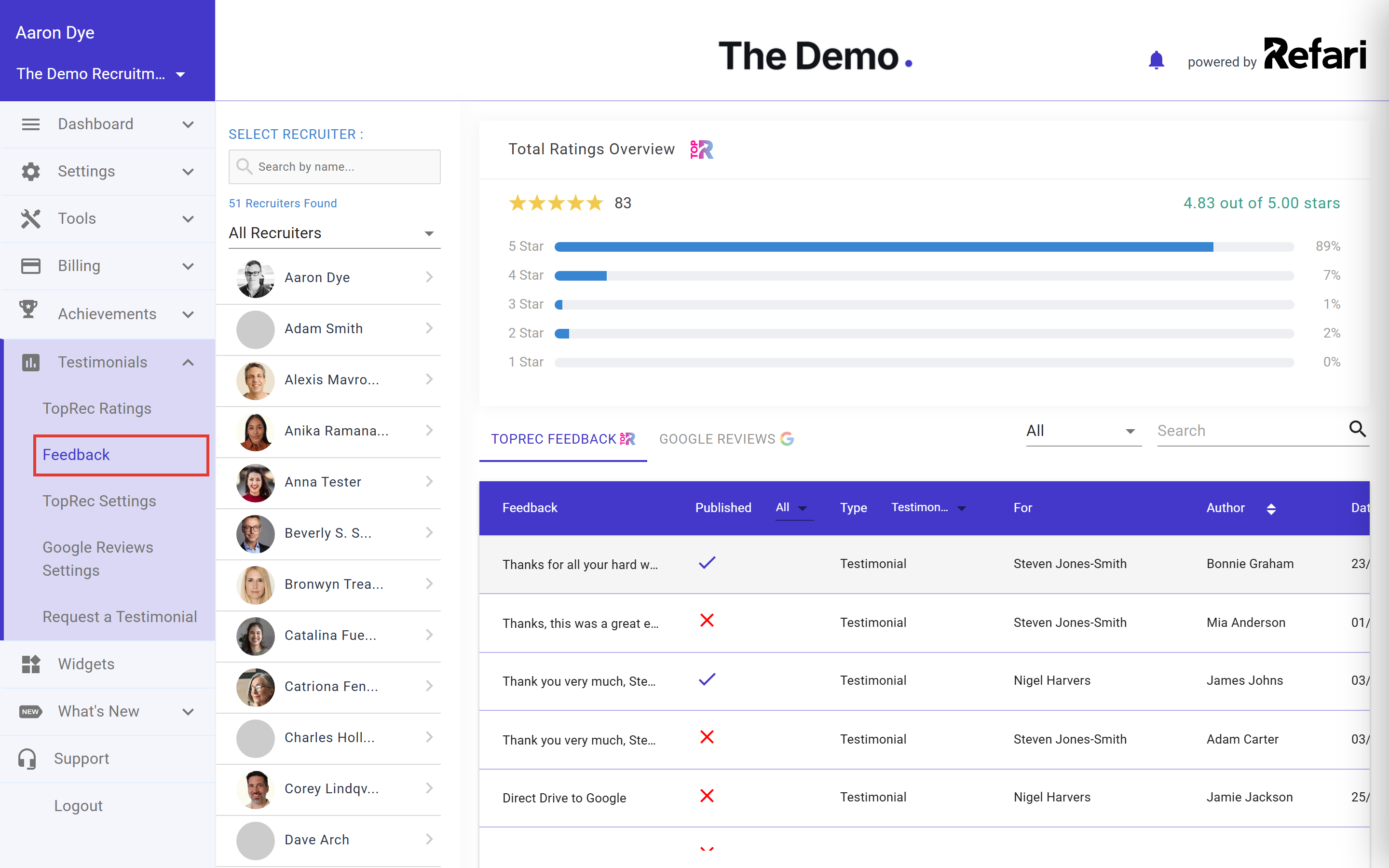
In your Refari dashboard, go to Testimonials > Feedback in the left-hand menu. The TopRec Feedback tab lists everything TopRec has collected for your team: testimonials, star ratings and short comments. To see only testimonials, set the Type filter at the top of the table to Testimonial. You can also pick a team member from the Select Recruiter list on the left to see just their feedback.
The Published column shows a tick for testimonials that are already published and a cross for those that are not yet.
Step 2: Publish the testimonial
Click a testimonial in the table to open it. At the bottom of the Response to a Testimonial window, turn on the Publish switch.
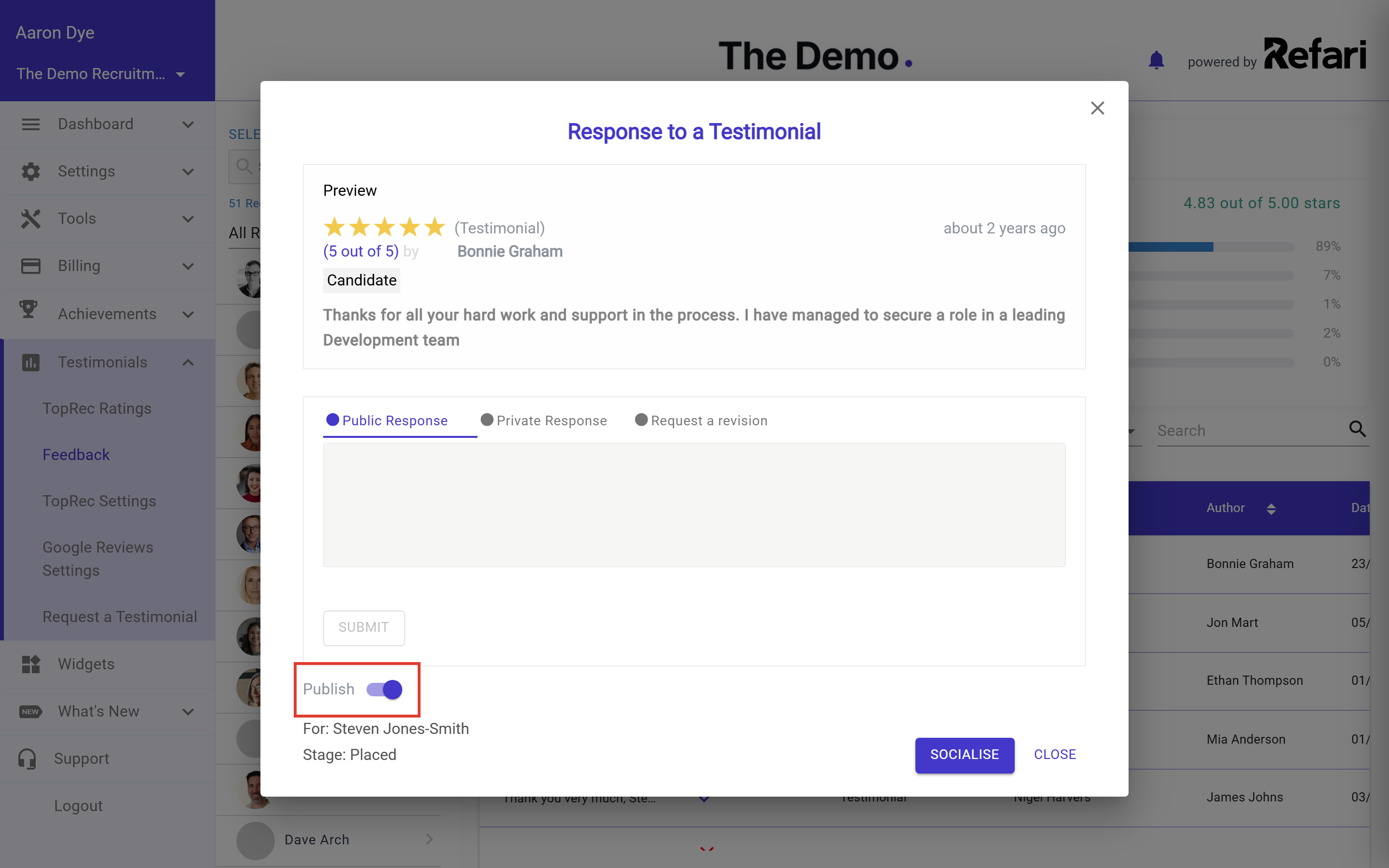
Note: The Publish switch appears on five-star testimonials. Company Admins and Company Managers can publish any testimonial on the account; other team members can publish testimonials written about them.Idea: While the testimonial is open, use the Public Response box to thank the person who wrote it. A personal reply is good manners, and it nudges them to share their feedback as a public review too.Step 3: Click Socialise
Once the testimonial is published, a Socialise button appears at the bottom right of the window. Click it to start building your post.
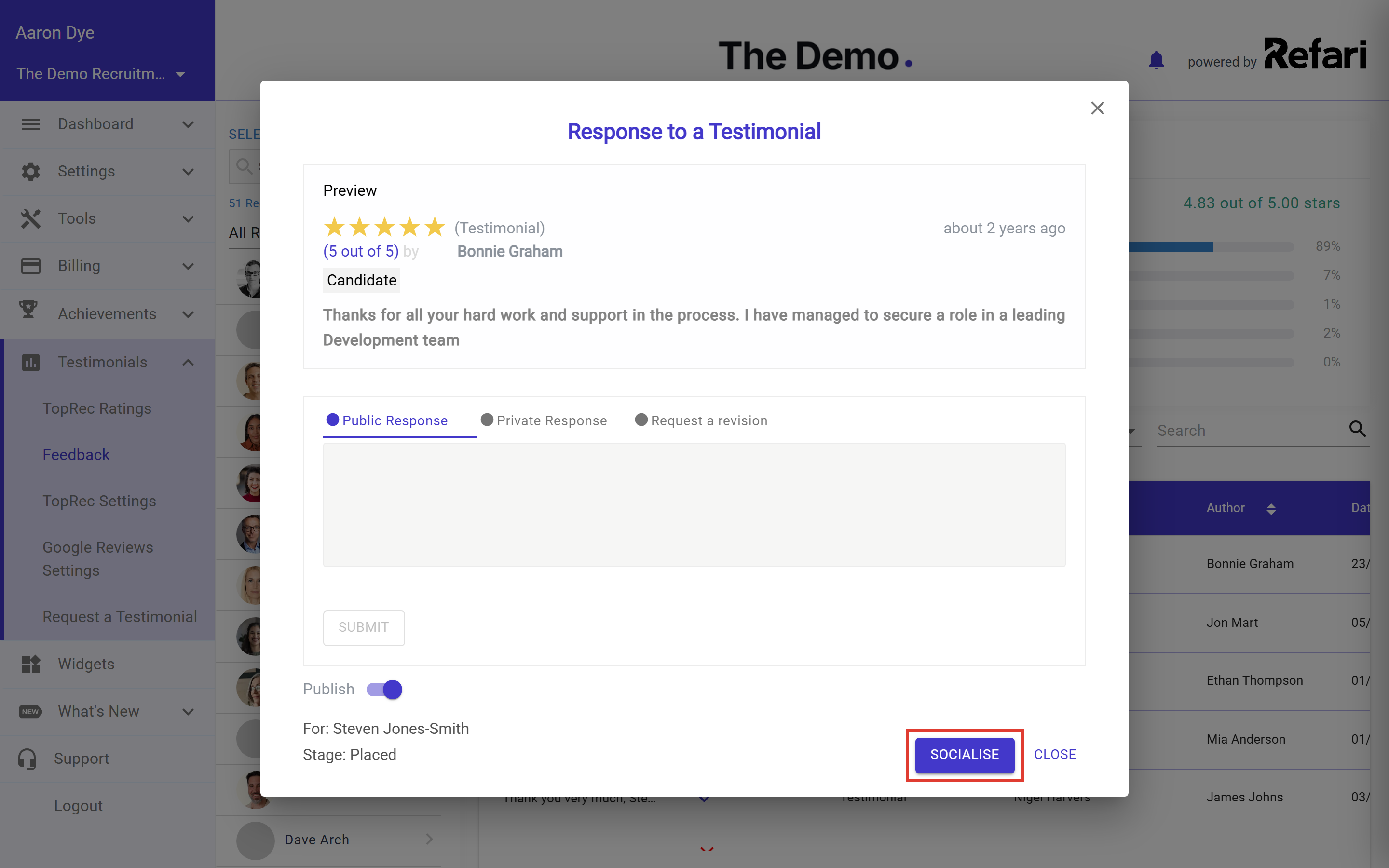
There is also a shortcut: when a new testimonial arrives, the “You’ve received a testimonial!” email includes an Approve and Socialise button, which publishes the testimonial and opens this same Socialise window in one click.
Step 4: Design your post
The Socialise the Testimonial window opens on the Editor tab. Refari builds the image for you, with the team member’s photo and name, the star rating and the testimonial text. Down the left-hand side are the backgrounds you can choose from: click any of them to restyle the image.
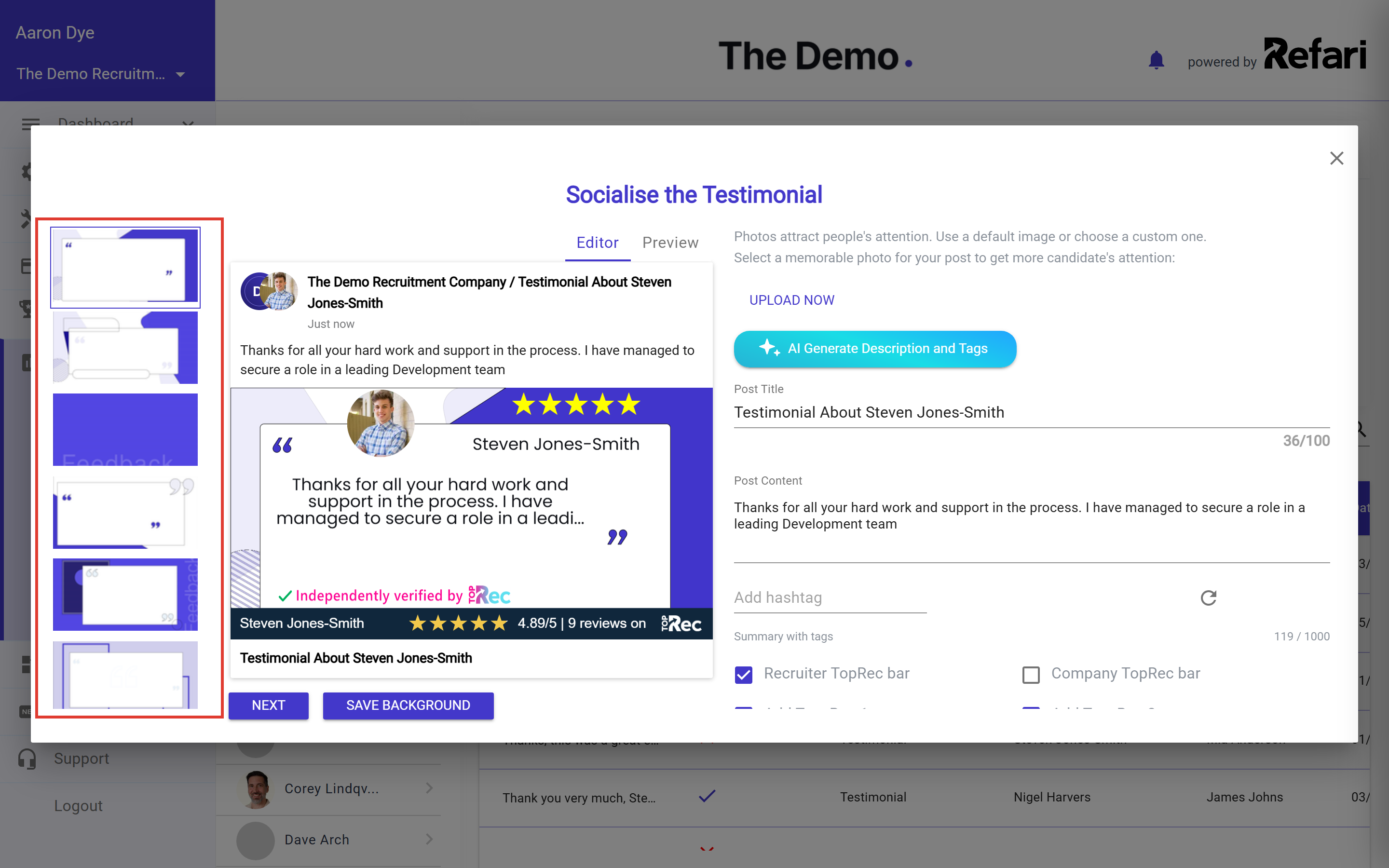
These backgrounds come from your company’s Socialise templates. If you would like your own branded designs in this list, How to set up Socialisation templates ↗ shows you how to add them. You can also upload a one-off image with UPLOAD NOW.
On the right you can fine-tune the words that go with the image:
- Post Title and Post Content: the headline and the text of your post. The testimonial text is filled in for you.
- Add hashtag: add the hashtags you want on the post, or use AI Generate Description and Tags to have them suggested for you.
- Recruiter TopRec bar and Company TopRec bar: choose whether the image shows the team member’s overall TopRec rating or your company’s.
Use the Preview tab to see the finished post, then click NEXT.
Note: Very long testimonials are shortened on the image itself so the design stays readable. The full testimonial still appears in the Post Content that goes out with the image.Step 5: Choose where to share it
The second screen is where you pick your channels. You can tick as many as you like:
- Share via Personal Networks: your own Facebook and LinkedIn accounts. For X (formerly Twitter), click the copy icon beside it to copy a link to your post, then paste it into a post on X.
- Share via Company Networks: your company’s Facebook and LinkedIn pages and X account, chosen from the drop-down lists.
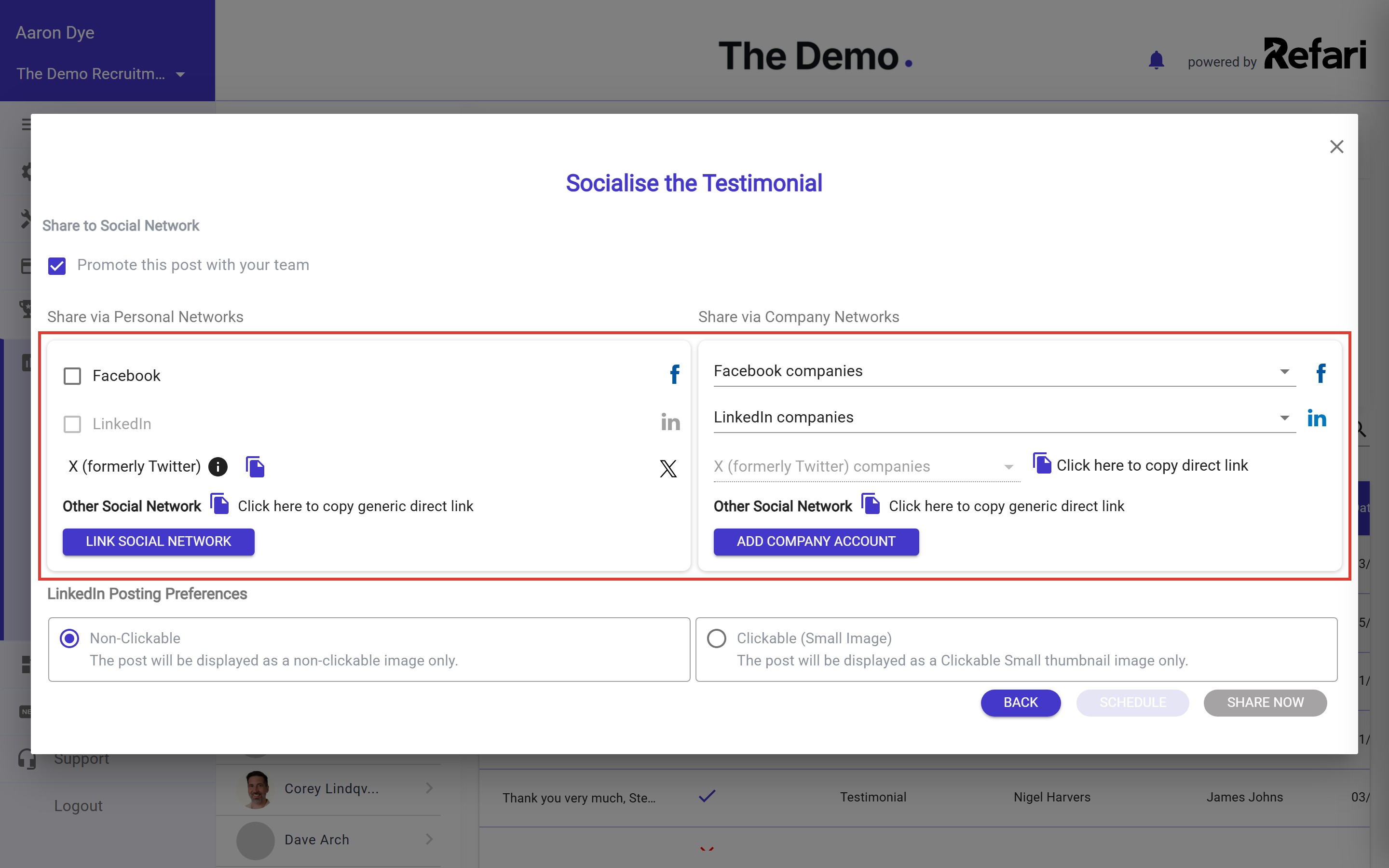
If a network is greyed out, it is not connected yet. Click it, or click LINK SOCIAL NETWORK, to connect a personal account, or ADD COMPANY ACCOUNT to connect a company page. Under LinkedIn Posting Preferences you can also choose whether the image appears on LinkedIn as a large non-clickable image or a smaller clickable thumbnail.
Leave Promote this post with your team ticked to email your colleagues a link to the post so they can like and comment on it. Early engagement helps the networks show your post to more people, and How and why to get your team to like a socialisation ↗ explains why that matters.
Step 6: Share now or schedule it
Click SHARE NOW to post straight away, or click SCHEDULE to pick a date and time for the post to go out, which is handy for keeping a steady rhythm of posts without having to be at your desk.
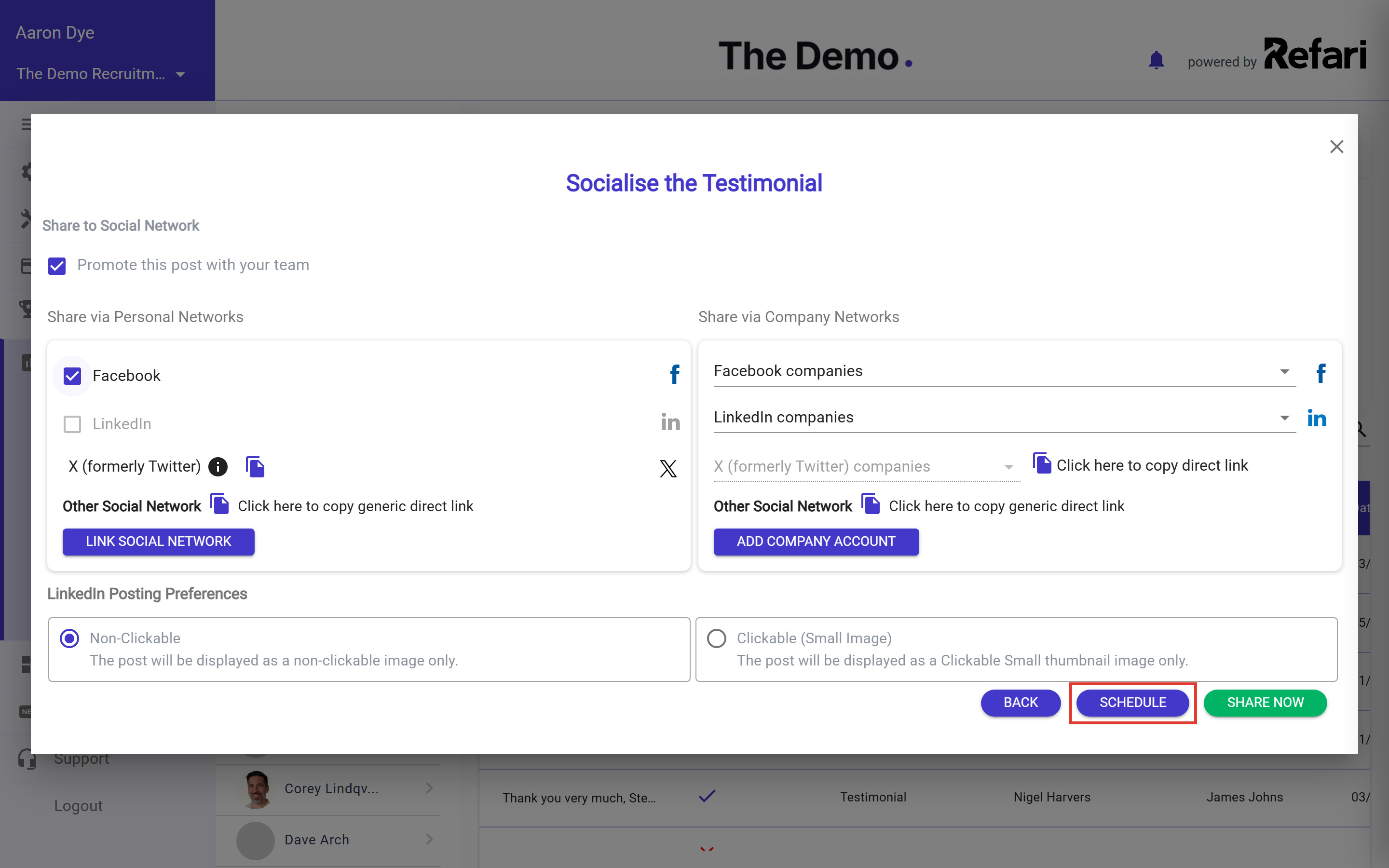
For a walkthrough of choosing the date and time, and changing a scheduled post later, see Socialise Schedule ↗.
Done! Your testimonial is on its way to the networks you chose. You can see your socialisations, including scheduled ones, under Dashboard > Smartlinks.Where to share your testimonials
The more places a good testimonial appears, the more work it does for you. Aim to cover as many of these as you can:
| Where | Why it works | How |
|---|---|---|
| Your personal profiles | Your own network already knows you, and posts from a real person often get more engagement than posts from a company page. | Tick your Facebook or LinkedIn account under Share via Personal Networks (Step 5). |
| Your company pages | Builds the reputation of the whole team and reminds your followers of the results you deliver. | Pick your pages under Share via Company Networks (Step 5). |
| Anywhere else | Reaches people on other networks, in newsletters or in a message to a candidate. | Copy the direct link (below) and paste it with your own message. |
| Your website | Candidates and hiring managers check your site before they get in touch. | Add the testimonials widget. Each team member’s profile page also shows the testimonials about them. |
| Review sites | Public reviews on Google, Facebook and LinkedIn work for you in search results too. | TopRec invites people who leave a high rating to post it as a public review as well. |
Idea: Share each testimonial twice: to the personal profile of the team member it is about, and to your company page. It takes no extra effort, as you can tick both in the same step.Sharing with the direct link
To share somewhere that is not in the list, go to the Share to Social Network screen and click Click here to copy generic direct link next to Other Social Network. This copies a link to your post that you can paste anywhere.
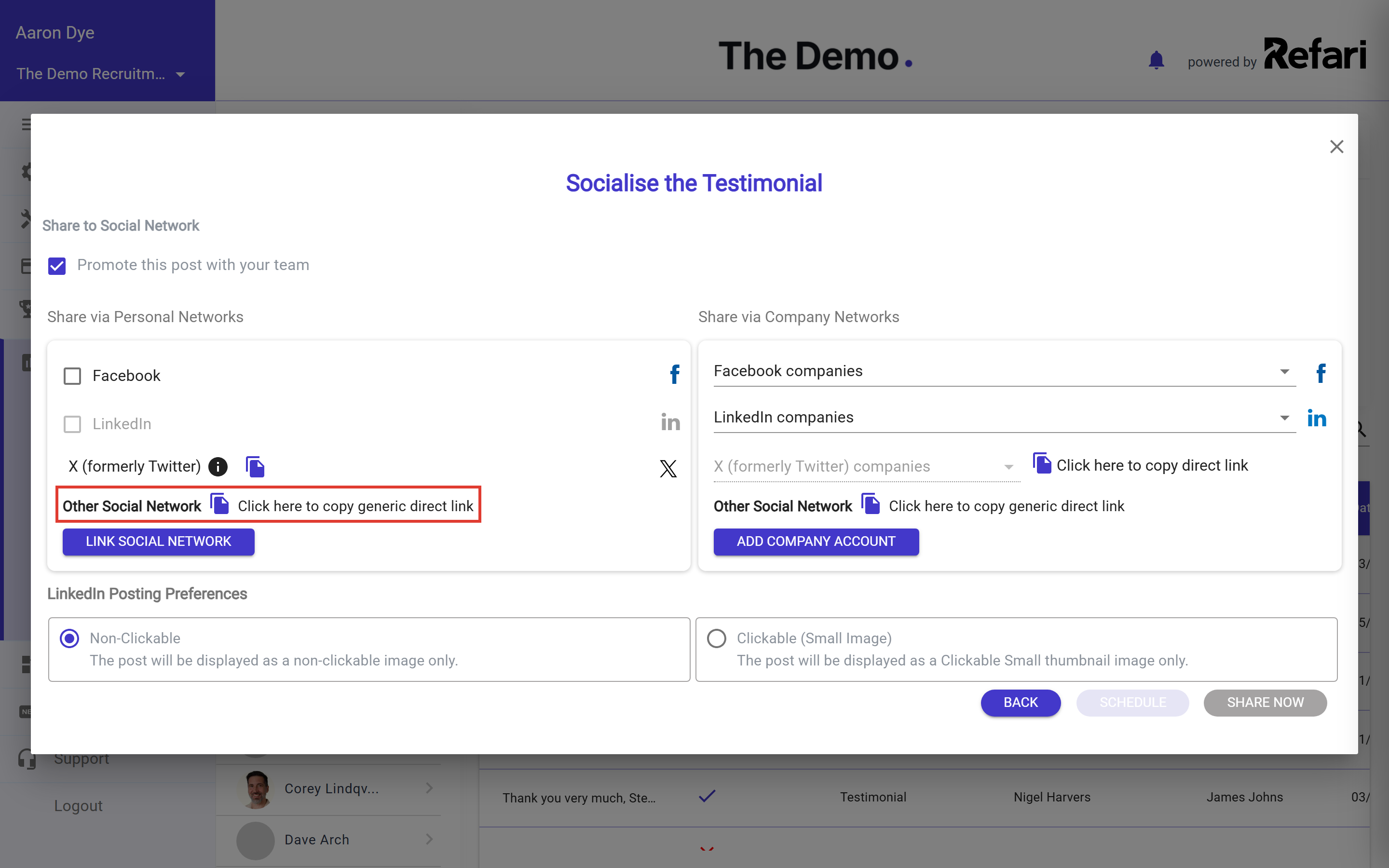
Other ways to Socialise Jobs and Testimonials! ↗ shows this in action, step by step.
Showing testimonials on your website
To add testimonials to your site, see Testimonials Widget: how to install it and the customisation available ↗.
Turning testimonials into public reviews
How to reply to testimonials and convert more into Google, Facebook and LinkedIn reviews ↗ explains how to turn more of your testimonials into reviews on Google, Facebook and LinkedIn.
Final Notes
Little and often works best. Sharing a testimonial or two each week, mixing feedback from candidates and hiring managers, keeps your profiles fresh without feeling like a hard sell. Ask your team to like and comment on each post, and make sure every team member shares the testimonials written about them to their own network.
Other articles you might be interested in: Other ways to Socialise Jobs and Testimonials! | How to socialise your Job advert | How and why to get your team to like a socialisation
Was this article helpful?
That’s Great!
Thank you for your feedback
Sorry! We couldn't be helpful
Thank you for your feedback
Feedback sent
We appreciate your effort and will try to fix the article