Refari AI, the assistant that opens from Ask AI in your dashboard, now has a monthly budget of its own, shared by everyone in your company. This guide explains how that budget works, how it sits alongside each recruiter's personal AI allowance, how a Company Admin checks and changes it, and what your team sees when it runs low.
What changed
Refari AI used to spend each recruiter's personal AI allowance: the same allowance that pays for writing job adverts and candidate adverts. A busy afternoon in the assistant could use it up, and leave that recruiter's Generate buttons greyed out for the rest of the month.
Refari AI now draws on a single monthly budget for your whole company instead. However much anyone uses the assistant, it never touches their personal allowance, so their other AI tools keep working.
Two budgets, and what each one pays for
| Refari AI budget | Personal AI allowance | |
|---|---|---|
| Belongs to | Your whole company. One shared pool. | Each recruiter, individually. |
| Pays for | Everything anyone asks Refari AI. | AI on job adverts and candidate adverts, socialising, AutoSuggest and AI Retouch. |
| Named on the billing page | Global AI Assistant | Allocate a budget to users |
| Starts at | $25 a month | Whatever your company set for each recruiter |
Both budgets reset at the start of each calendar month. On your invoice nothing changes: assistant use still shows against the person who used it, as it did before.
Checking and changing the budget
The budget lives on the billing pages, so it is looked after by a Company Admin. Recruiters cannot change it, which is deliberate: otherwise the person who has run out could simply raise their own limit.
- In the left-hand menu, open Billing and click AI Budget.
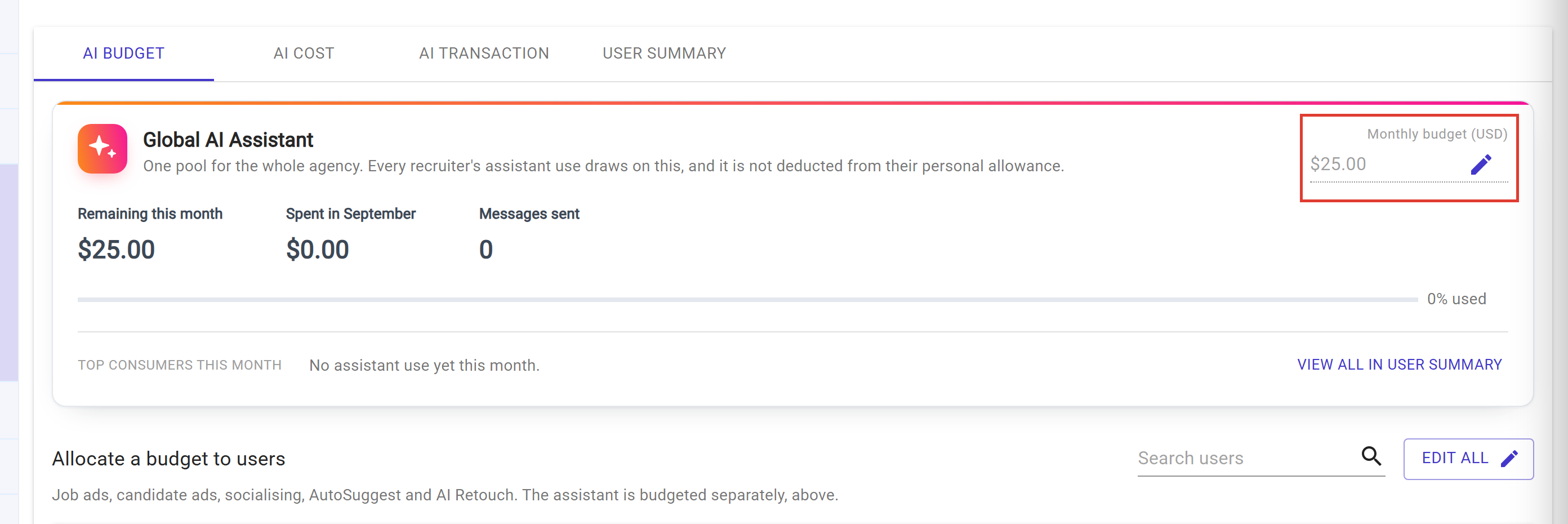
- On the AI Budget tab, the Global AI Assistant card sits at the top.
- To change the budget, click the pencil next to Monthly budget (USD), type the new amount in dollars (for example 50, or 37.50) and confirm it.
The new amount applies straight away, including to anyone who had already run out this month. You cannot set it below what has already been spent this month; Refari tells you the current figure if you try.
The card also shows you where the month stands:
| On the card | What it tells you |
|---|---|
| Remaining this month | How much of this month's budget is left. |
| Spent in (this month) | How much your company has used so far this month. |
| Messages sent | How many messages your team has sent to Refari AI this month. Its replies are not counted. |
| The bar and % used | The bar fills as the budget is used. It turns amber at 75% and red at 90%, and the card explains what happens next. |
| Top consumers this month | The three people who have used the most. View all in User Summary lists everyone's assistant use for the month. |
Note: Because the budget is shared, it runs out for everyone at once, not just the heaviest users. If the bar turns amber early in the month, check Top consumers this month before you raise it, so you know where the use is coming from.Asking the assistant instead
You no longer have to open the Billing page to see these figures. Ask Refari AI and it reads them for you:
- "How much of the AI budget have we used this month, and who used it?"
- "Show me my last three invoices."
- "Do we have anything unpaid?"
- "What card is on file?"
- "What did AI job adverts cost us in September?"
Answers come back with the figures themselves and a link to the right Billing tab.
Who sees what
This follows the Billing page, so nobody learns anything through the assistant that they could not already open:
- Company Admins get everything: invoices, who was on them, unpaid items and the billing account.
- Managers get the AI budget and AI spend, including who used it. Invoices stay an admin view.
- Everyone else gets their own AI allowance, plus the company pool's headline figures without names.
Every one of these questions only reads. Nothing is paid, no card is touched and no budget is changed by asking.
What your team sees in Refari AI
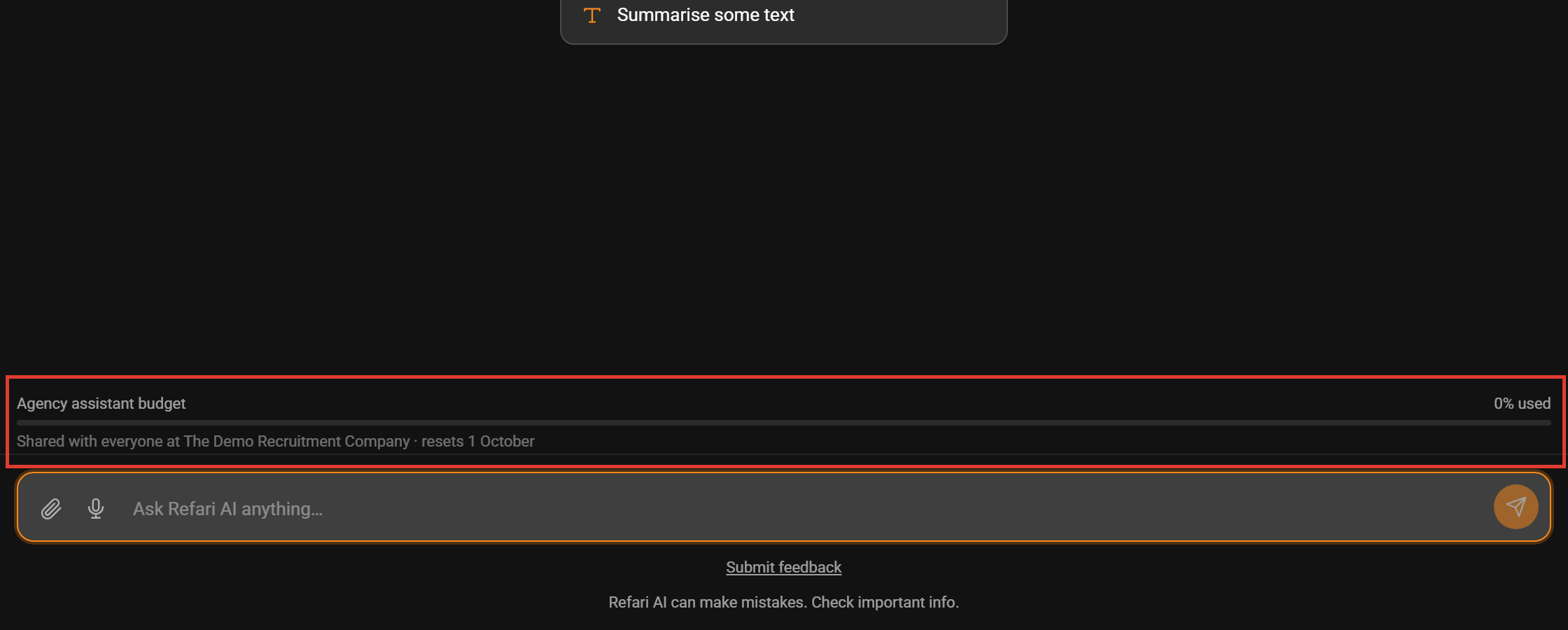
At the bottom of the Refari AI panel, just above the message box, everyone sees the Agency assistant budget: how much of this month's budget has been used, the name of the company it is shared with, and the date it resets.
When the budget is used up
- Refari AI pauses for everyone in your company until the budget is raised or the month resets.
- A message above the message box reads Your agency's assistant budget is used up, and says who can raise it and when it resets. The message box itself reads Paused until your agency's budget is raised.
- If someone was mid-conversation, Refari AI answers their last message with the same explanation, so no question is left without a reply.
- Everyone's personal AI allowance is unaffected, so Generate on job adverts and candidate adverts keeps working.
Once a Company Admin raises the budget, recruiters only need to close the Refari AI panel and open it again. The assistant is available straight away, and the conversation they were in is still there.
Final Notes
$25 is a starting point, not a recommendation. A small team using the assistant now and then may never come close to it, while a larger team that leans on it every day will want more. Look at the card after your first few weeks, and set the budget to match how your team really uses Refari AI.
Other articles you might be interested in: Meet Refari AI | Allocating AI Budget | How to Review Your Invoices and Manage Billing Details in Refari
Was this article helpful?
That’s Great!
Thank you for your feedback
Sorry! We couldn't be helpful
Thank you for your feedback
Feedback sent
We appreciate your effort and will try to fix the article