This article explains what a job board's Base URL is, what it controls, and how to give each of your job boards its own. It is worth setting correctly because this single field decides which web address Refari uses when it builds links in the automatic emails it sends to your candidates and referrers.
A few quick definitions first. A job board is the careers board on your website where your Refari widget is embedded, the page where visitors browse and apply for your roles. A widget is the Refari element placed on that page to display the board. A transactional email is an automatic email Refari sends off the back of an action, such as a job alert, an application confirmation, or a referral update. A referrer is someone who recommends a candidate to you for one of your roles.
What the Job Board Base URL does
When Refari sends a transactional email to a candidate or referrer, it often includes a link back to your job board, for example a link to the job someone applied for, or to your wider careers board. The Job Board Base URL is the web address Refari uses to build those links. It should be the address of the page on your website where that job board's widget is embedded, for example https://www.yourcompany.com/careers/.
In short, the Base URL makes sure the links in your emails send people to your own embedded job board, on the right page, rather than to a generic or fallback address.
Why each job board can have its own
Many companies run more than one job board on Refari. You might have a main careers board, a separate board for a particular brand or region, or a private internal board for your own people. Each of those boards is usually embedded on a different page of your website, and sometimes on a different website altogether.
Each board can now hold its own Base URL. That means the links in emails relating to a given board point to the page where that board actually lives, rather than every board having to share one compromise address. You set the Base URL board by board.
How to set a job board's Base URL
- In your Refari dashboard, go to Settings > Job Board Settings.
- Switch on Job Board Details to expand the section.
- From the dropdown, choose the job board you want to configure. If you have several, each is listed by name, and your main board is marked Default.
- In the Job Board Base URL field, enter the full web address of the page where that board's widget is embedded. Use a complete URL beginning with https://, for example https://www.yourcompany.com/careers/.
- Save your changes.
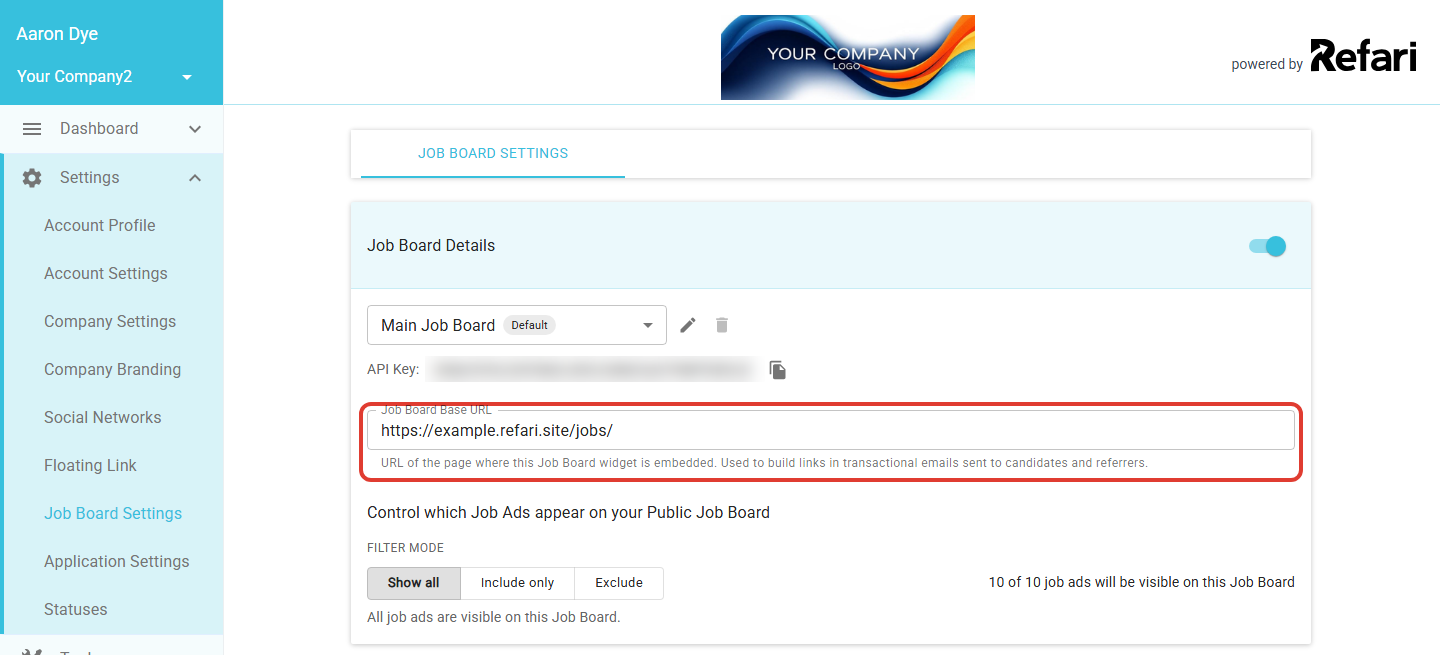
Note: The helper text beneath the field is a handy reminder of its purpose: "URL of the page where this Job Board widget is embedded. Used to build links in transactional emails sent to candidates and referrers." If you are not sure where a board is embedded, check the page on your website that displays that job board and copy its address.Adding, renaming, and removing boards
Next to the board dropdown you will find controls to add a new job board, rename the selected board (the pencil icon), or delete it (the bin icon). A few boards cannot be deleted, including your Default board and any board tied to a widget group or used as an internal board. Those are labelled in the list so you can tell them apart at a glance.
Idea: The same Job Board Details section also lets you control which job ads appear on the selected board, using the visibility filter beneath the Base URL field. So one screen handles both where a board's email links point and what that board shows.Final Notes
If you only run a single job board, you still benefit from setting the Base URL once, so your email links always point to your live careers page. If you run several, take a moment to set each board's Base URL to the page where it is embedded. If you are unsure which address to use for a board, our support team is happy to help you confirm it.
Other articles you might be interested in: How to Add an About Page URL to Your Job Board | Setting up brand analytics with Multiple Refari Portals with a Single JobAdder Account
Was this article helpful?
That’s Great!
Thank you for your feedback
Sorry! We couldn't be helpful
Thank you for your feedback
Feedback sent
We appreciate your effort and will try to fix the article