This guide walks you through updating the content of your Refari-built website using Elementor. Elementor is the drag-and-drop page builder your site is built with: it lets you change text, images and layout visually, without touching any code.
Getting started
- Log in to your WordPress dashboard at yoursite.com/wp-admin.
- Find the page you want to edit. If it is the homepage, it is linked directly from the dashboard.
Editing a page
Step 1: Open the page in Elementor
On the page you want to change, click Edit with Elementor. The Elementor interface opens with a visual layout of the page structure on the right.
Note: the structure navigation is not always visible on the right straight away. If you do not see it, click the icon in the top left, highlighted below.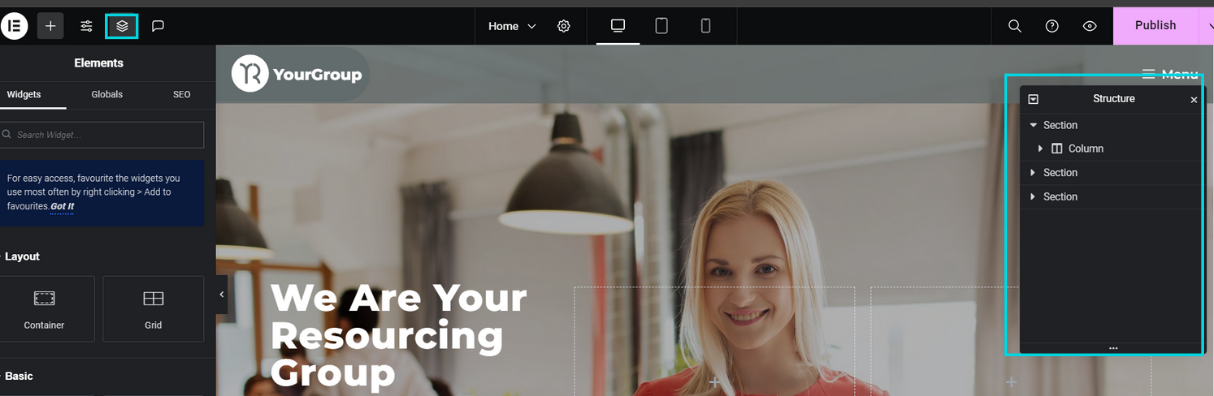
Step 2: Select the block you want to change
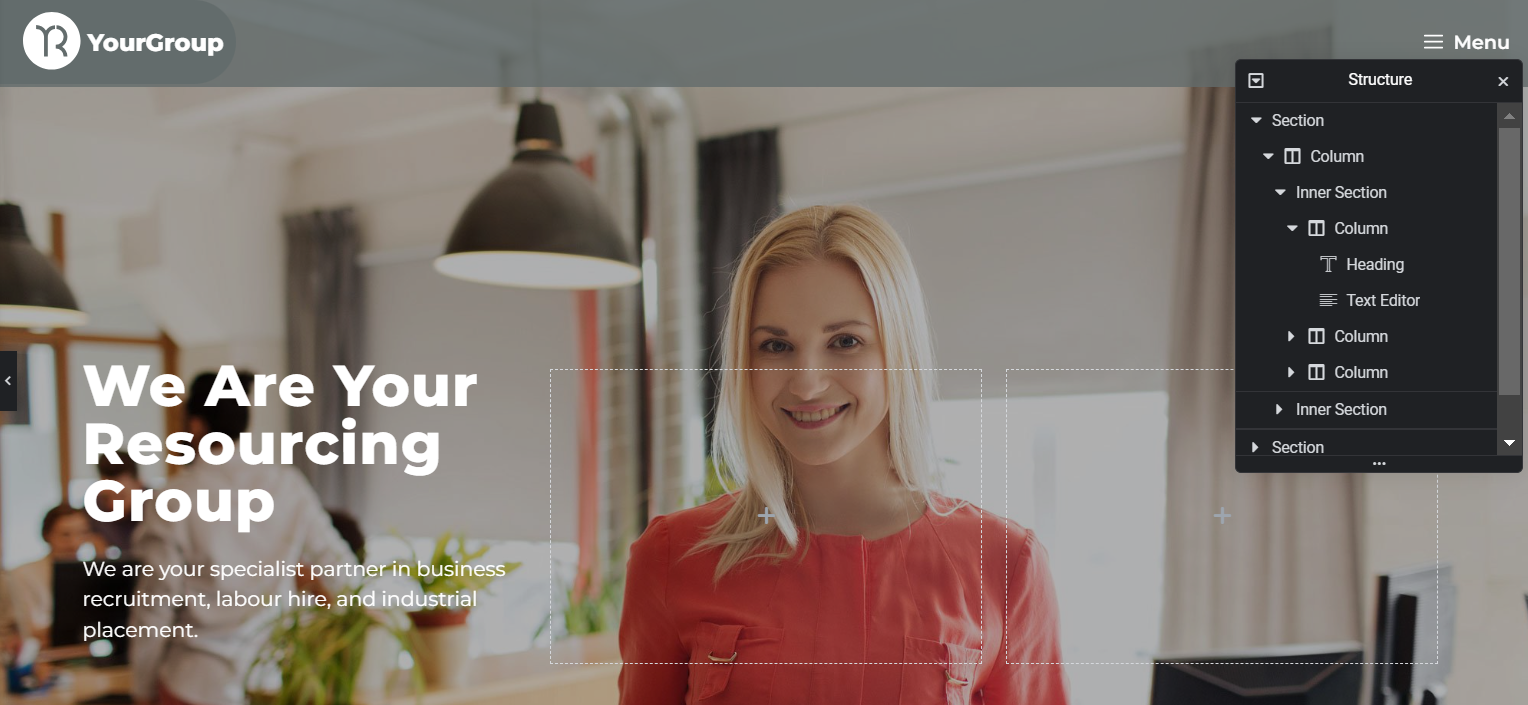
Use the navigation to find the content block you want to modify. Clicking a section highlights it, which means it is ready to edit.
Step 3: Edit text and headings
Click the specific element you want to change, such as a heading. Make your change in the left-hand Elementor panel, not by typing directly onto the page.
Step 4: Update images and other elements
Image boxes and other elements work the same way. Select the element, then use the left-hand panel to adjust the title, description or image.
Previewing and publishing
- Click Preview to see your changes as a visitor would, before they go live.
- When you are happy, click Publish to make them live.
Tip: if your change does not appear on the live site straight away, it is usually the cache rather than a lost edit: see Changes you make not appearing on the live site.Other articles you might be interested in:
Was this article helpful?
That’s Great!
Thank you for your feedback
Sorry! We couldn't be helpful
Thank you for your feedback
Feedback sent
We appreciate your effort and will try to fix the article