This article explains how to check that a tracking code has been added correctly to your Refari-built website. A tracking code is a small script from a service such as Google Analytics or the Meta Pixel that records how people use your site. If it is missing or sitting in the wrong part of the page, it quietly collects nothing, so it is worth confirming rather than assuming.
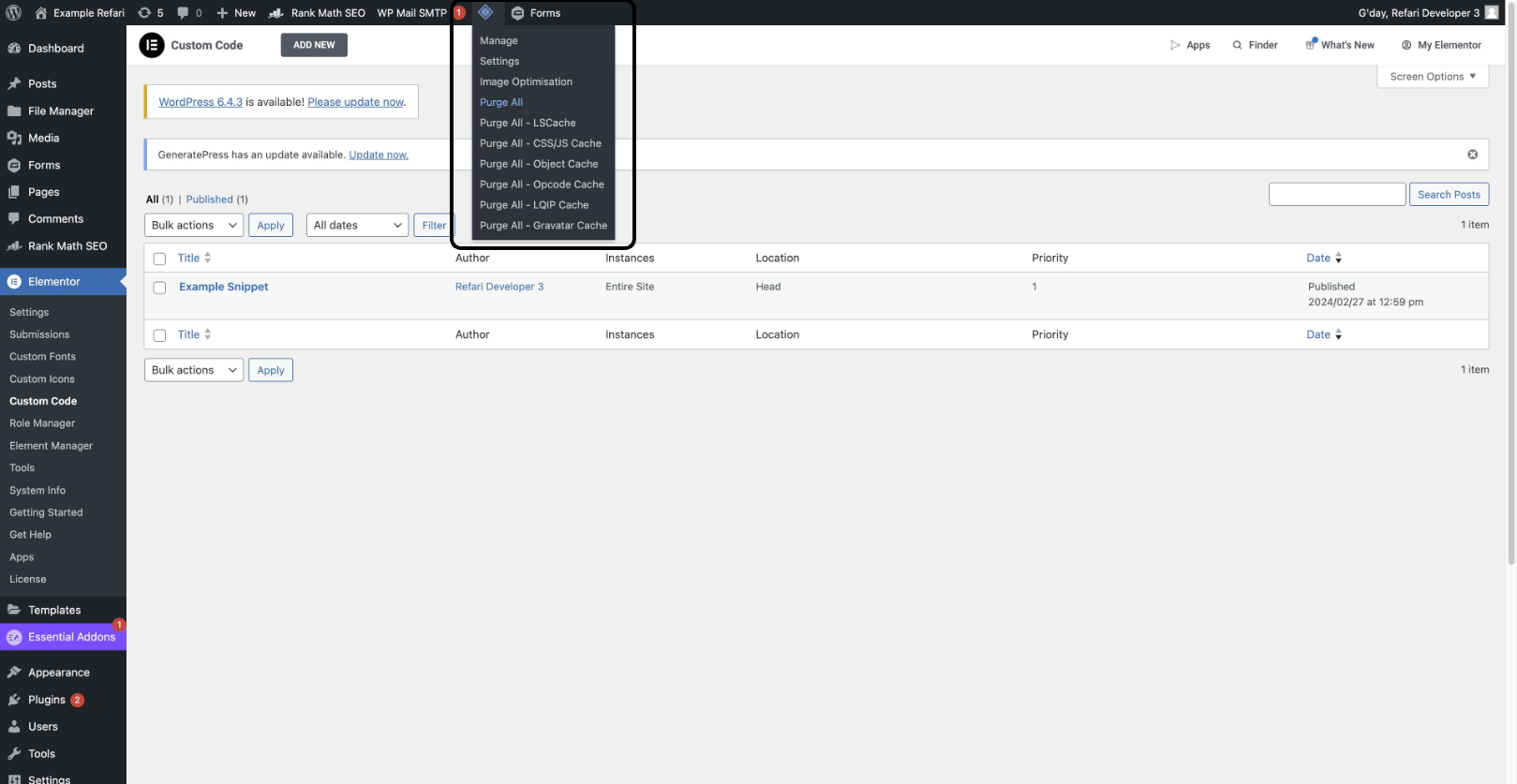
First, clear your website cache
Do this before you check anything. Your site serves a cached copy of each page for speed, and a cached copy will still show the old code, so you can easily conclude the code is missing when it is actually there.
How to verify the code
Step 1: Open the page you added the code to
Go to your homepage, or whichever page you placed the tracking code on.

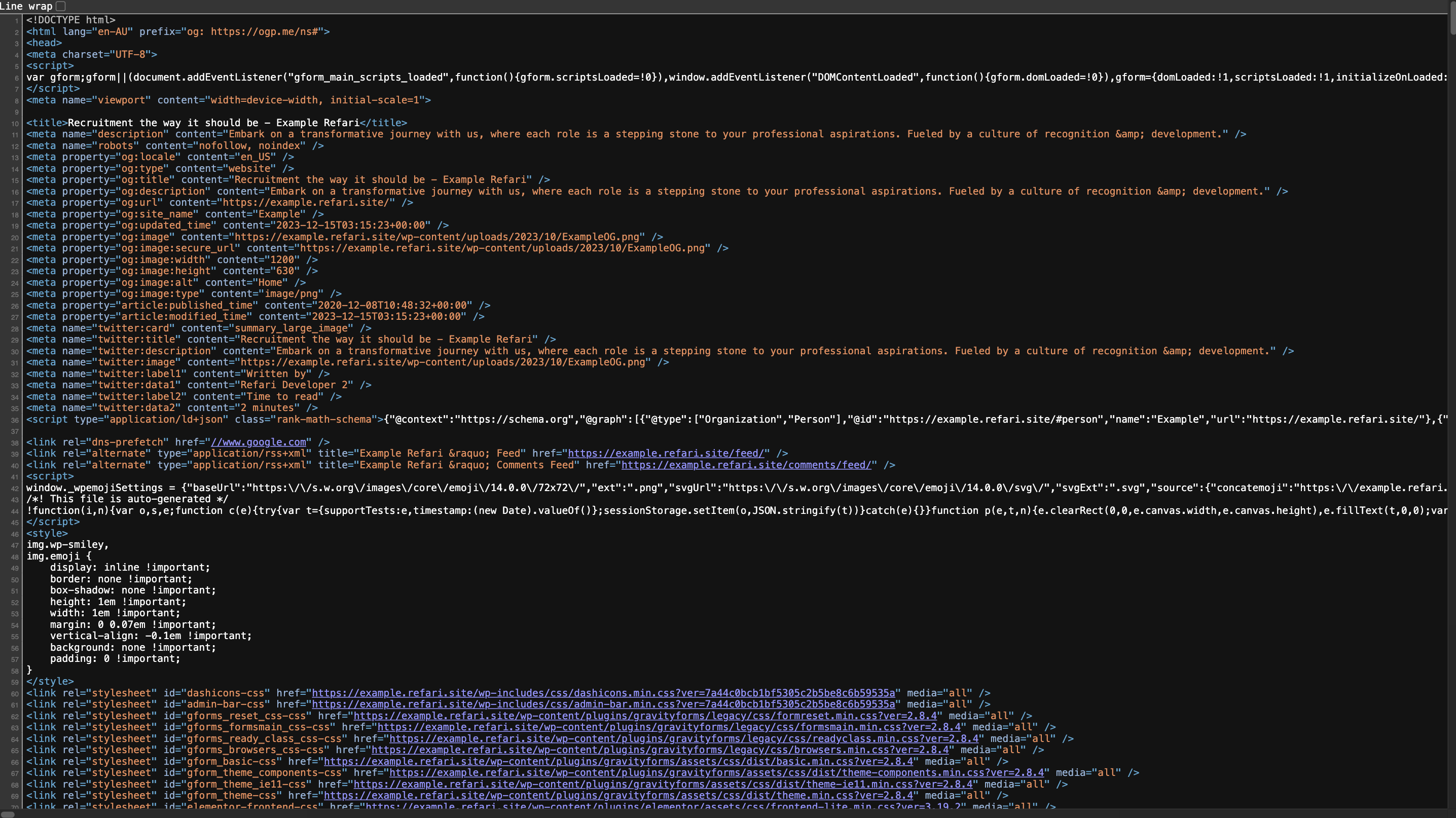
Step 2: View the page source
Right-click anywhere on the page, avoiding images and links, and choose View Page Source. A new tab opens showing the page's HTML. You can also use Ctrl+U on Windows or Cmd+Option+U on a Mac.
Step 3: Copy a distinctive part of your tracking code
Go back to the snippet your provider gave you and copy a short, unmistakable piece of it, such as the measurement ID. A short fragment is easier to search for than the whole script.
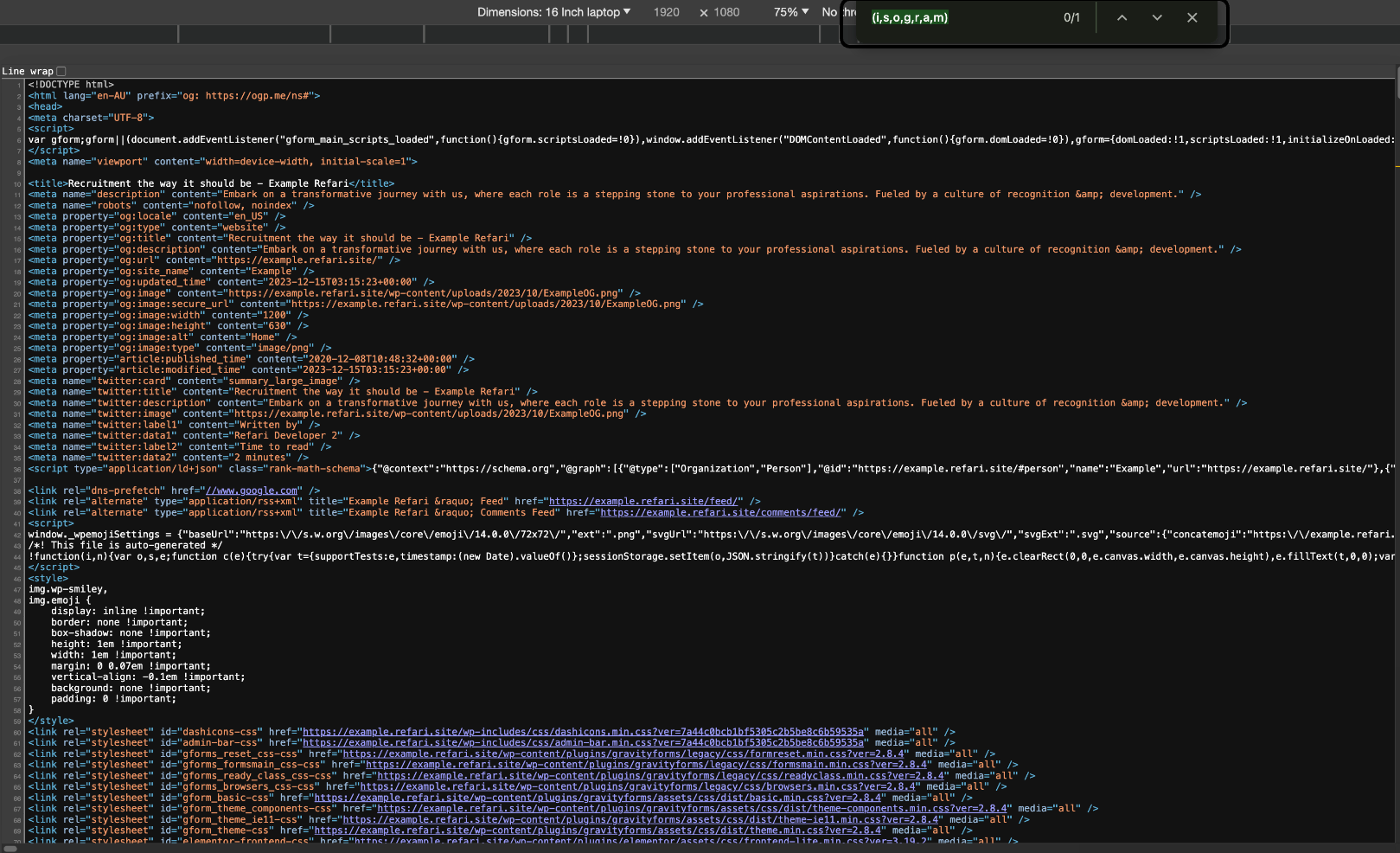
Step 4: Search the source for it
In the page source tab, press Ctrl+F, or Cmd+F on a Mac, and paste what you copied. Any match is highlighted.
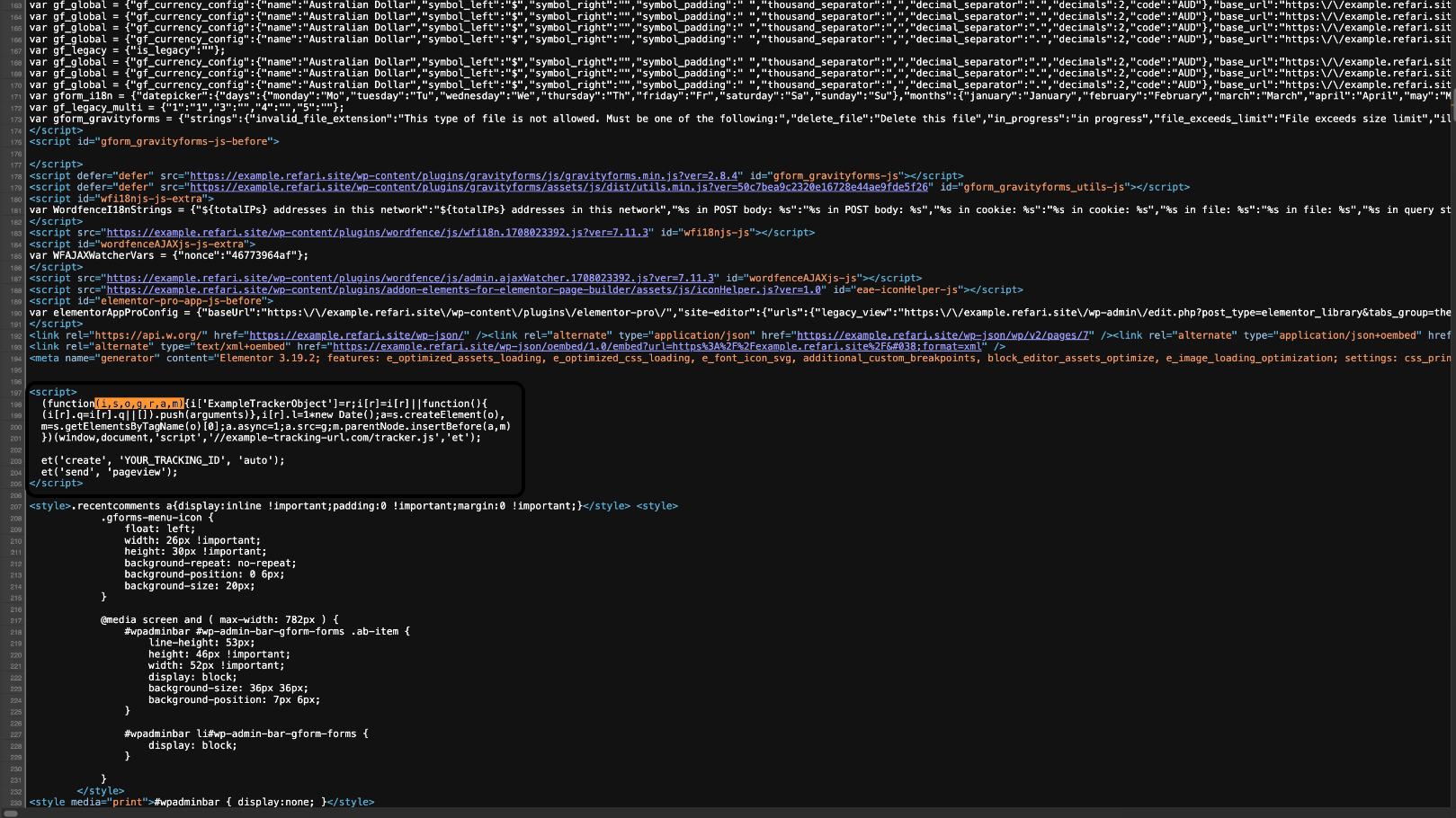
Note: if you cannot find the code, clear the cache once more and reload the source before assuming it failed. A stale cache is the most common cause of a code that looks missing.Other articles you might be interested in:
Was this article helpful?
That’s Great!
Thank you for your feedback
Sorry! We couldn't be helpful
Thank you for your feedback
Feedback sent
We appreciate your effort and will try to fix the article