This guide walks you through how imported Google reviews become visible on your website, which reviews Refari can show as testimonials, how to publish an eligible review, and what to check when a review is missing. In this guide, publish means making a review visible in the testimonial widgets on your website.
How Google reviews reach Refari
Refari imports reviews from each connected Google Business profile once a day, at around 2:20am UTC (around midday in Australia). From Monday to Saturday, the import checks for new or changed reviews from the previous day. On Sunday, Refari runs a full re-sync. A review can be imported regardless of how the reviewer reached your Google profile, so it does not need to have come through TopRec.
This guide assumes your Google Business profile is already connected. If it is not, follow How to Integrate Google Reviews with Your Refari Widgets ↗ first.
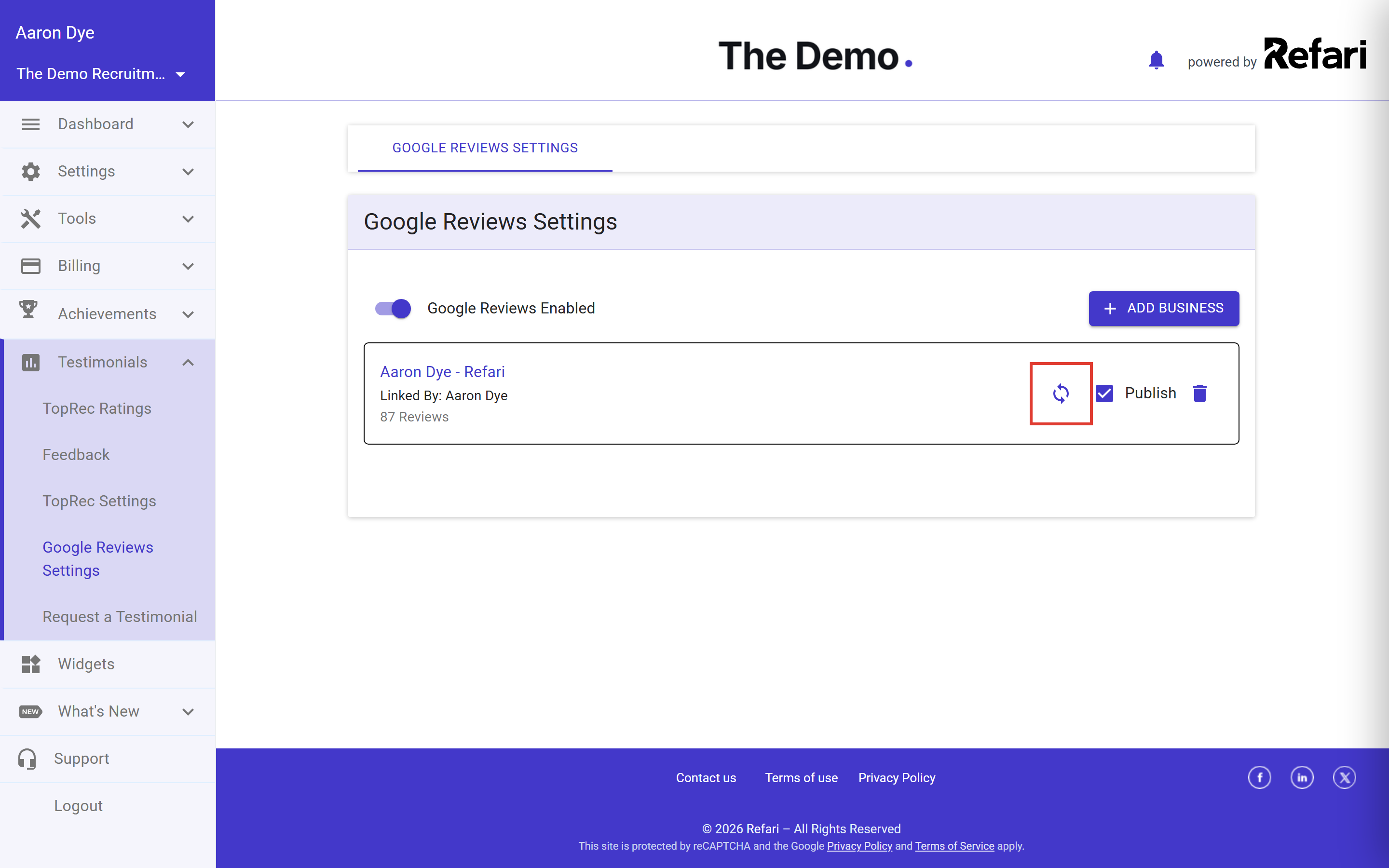
A Company Admin can also use the Sync button on the Google Reviews Settings page to request a full import straight away. After it is used, the button becomes available again after five minutes.
Idea: Use Sync when a new Google review needs to appear in Refari before the next automatic import.Which Google reviews can be published
Only a Google review that is rated exactly 5 stars and includes written feedback can appear as a website testimonial. This rule applies whether you publish the review yourself or use the automatic Publish setting.
| Google review | What happens |
|---|---|
| 5 stars with written feedback, automatic Publish on | Imported and published automatically. |
| 5 stars with written feedback, automatic Publish off | Imported as unpublished. You can publish it from the Google Reviews tab. |
| 1 to 4 stars | Imported, but cannot be published as a testimonial. |
| Any star rating without written feedback | Imported, but cannot be published as a testimonial. |
Note: Reviews with 1 to 4 stars and reviews without written feedback cannot be published as testimonials. This is by design. They are still included in Google rating figures on ratings widgets, because publication status does not affect those figures.How to publish a Google review
Company Admins and Company Managers can publish eligible Google reviews.
- Sign in to Refari.
- Go to Testimonials > Feedback.
- Select the Google Reviews tab.
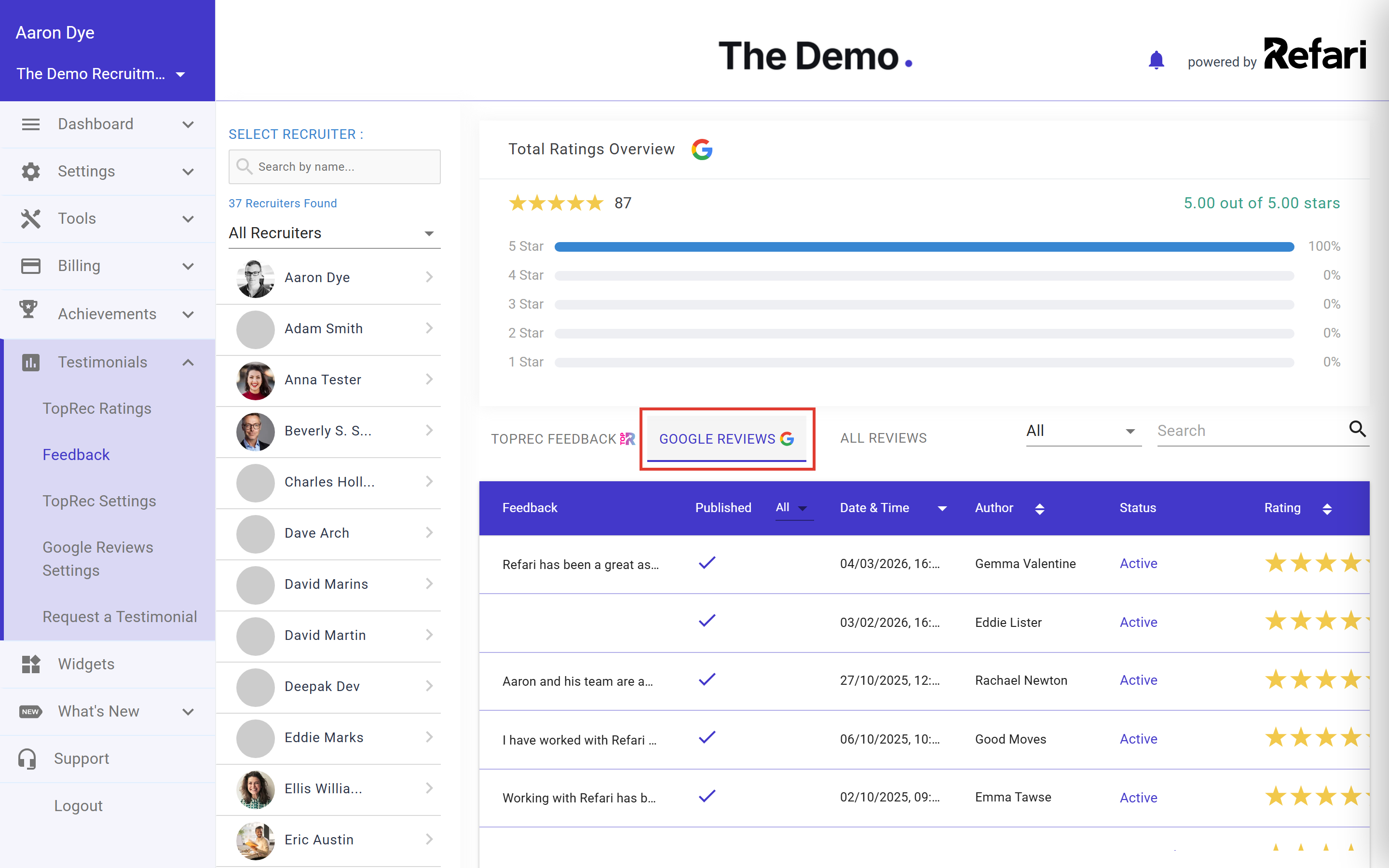
- Open the 5-star review with written feedback that you want to publish.
- Turn on the Publish switch.
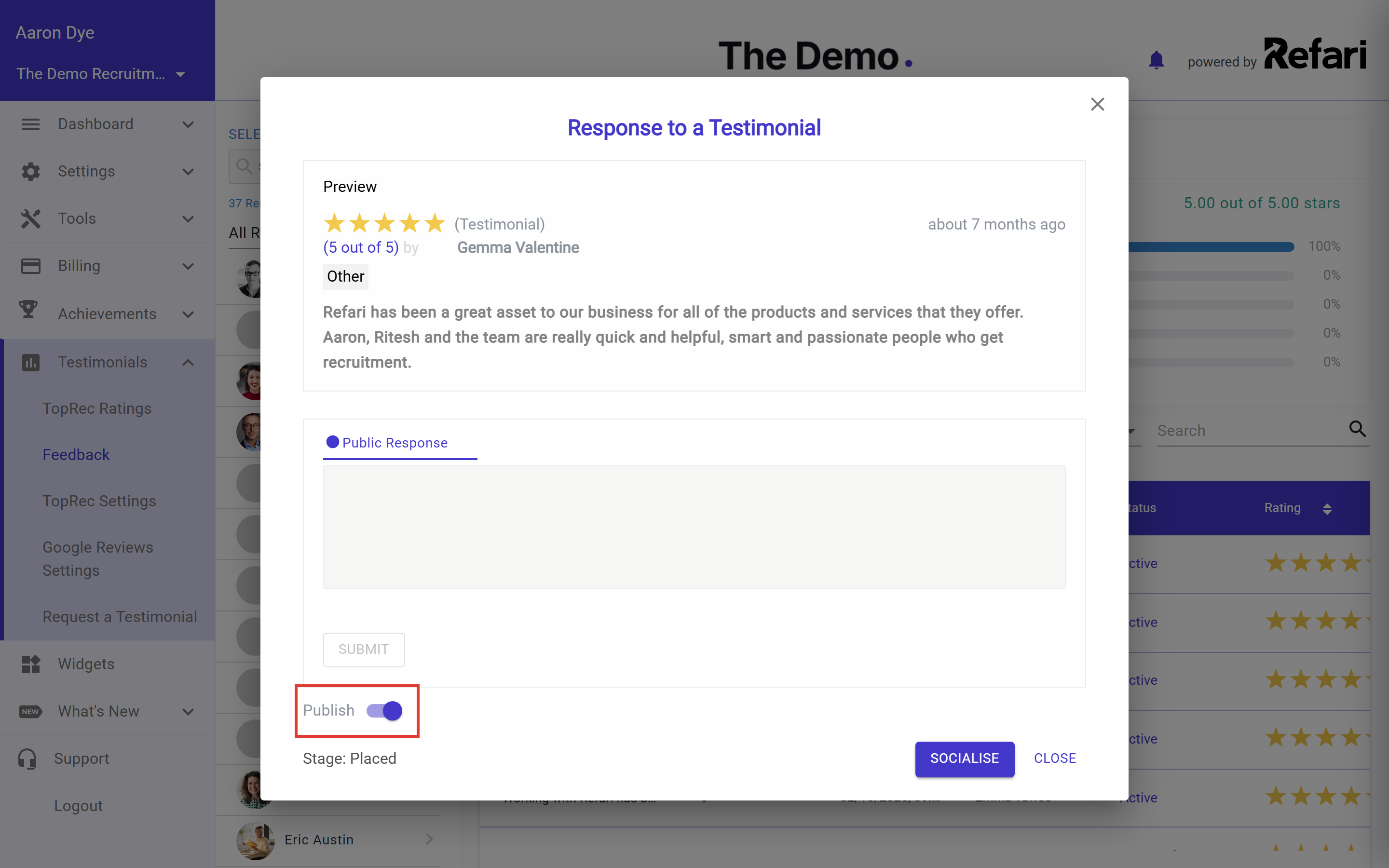
Success: The review is now published. Refari sends published reviews to your website testimonial widgets automatically, so you do not need to edit your website.Turning automatic publishing on or off
A Company Admin can control automatic publishing for each connected Google Business profile.
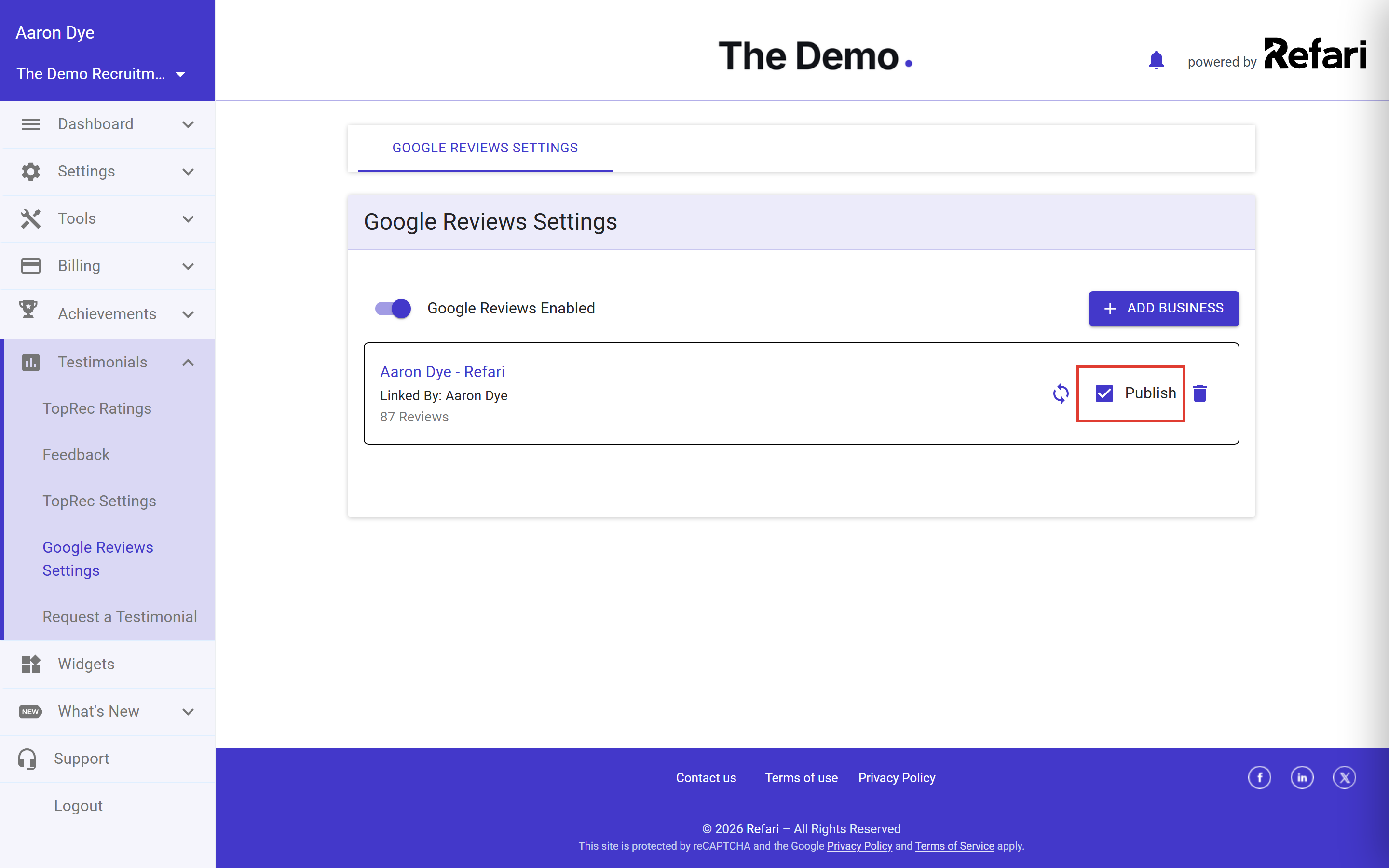
- Go to Testimonials > Google Reviews Settings.
- Find the connected Google Business profile.
- Select Publish to publish all eligible existing reviews and automatically publish future eligible reviews.
- Clear Publish to unpublish the eligible 5-star Google reviews from that profile and stop new ones from publishing automatically.
If a review is still not showing on your website
- It has not been imported yet. Ask a Company Admin to go to Testimonials > Google Reviews Settings and select the Sync button for the connected profile. This requests a full import immediately.
- It has fewer than 5 stars. Reviews with 1 to 4 stars cannot be published as testimonials, even if they include written feedback. They still count towards the Google rating figures in ratings widgets.
- It has no written feedback. A star-only review cannot be published as a testimonial, even when it has 5 stars.
- It has been flagged as suspicious. Refari does not allow a suspicious review to be published. Contact our support team if you believe a review has been flagged incorrectly.
- It was published recently. Website testimonial data is cached for up to 24 hours. Most updates appear sooner, but allow a full day before checking again.
- It belongs to another Google profile, or the connection has dropped. Check that the profile shown in Google Reviews Settings is the one that received the review. If the expected profile is missing, disconnected, or the Google Reviews tab is disabled, follow How to Integrate Google Reviews with Your Refari Widgets ↗ or contact our support team.
Final Notes
The key check is simple: a Google review must have exactly 5 stars and written feedback before it can appear as a website testimonial. If an eligible review has been imported, published and allowed time to refresh but is still missing, contact our support team and tell us which connected Google Business profile received it.
Other articles you might be interested in: How to Integrate Google Reviews with Your Refari Widgets | How to approve a TopRec Testimonial
Was this article helpful?
That’s Great!
Thank you for your feedback
Sorry! We couldn't be helpful
Thank you for your feedback
Feedback sent
We appreciate your effort and will try to fix the article